
Where: an active portfolio in Portfolio Frameworks. Before you start: recognise enough cash for the trust to cover the purchase.
Add an asset
From an active portfolio select Add assets. The page has tabs for Add asset, Drafts, Asset register, Allocation variance, Asset ROI, Portfolio ROI and Bulk upload.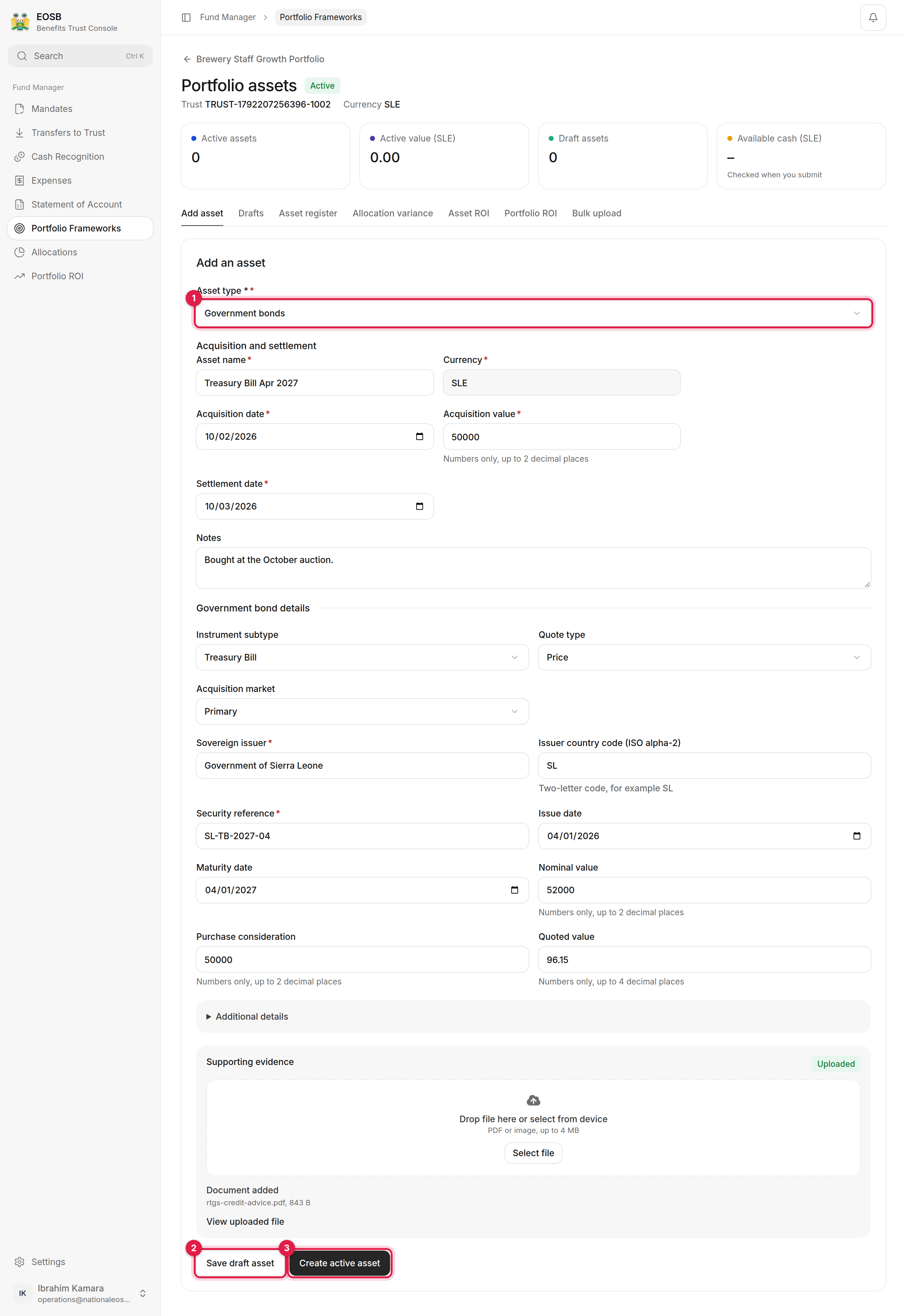
Adding an asset
1
Choose the Asset type (1)
Only types in the portfolio’s policy allocation are offered. The form then shows the fields for that type.
2
Fill in acquisition and settlement
Asset name, acquisition date and value, settlement date and notes. The acquisition date cannot be in the future.
3
Fill in the type's details
For example, for a government bond: instrument subtype, quote type, acquisition market, sovereign issuer, country, security reference, issue and maturity dates, nominal value, purchase consideration and quoted value. Additional details holds optional fields.
4
Upload the supporting evidence
The contract note or certificate.
5
Select Create active asset (3)
Review the summary and select Confirm active asset. The purchase is paid from the trust’s recognised cash. To finish later, select Save draft asset (2).
The Drafts tab lists your draft assets, but you can’t open or activate them from there. To activate a drafted asset, enter it again under Add asset and select Create active asset.
Bulk upload
Bulk upload adds many assets of one type from a CSV file. Download the template for the asset type, fill it in, upload it, and attach one evidence file per asset reference.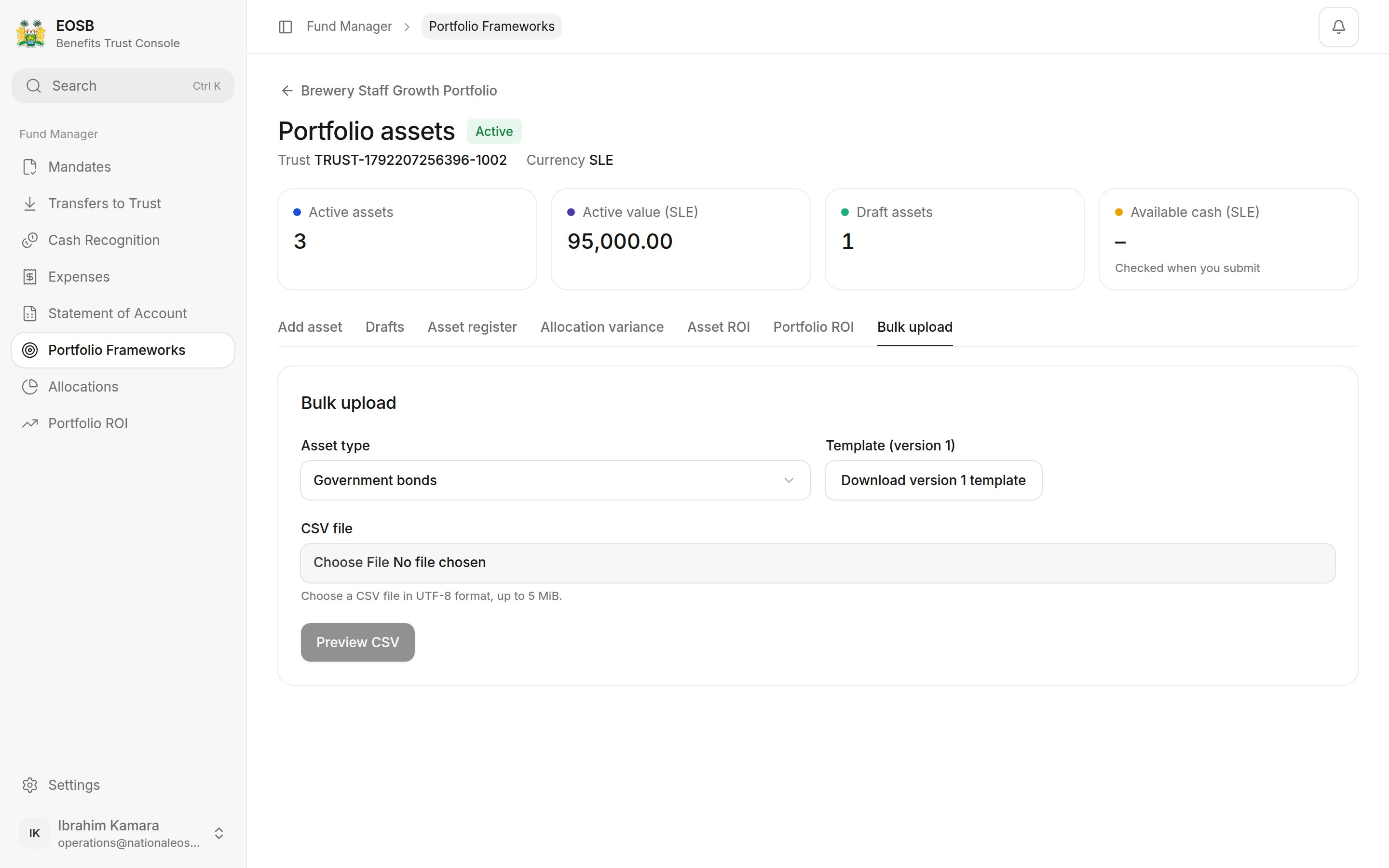
Bulk upload
The asset register
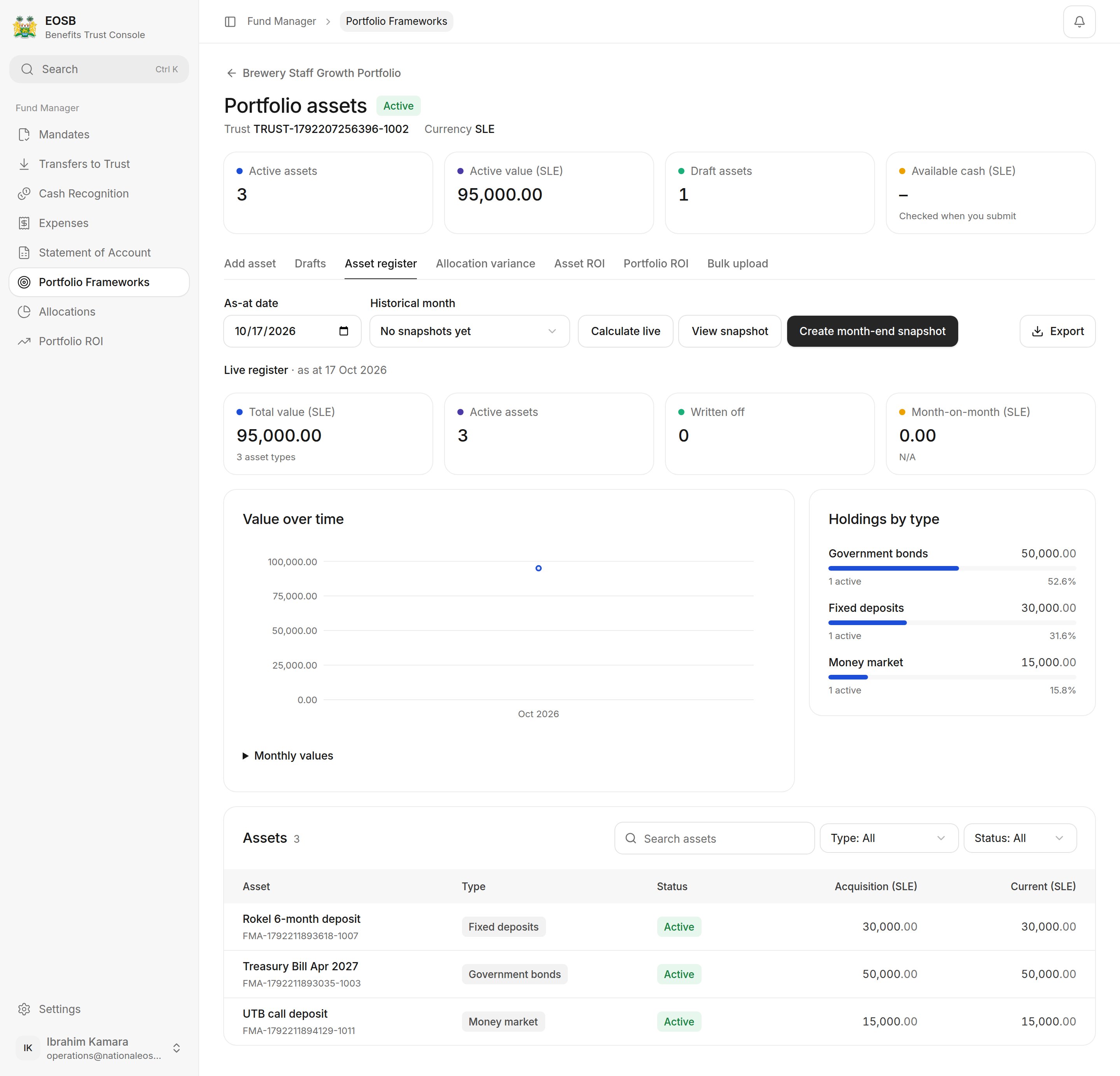
Asset register
Record income
From the portfolio select Record income.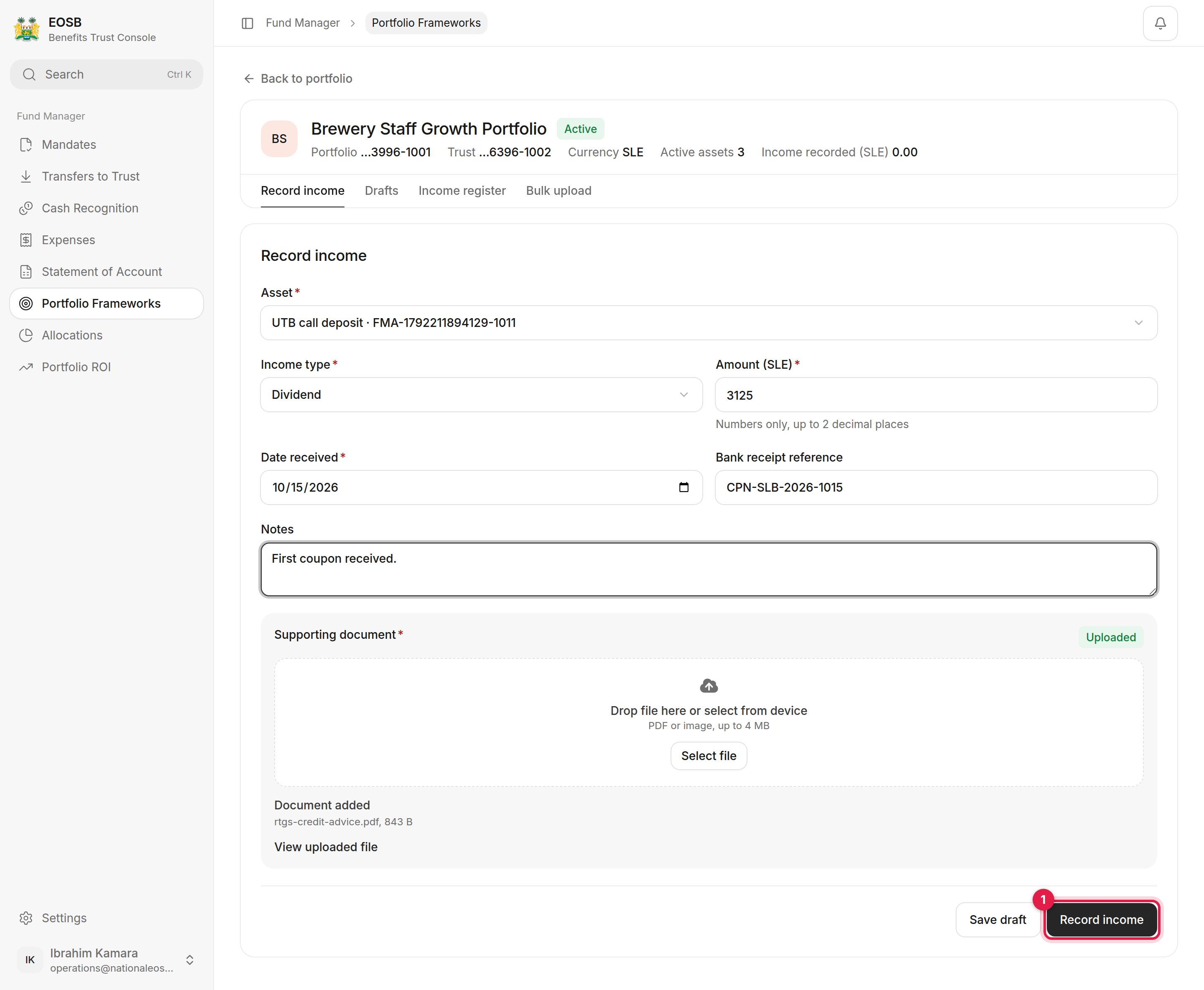
Recording income
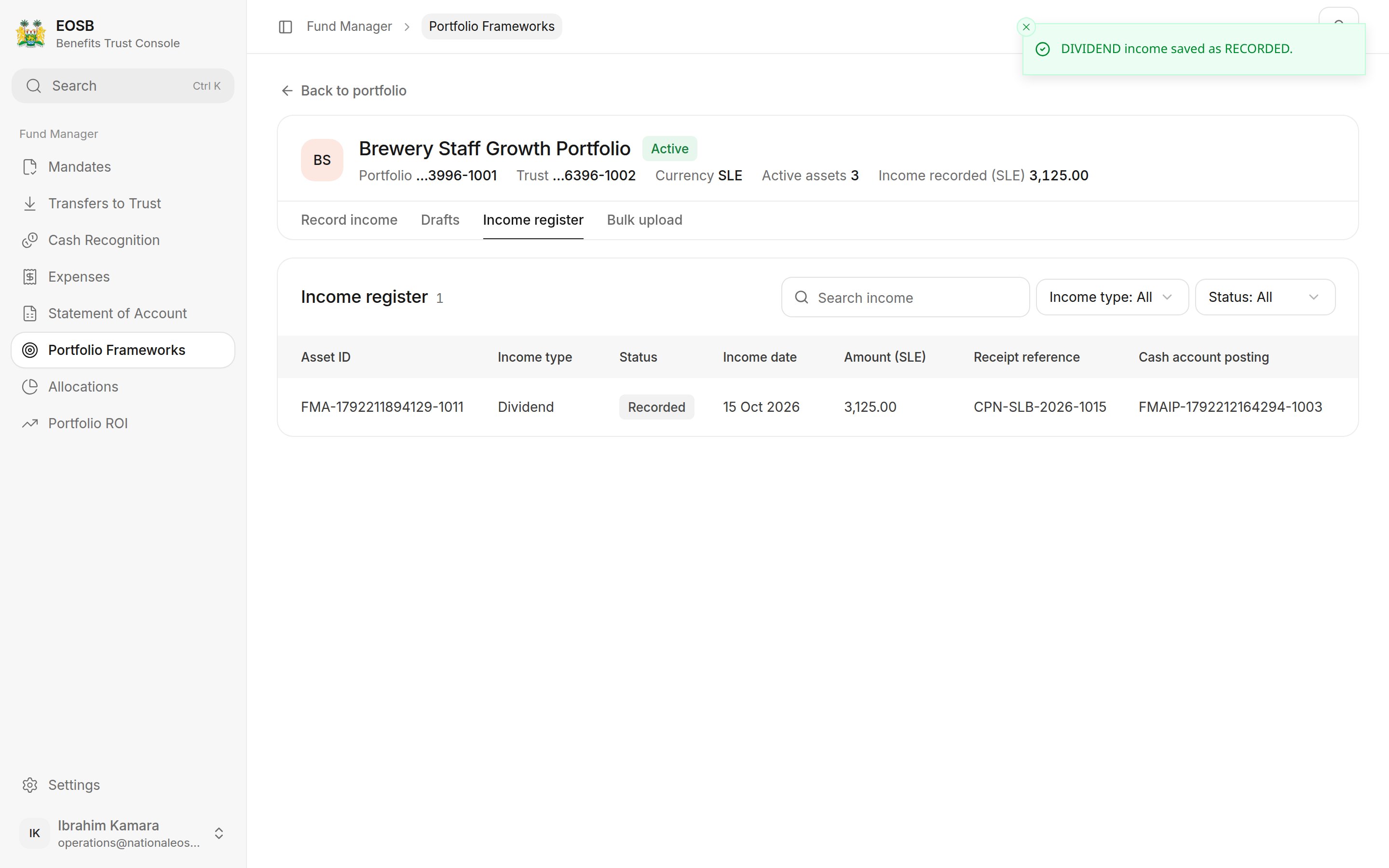
Income register
Record a change in value
From the portfolio select Record valuation.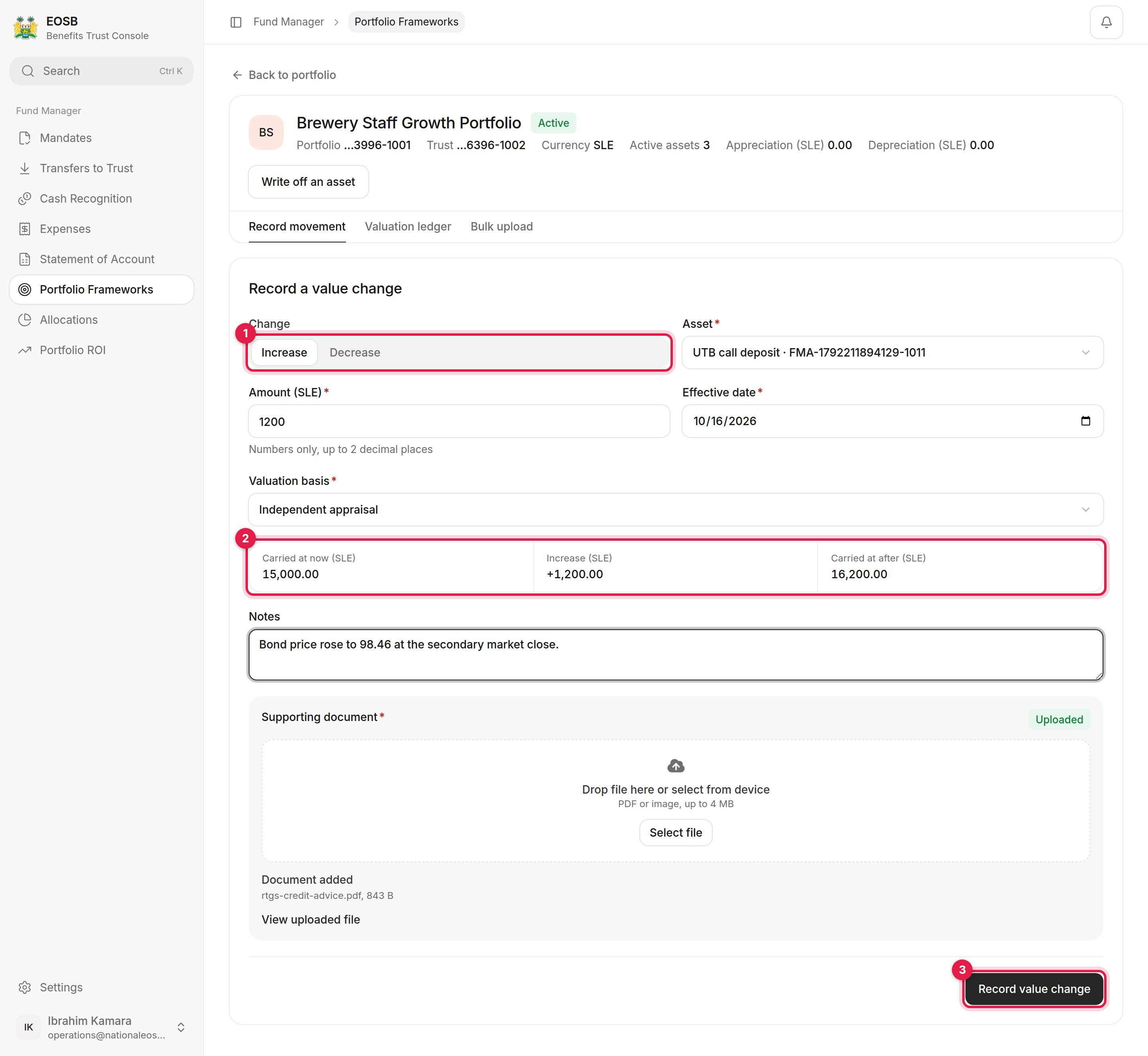
Recording a value change
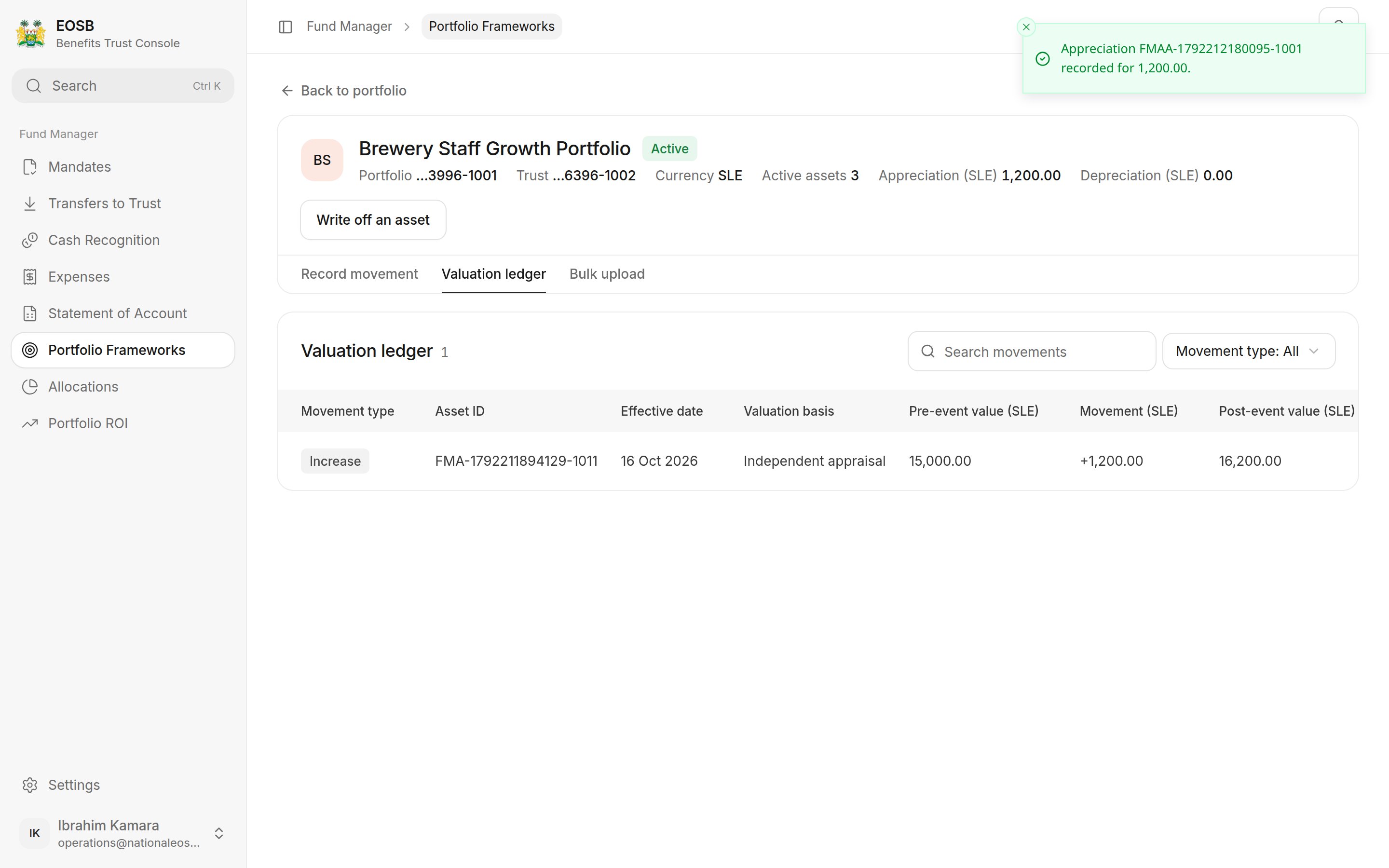
Valuation ledger
Write off an asset
When an asset has lost all its value, select Write off an asset on the valuation page. A write-off takes the carrying value to zero; trust cash does not move.1
Prepare the write-off
Choose the asset, the effective date and the Reason, explain why, and upload the evidence. Select Save write-off.
2
Confirm it with a code
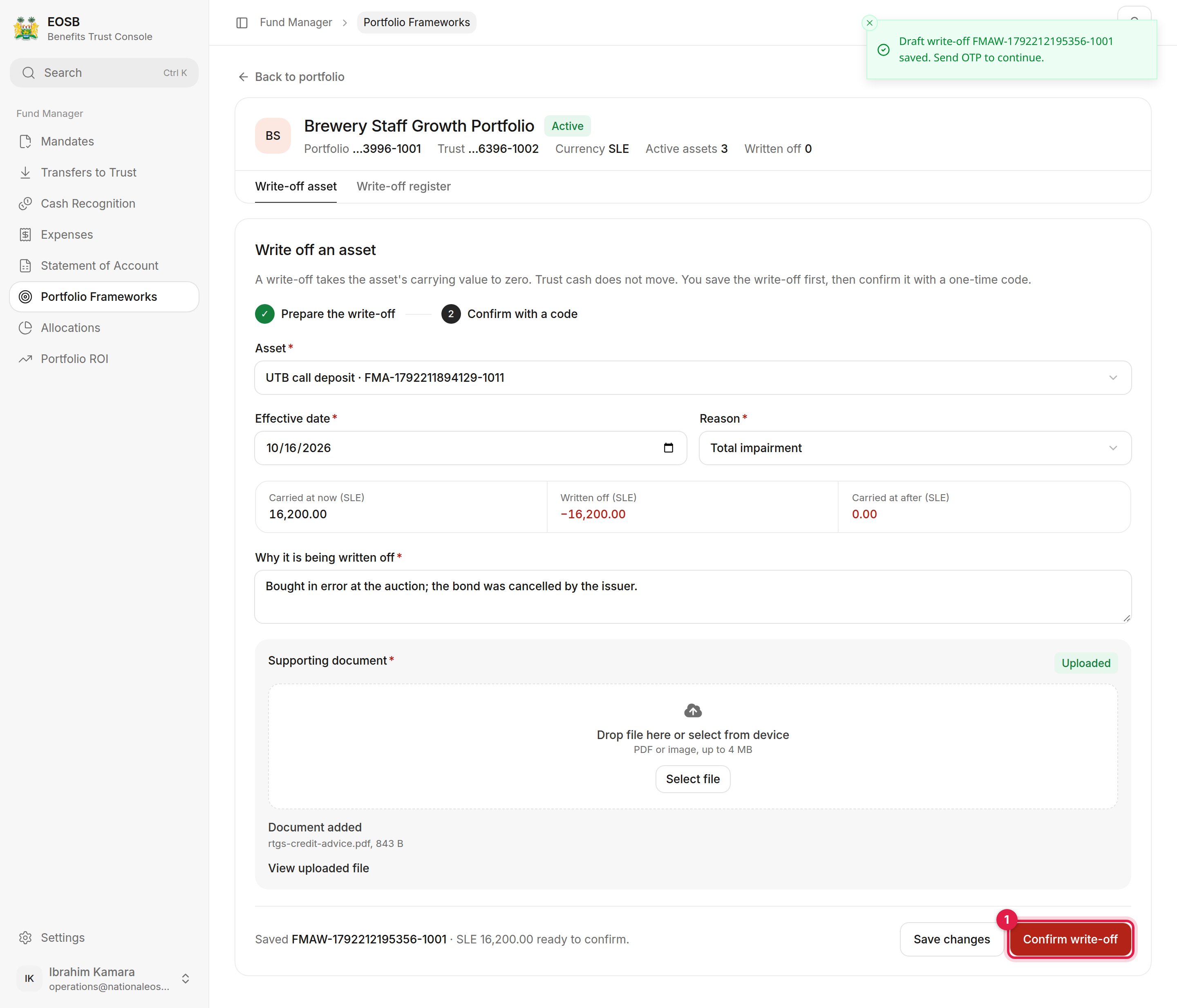
Write-off saved, ready to confirm
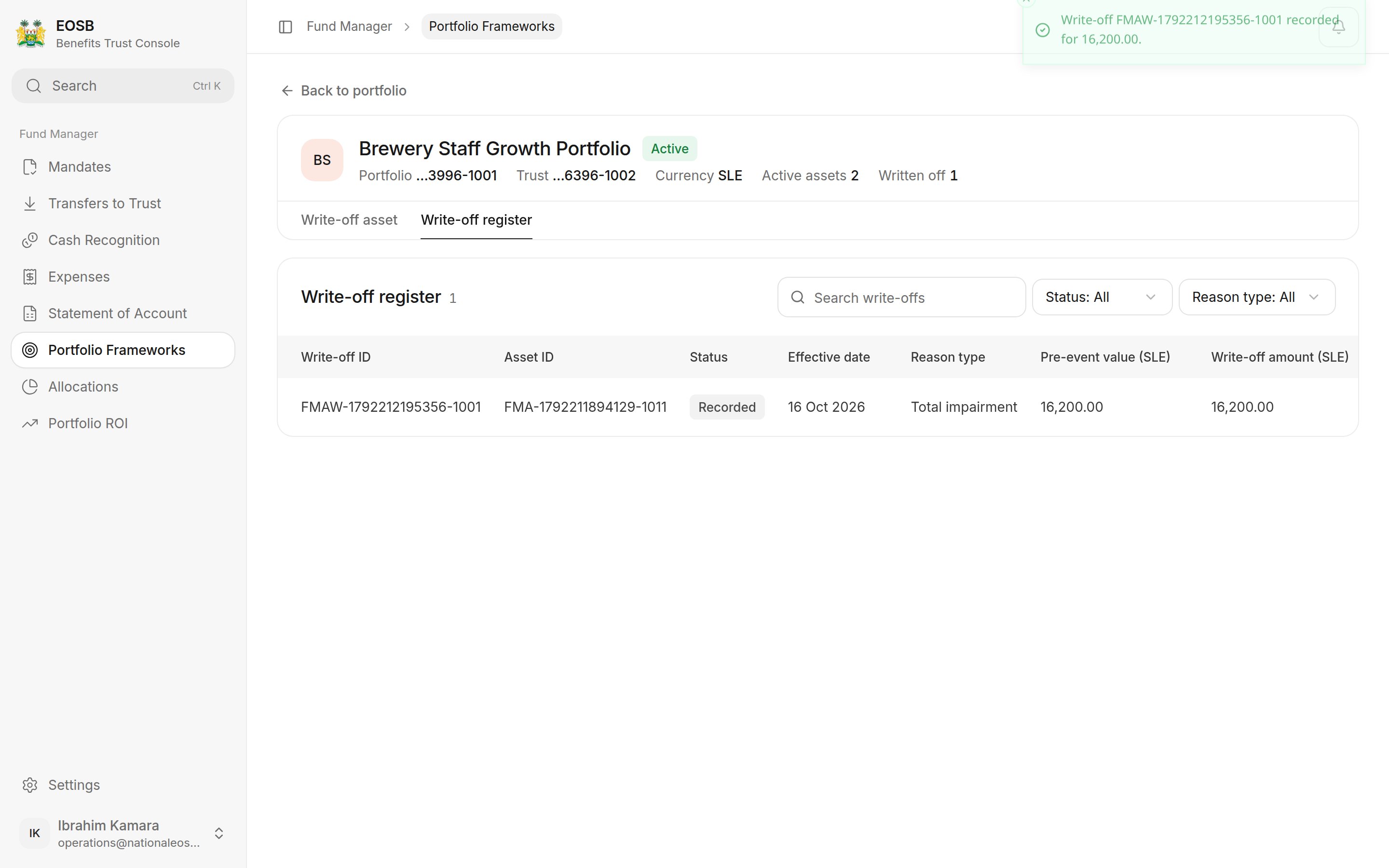
Write-off register