> ## Documentation Index
> Fetch the complete documentation index at: https://docs.eosb.org/llms.txt
> Use this file to discover all available pages before exploring further.
# Sign in and your dashboard
> Get your trustee account, sign in and read the dashboard.
**Before you start:** the regulator must have verified your trustee organisation. The account email is sent to your organisation's contact person.
## Your account
When the regulator verifies your trustee organisation, the platform creates an operator account and emails a link to set your password. Your username is your trustee reference in lower case, for example `ptr-1792206912023-1001`. Setting the password and signing in work the same for every user; see [Set your password](/employer/getting-started/set-password) and [Sign in](/employer/getting-started/sign-in).
## The dashboard
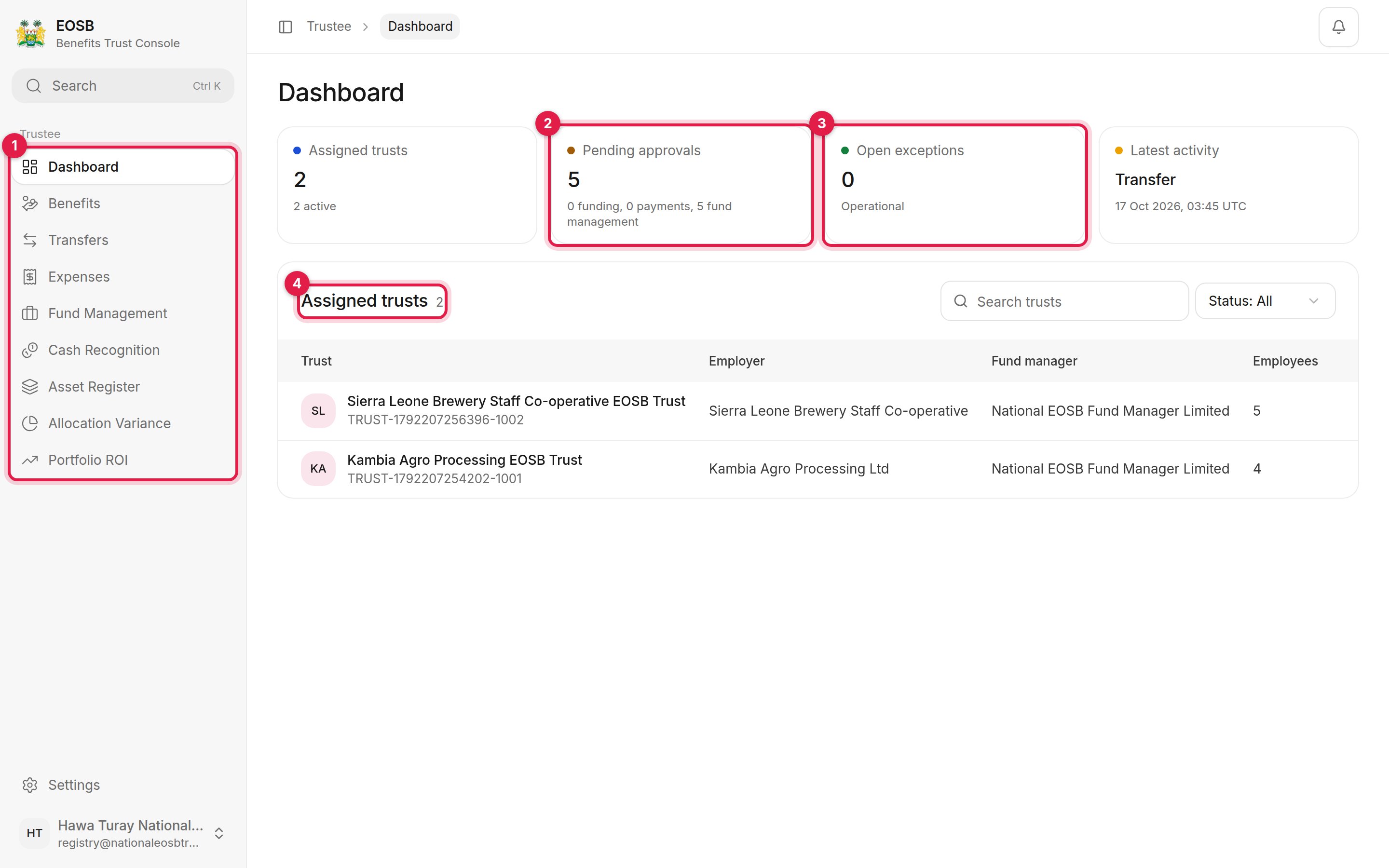 1. **Navigation** — one entry per task:
| Menu | What you do there |
| - | - |
| Dashboard | See what's waiting and the trusts you hold |
| Benefits | [Approve employee benefit payments](/trustee/benefit-payments) |
| Transfers | [Confirm employer funding proofs](/trustee/funding-approvals) |
| Expenses | [Decide on fund manager expenses and budgets](/trustee/expenses) |
| Fund Management | [Log transfers to the fund manager](/trustee/fund-management) |
| Cash Recognition | [Approve recognitions and confirm returns](/trustee/cash-recognition) |
| Asset Register, Allocation Variance, Portfolio ROI | [Portfolio oversight](/trustee/portfolio-oversight) |
2. **Pending approvals** — everything waiting for you, split into funding, payments and fund management.
3. **Open exceptions** — compliance exceptions on your trusts. **Operational** means there are none.
4. **Assigned trusts** — every trust you hold, with its employer, fund manager and number of employees.
When you have dealt with everything, **Pending approvals** shows 0.
1. **Navigation** — one entry per task:
| Menu | What you do there |
| - | - |
| Dashboard | See what's waiting and the trusts you hold |
| Benefits | [Approve employee benefit payments](/trustee/benefit-payments) |
| Transfers | [Confirm employer funding proofs](/trustee/funding-approvals) |
| Expenses | [Decide on fund manager expenses and budgets](/trustee/expenses) |
| Fund Management | [Log transfers to the fund manager](/trustee/fund-management) |
| Cash Recognition | [Approve recognitions and confirm returns](/trustee/cash-recognition) |
| Asset Register, Allocation Variance, Portfolio ROI | [Portfolio oversight](/trustee/portfolio-oversight) |
2. **Pending approvals** — everything waiting for you, split into funding, payments and fund management.
3. **Open exceptions** — compliance exceptions on your trusts. **Operational** means there are none.
4. **Assigned trusts** — every trust you hold, with its employer, fund manager and number of employees.
When you have dealt with everything, **Pending approvals** shows 0.
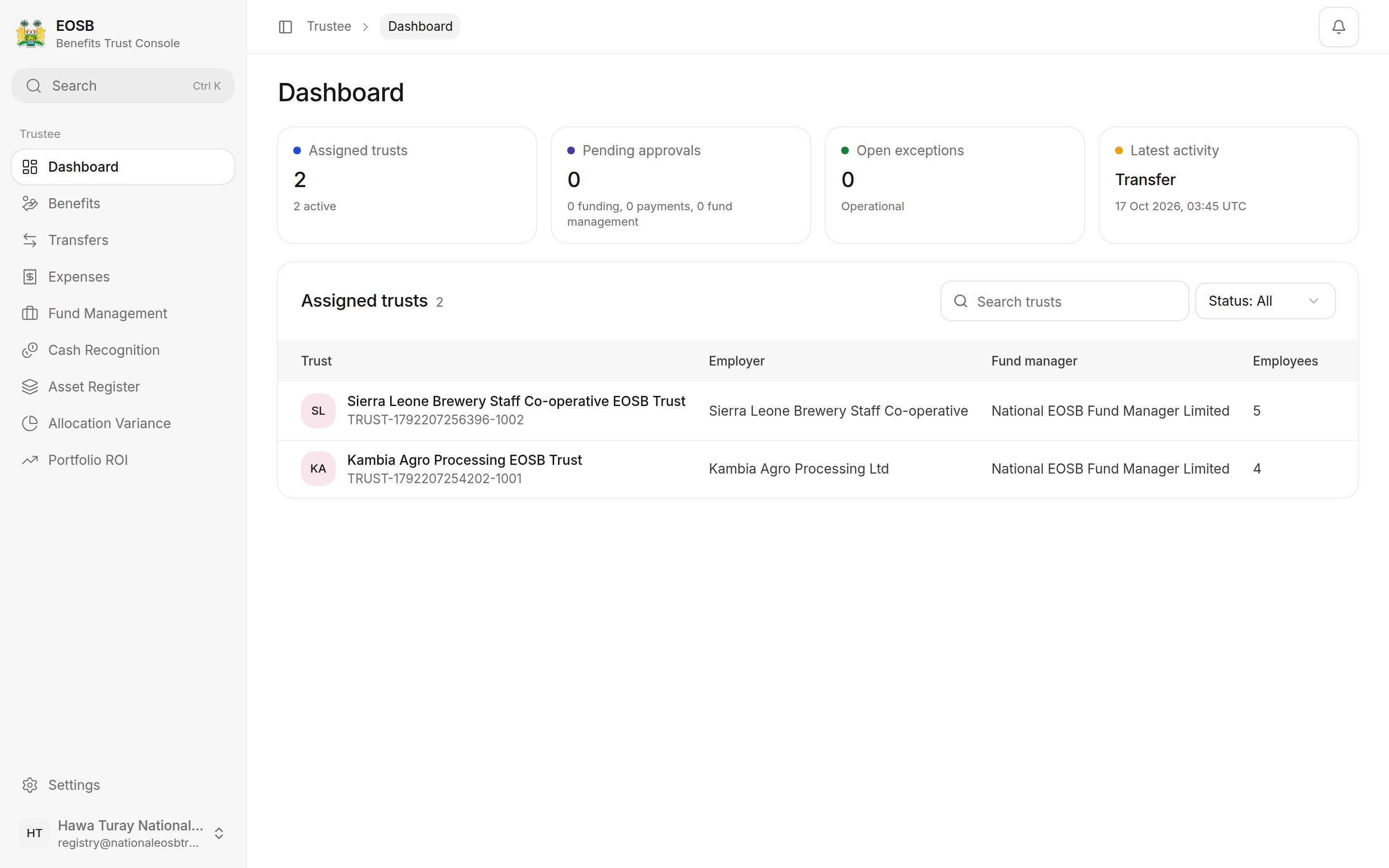 Work from the dashboard: deal with whatever **Pending approvals** shows, and you have done the day's trustee work.
**Next:** [confirm employer funding](/trustee/funding-approvals).
This documentation is built and hosted on [Mintlify](https://mintlify.com), a developer documentation platform.
Work from the dashboard: deal with whatever **Pending approvals** shows, and you have done the day's trustee work.
**Next:** [confirm employer funding](/trustee/funding-approvals).
This documentation is built and hosted on [Mintlify](https://mintlify.com), a developer documentation platform.