> ## Documentation Index
> Fetch the complete documentation index at: https://docs.eosb.org/llms.txt
> Use this file to discover all available pages before exploring further.
# Confirm employer funding
> Check each funding proof against the trust bank statement, then approve or reject it.
When an employer pays into a trust by bank or mobile money, they record the payment and upload the proof. You are the check that the money actually arrived: only proofs you approve count towards the employer's funded amount.
**Where:** **Transfers** in the menu. **Before you start:** have the trust's bank statement for the payment dates to hand.
Payments an employer makes from a linked SmartPay wallet settle on their own and do not come to you.
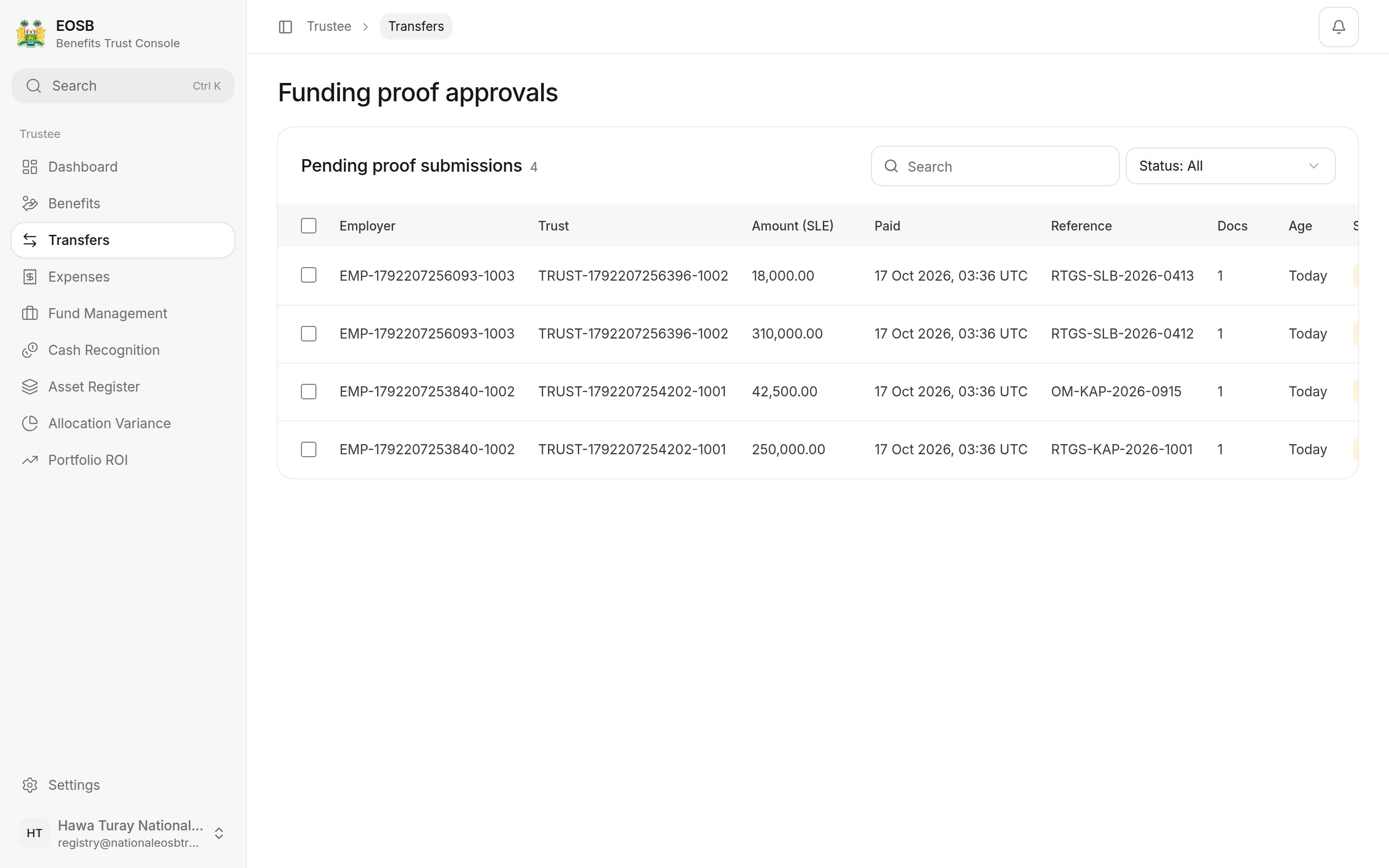 Each row shows the employer and trust by name, the amount, the payment date, the bank reference, how many documents are attached and how long it has waited.
## Review one proof
Select **Review**. The proof opens on the right.
Each row shows the employer and trust by name, the amount, the payment date, the bank reference, how many documents are attached and how long it has waited.
## Review one proof
Select **Review**. The proof opens on the right.
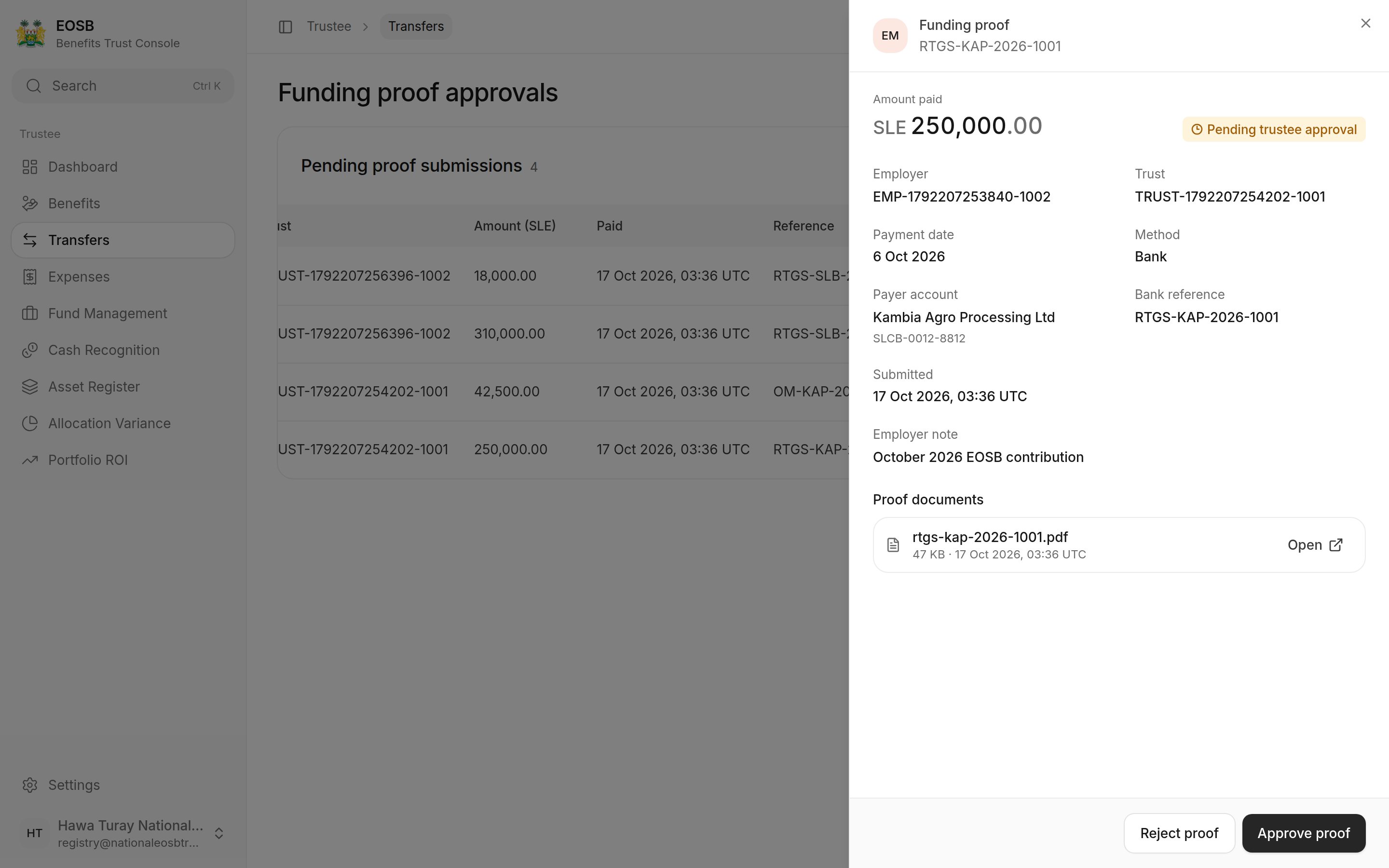 Match the **amount**, **payment date** and **bank reference**, and open the proof document.
* **Approve proof** — add an optional note, then select **Approve proof** again.
* **Reject proof** — write a **Rejection reason** (required); the employer sees it. Then select **Reject proof** again.
Match the **amount**, **payment date** and **bank reference**, and open the proof document.
* **Approve proof** — add an optional note, then select **Approve proof** again.
* **Reject proof** — write a **Rejection reason** (required); the employer sees it. Then select **Reject proof** again.
 ## What happens next
* **Approved** — the payment shows on the employer's side as **Received**, is posted to the employer's ledger as a funding receipt, and becomes employer-funded cash you can [send to the fund manager](/trustee/fund-management).
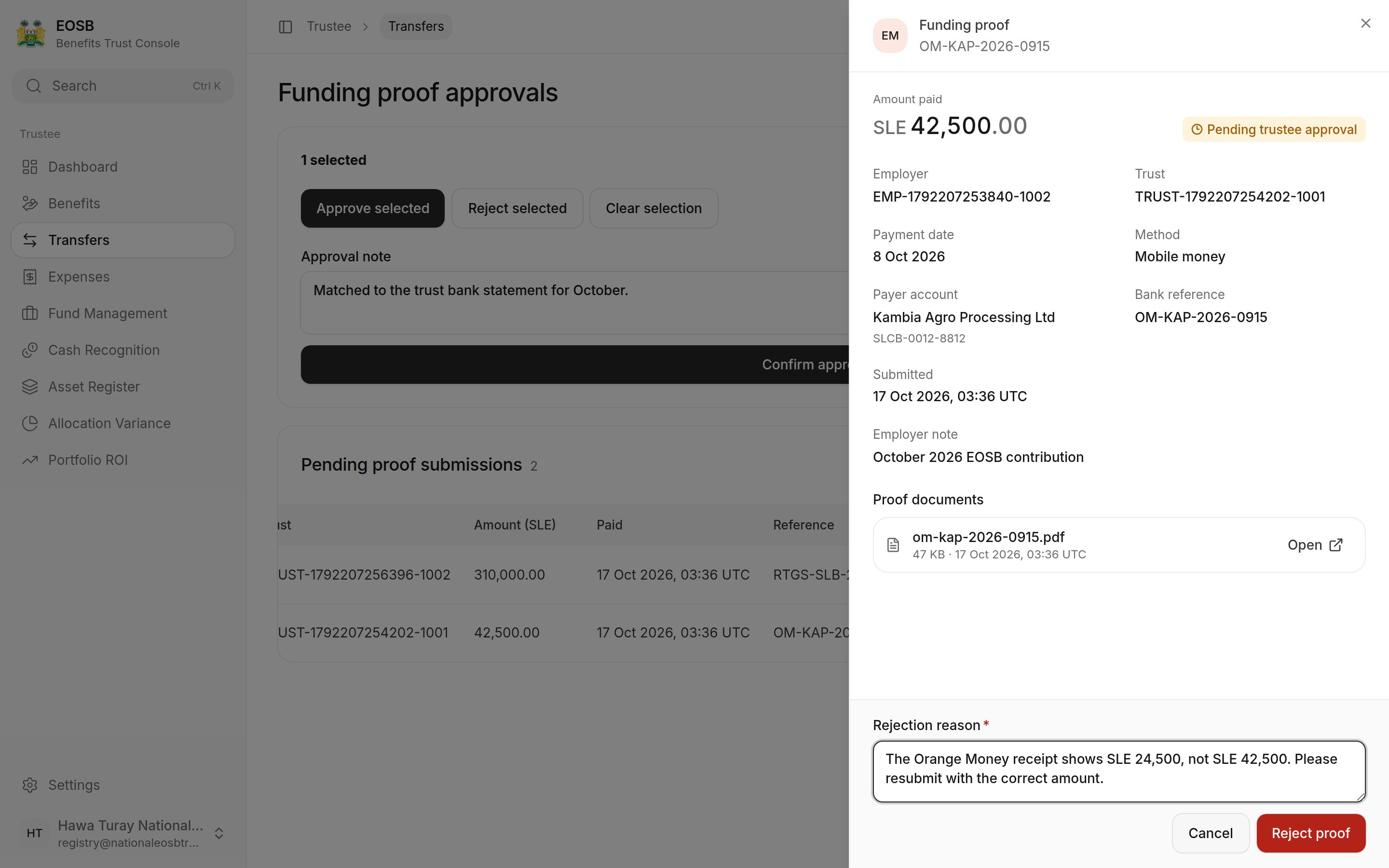
* **Rejected** — the employer sees **Trustee rejected** with your reason, and submits a corrected proof if needed. Nothing is added to the trust.
Say what did not match and what you expect instead, for example "The receipt shows SLE 24,500, not SLE 42,500. Please resubmit with the correct amount." The employer reads exactly what you write.
## Approve or reject several at once
## What happens next
* **Approved** — the payment shows on the employer's side as **Received**, is posted to the employer's ledger as a funding receipt, and becomes employer-funded cash you can [send to the fund manager](/trustee/fund-management).
* **Rejected** — the employer sees **Trustee rejected** with your reason, and submits a corrected proof if needed. Nothing is added to the trust.
Say what did not match and what you expect instead, for example "The receipt shows SLE 24,500, not SLE 42,500. Please resubmit with the correct amount." The employer reads exactly what you write.
## Approve or reject several at once
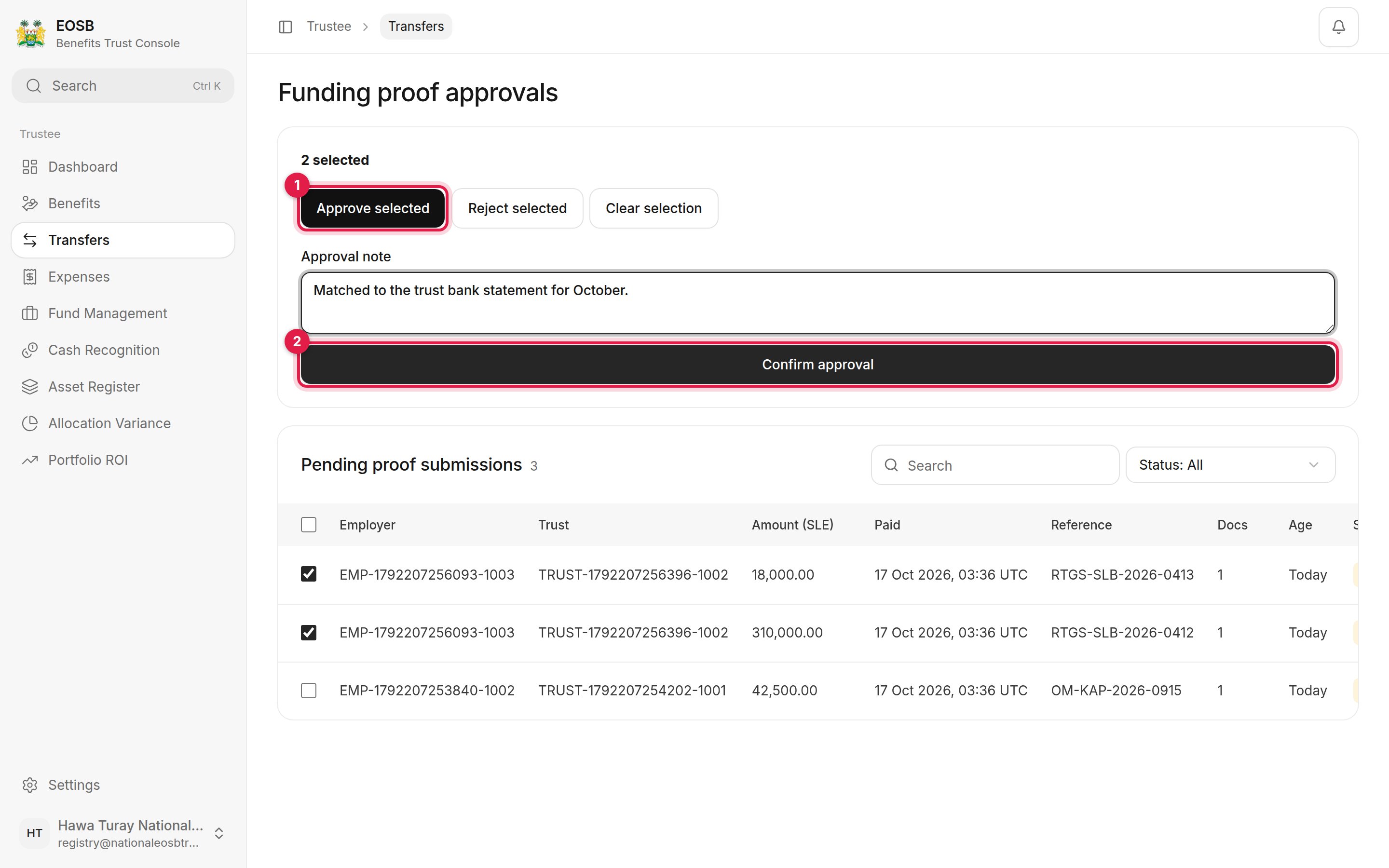 Use the box at the start of each row, or the heading box for all of them.
Add an approval note, or a rejection reason (required).
The proofs are processed one after another, and a message confirms how many went through. If any could not be processed, the message says how many, and those proofs stay ticked so you can try again or open them with **Review**.
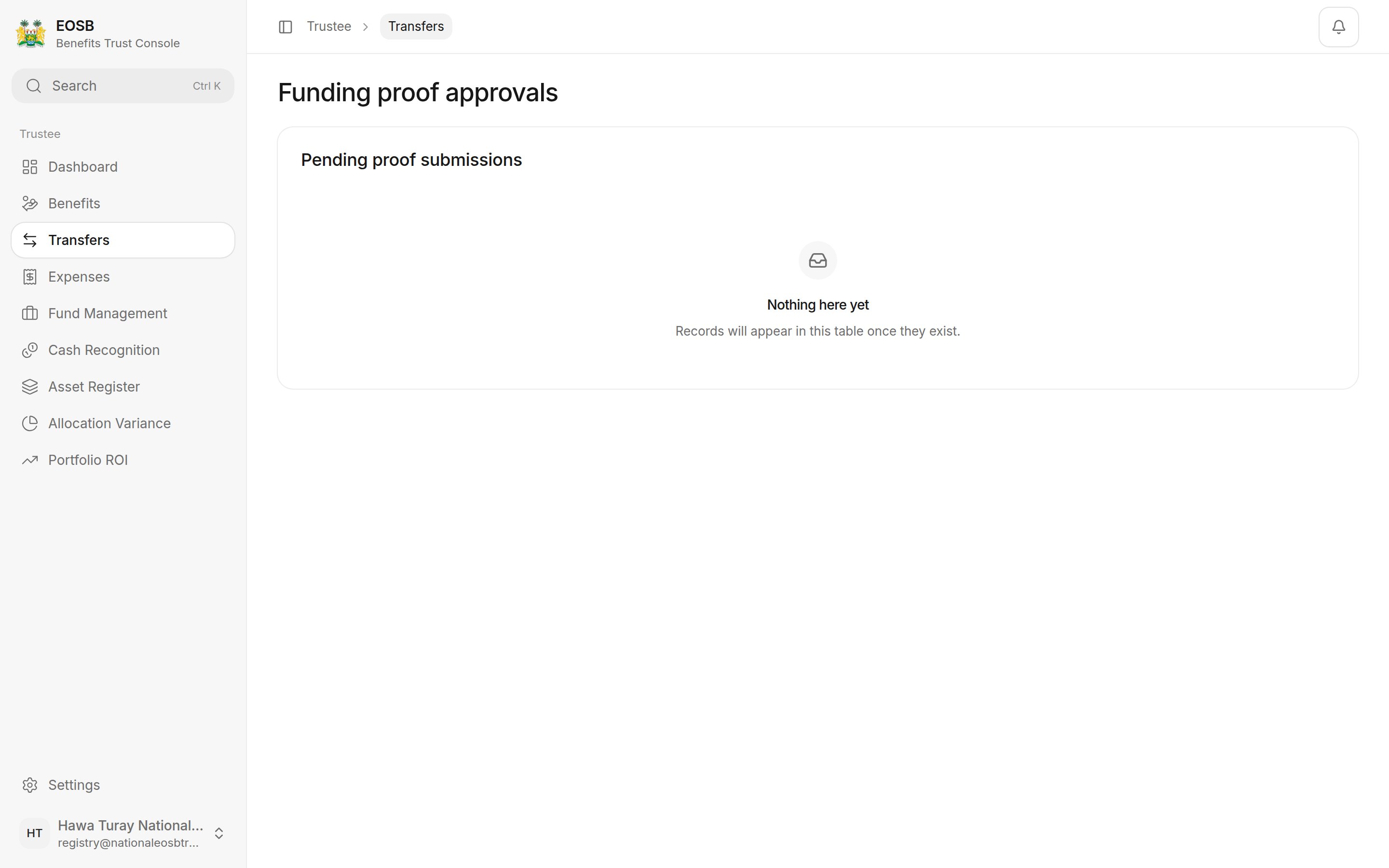
When nothing is waiting, the list says **No funding proofs waiting**.
Use the box at the start of each row, or the heading box for all of them.
Add an approval note, or a rejection reason (required).
The proofs are processed one after another, and a message confirms how many went through. If any could not be processed, the message says how many, and those proofs stay ticked so you can try again or open them with **Review**.
When nothing is waiting, the list says **No funding proofs waiting**.
 **Next:** [approve benefit payments](/trustee/benefit-payments).
This documentation is built and hosted on [Mintlify](https://mintlify.com), a developer documentation platform.
**Next:** [approve benefit payments](/trustee/benefit-payments).
This documentation is built and hosted on [Mintlify](https://mintlify.com), a developer documentation platform.