> ## Documentation Index
> Fetch the complete documentation index at: https://docs.eosb.org/llms.txt
> Use this file to discover all available pages before exploring further.
# Approve benefit payments
> Approve or reject the final settlement of an employee who has left.
When an employer terminates an employee, the platform works out their final end-of-service benefit: everything they had accrued, up to the termination date. The payment waits for you before it can be paid out.
**Where:** **Benefits** in the menu.
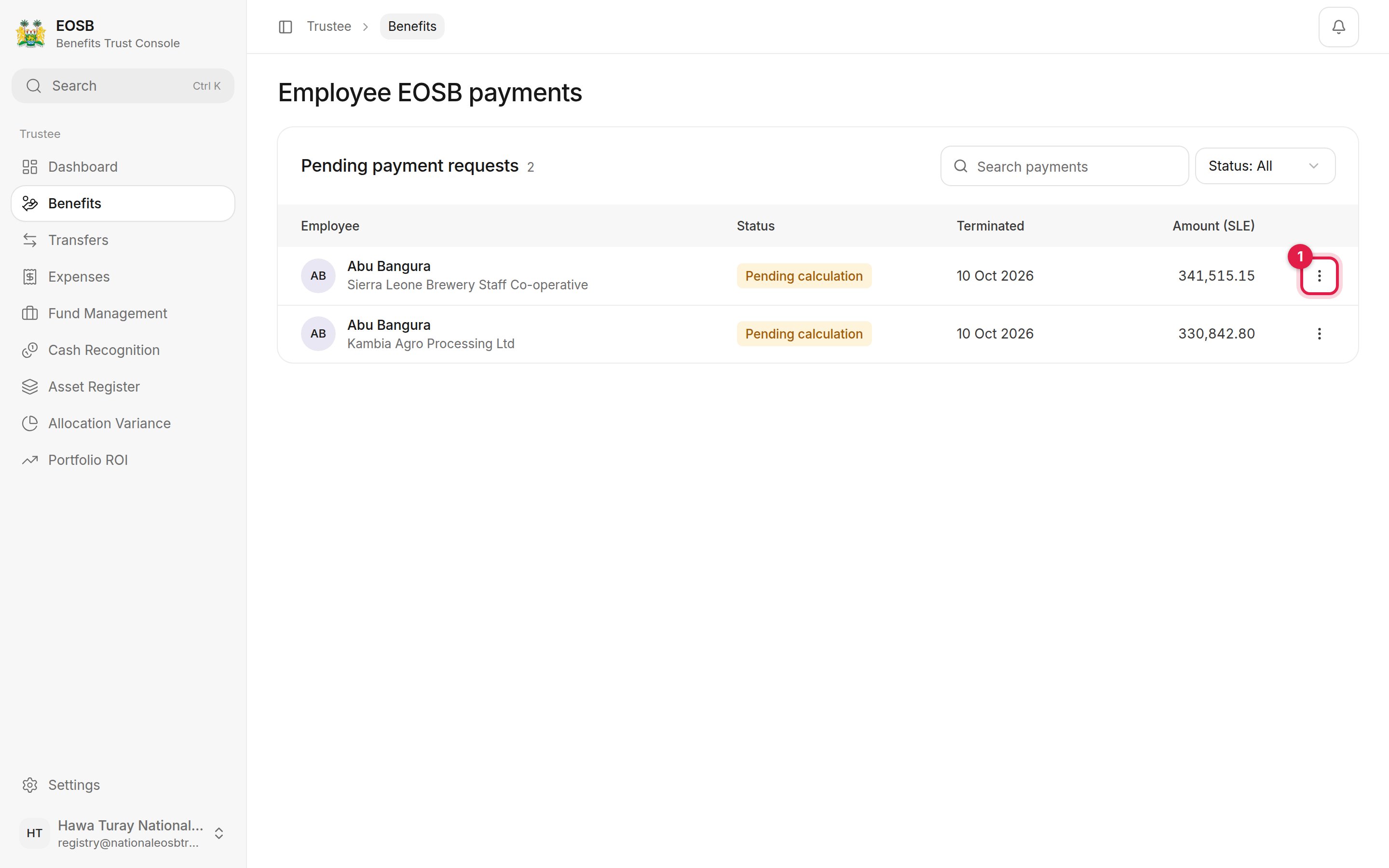 Each row shows the employee and employer, the status, the termination date and the amount in SLE. A calculated payment reads **Awaiting trustee approval**; one still being calculated reads **Pending calculation**. Open the row menu **(1)** for the actions.
 ## Check the details
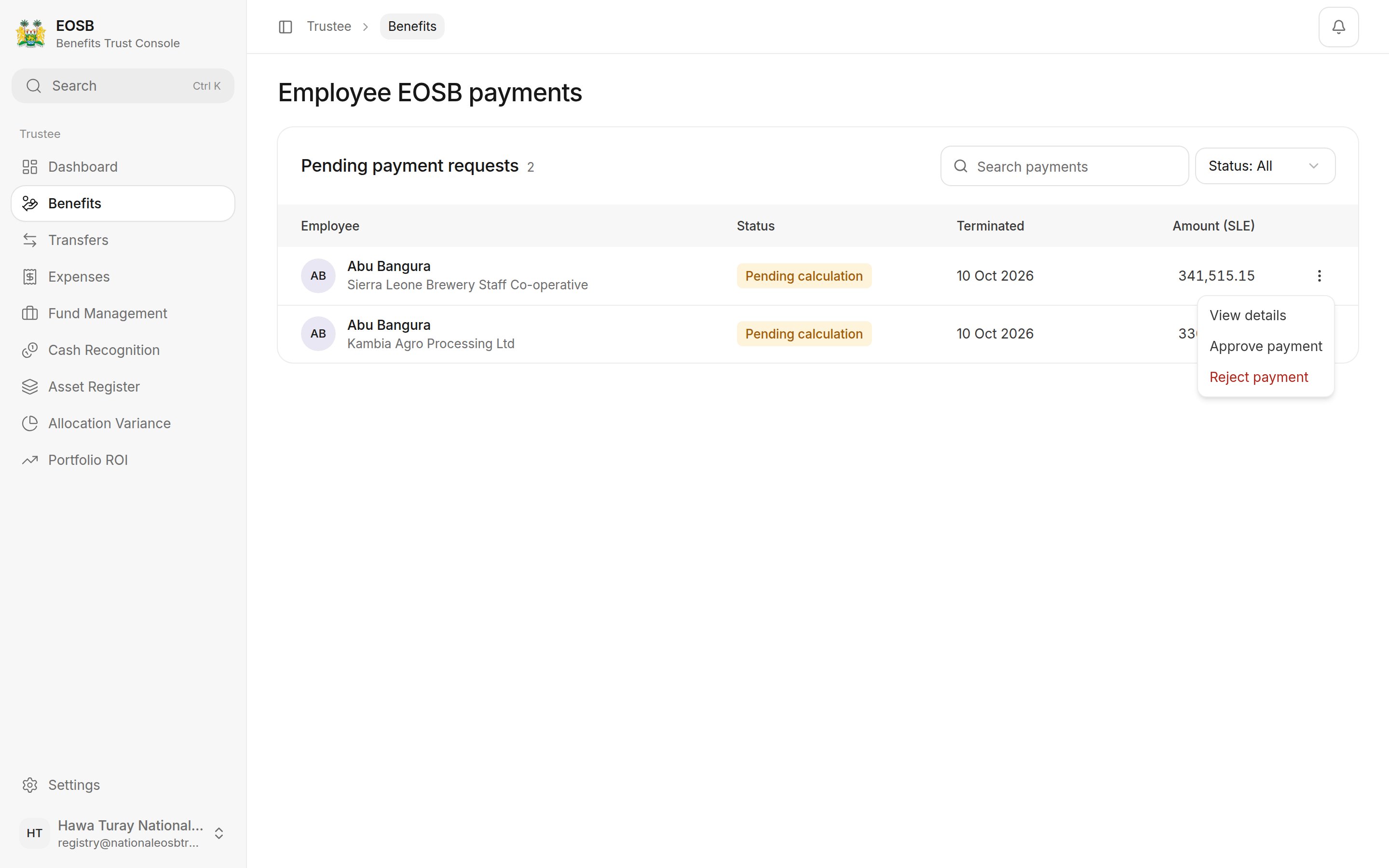
Select **View details**.
## Check the details
Select **View details**.
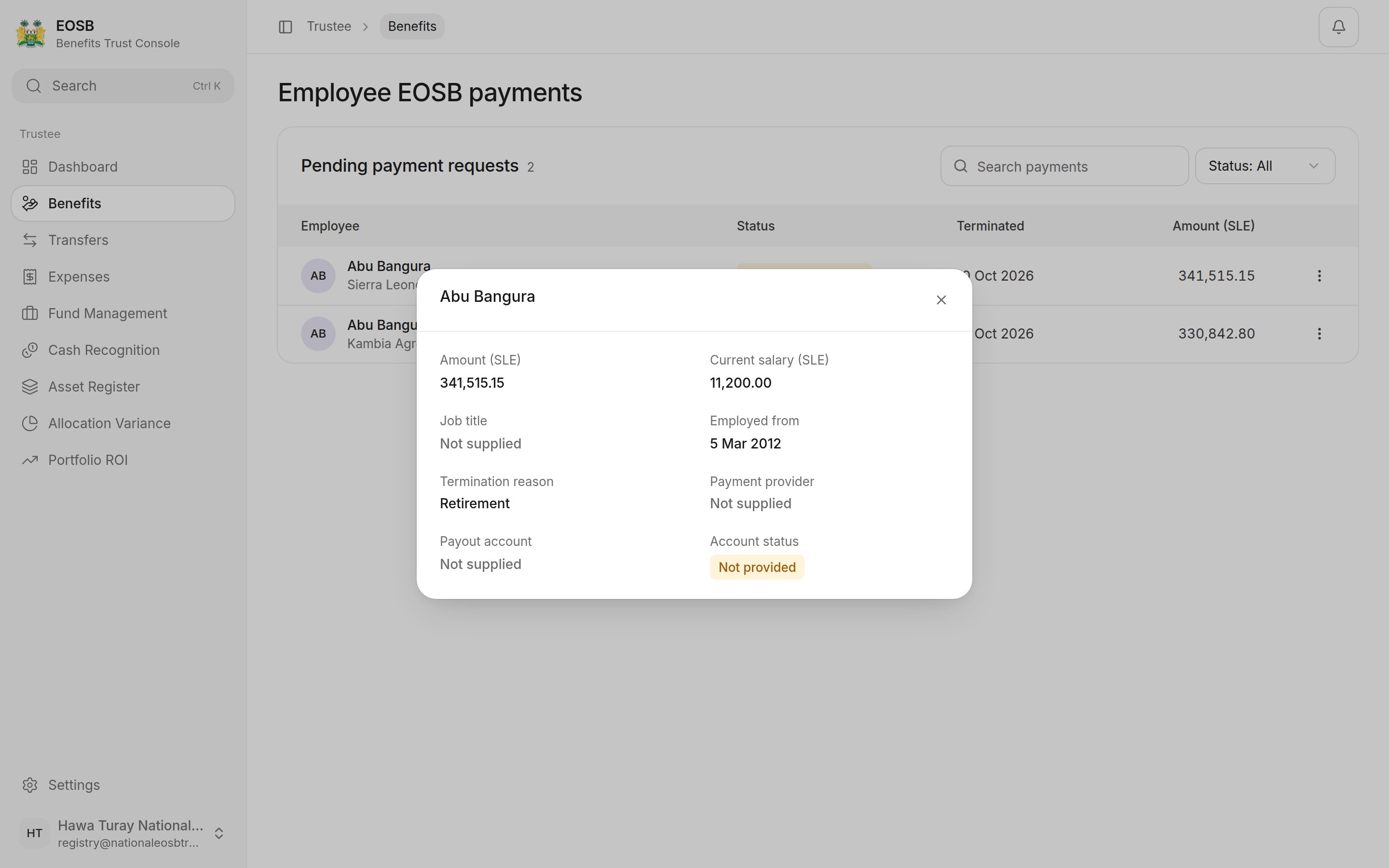 Check the amount against the salary, start date and termination reason. **Payout account** and **Account status** show where the money will go.
If the payout account is **Not provided**, you can still approve the payment, and the approval window warns you, but it can't be paid out until a verified account exists. A terminated employee's record is locked, so the employer cannot add one now: tell the platform administrator. Where SmartPay wallets are switched on, the platform opens a wallet on the employee's registered phone before paying. See [SmartPay e-wallets](/concepts/e-wallets).
## Approve a payment
A window asks for a one-time code.
Check the amount against the salary, start date and termination reason. **Payout account** and **Account status** show where the money will go.
If the payout account is **Not provided**, you can still approve the payment, and the approval window warns you, but it can't be paid out until a verified account exists. A terminated employee's record is locked, so the employer cannot add one now: tell the platform administrator. Where SmartPay wallets are switched on, the platform opens a wallet on the employee's registered phone before paying. See [SmartPay e-wallets](/concepts/e-wallets).
## Approve a payment
A window asks for a one-time code.
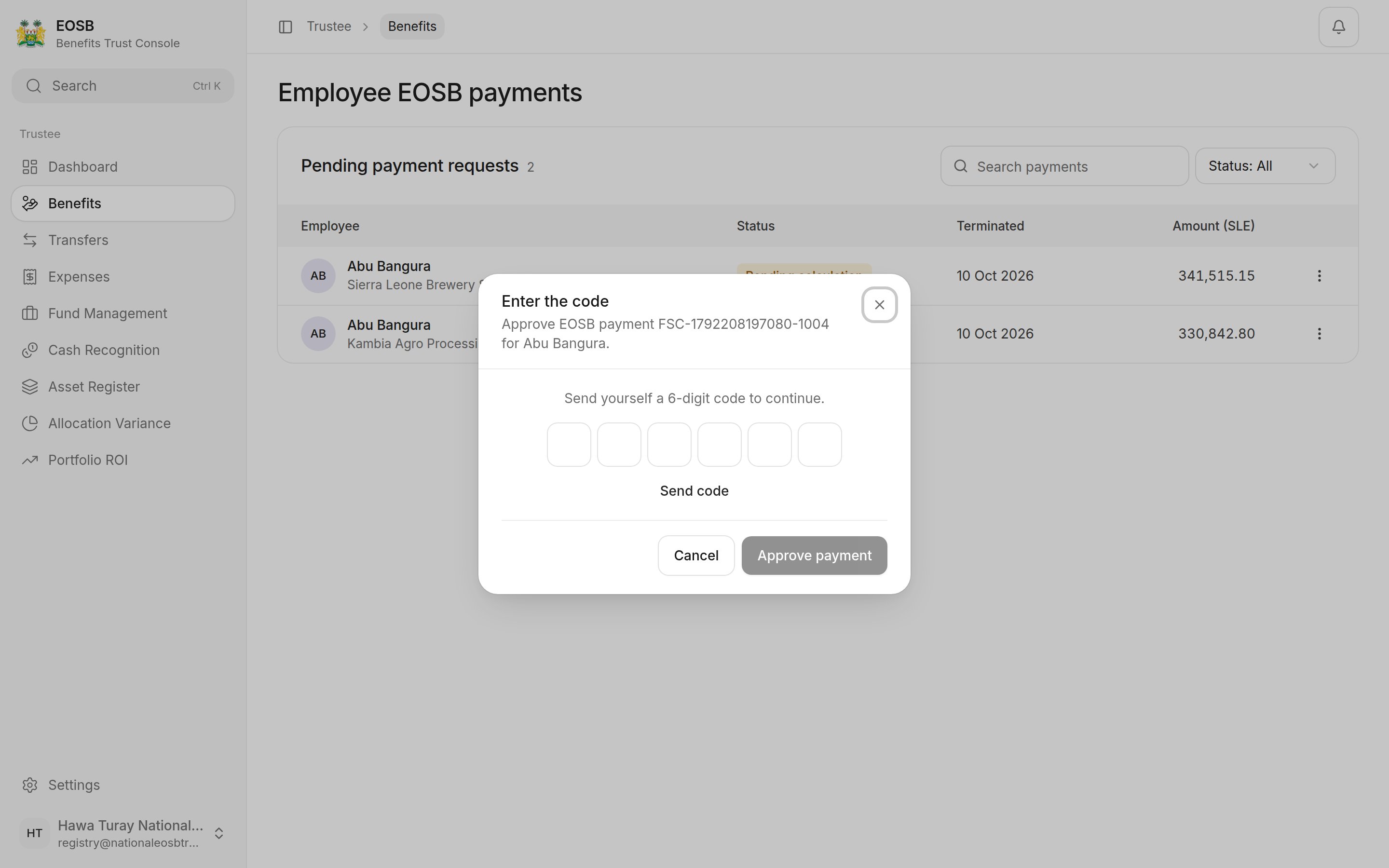 The 6-digit code arrives by SMS, email and WhatsApp. It expires after a short time; select **Resend code** if needed.
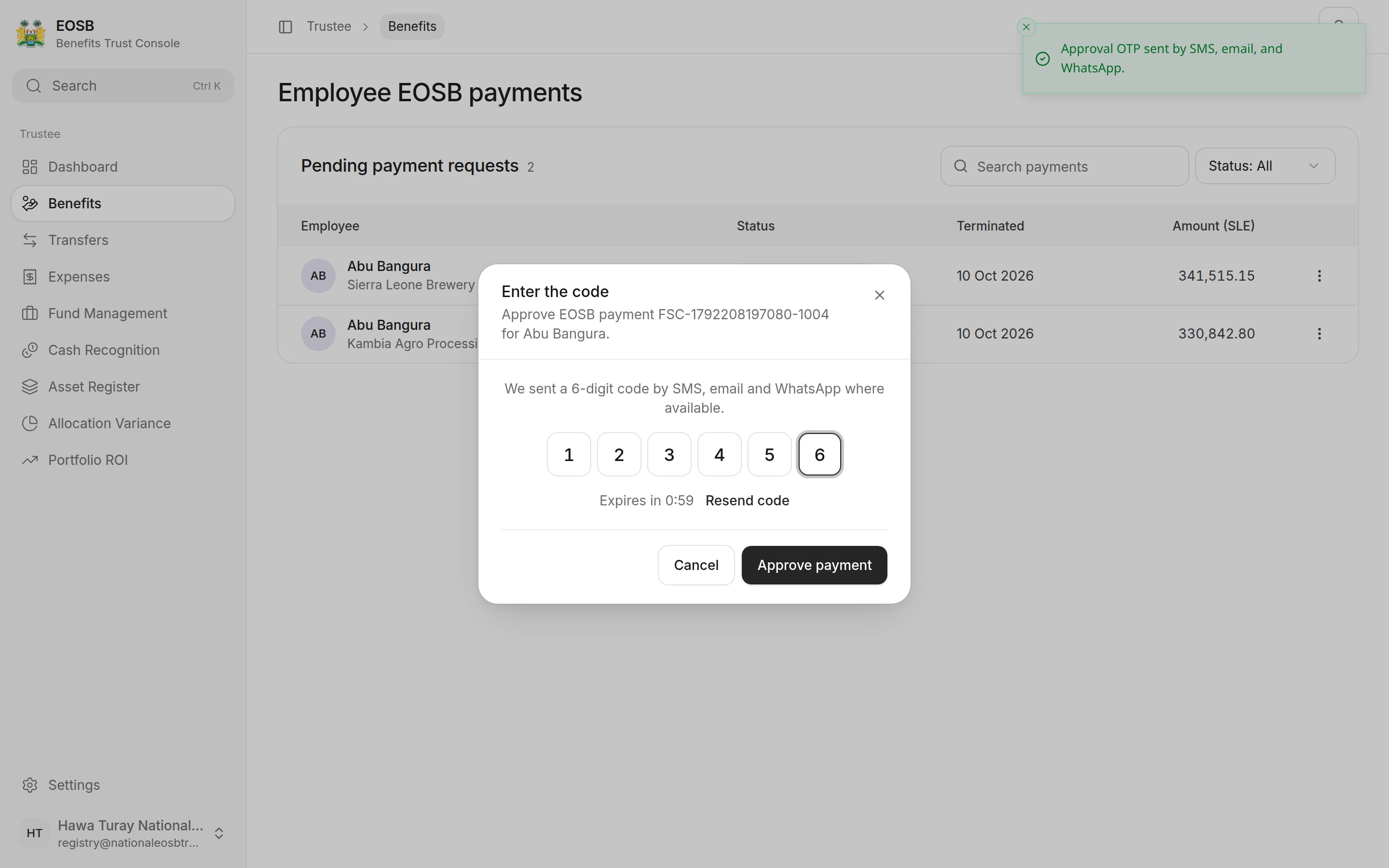 The page confirms **EOSB payment approved.** The platform administrator then pays it out.
## Reject a payment
Payments can only be rejected for a recognised legal reason.
The page confirms **EOSB payment approved.** The platform administrator then pays it out.
## Reject a payment
Payments can only be rejected for a recognised legal reason.
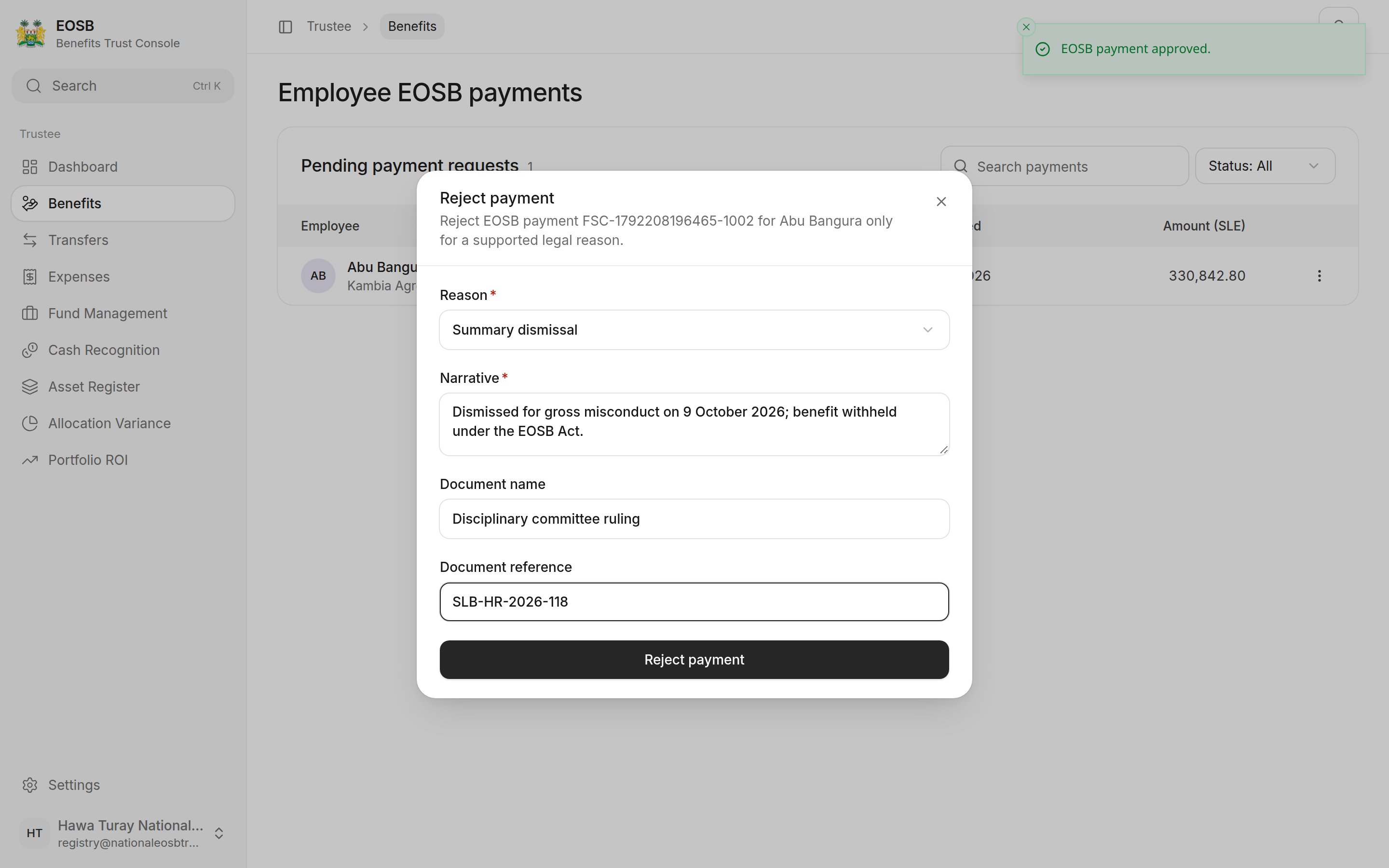 | Field | What to enter |
| - | - |
| Reason \* | **Summary dismissal** or **Court order** |
| Narrative \* | What happened, in up to 250 characters |
| Document name | The supporting document, for example the disciplinary ruling |
| Document reference | Its reference number |
Select **Reject payment**. When nothing is waiting, the page says **No payments are waiting**.
## What happens next
An approved payment goes to the platform administrator's payout queue. They pay it from the trust to the employee's payout account or SmartPay wallet, in full or in parts. Once paid, it no longer counts in the employer's liability.
The amount is worked out from the employee's salary and length of service; see [How benefits are calculated](/employer/how-benefits-are-calculated). A long-serving employee on a modest salary can be owed much more than a few months' pay, because each year of service is worth more days the longer they have worked.
This documentation is built and hosted on [Mintlify](https://mintlify.com), a developer documentation platform.
| Field | What to enter |
| - | - |
| Reason \* | **Summary dismissal** or **Court order** |
| Narrative \* | What happened, in up to 250 characters |
| Document name | The supporting document, for example the disciplinary ruling |
| Document reference | Its reference number |
Select **Reject payment**. When nothing is waiting, the page says **No payments are waiting**.
## What happens next
An approved payment goes to the platform administrator's payout queue. They pay it from the trust to the employee's payout account or SmartPay wallet, in full or in parts. Once paid, it no longer counts in the employer's liability.
The amount is worked out from the employee's salary and length of service; see [How benefits are calculated](/employer/how-benefits-are-calculated). A long-serving employee on a modest salary can be owed much more than a few months' pay, because each year of service is worth more days the longer they have worked.
This documentation is built and hosted on [Mintlify](https://mintlify.com), a developer documentation platform.