> ## Documentation Index
> Fetch the complete documentation index at: https://docs.eosb.org/llms.txt
> Use this file to discover all available pages before exploring further.
# Sign in and find your way around
> Get your regulator account, sign in and learn the layout of the regulator workspace.
**Before you start:** the platform administrator must have created your account under **MELSS**.
## Your account
The EOSB platform administrator creates your account under **MELSS** with the regulator role. You receive an email titled **Your EOSB account has been created** with your username and a link to set your password. Setting the password works the same way for every user; see [Set your password](/employer/getting-started/set-password).
## Sign in
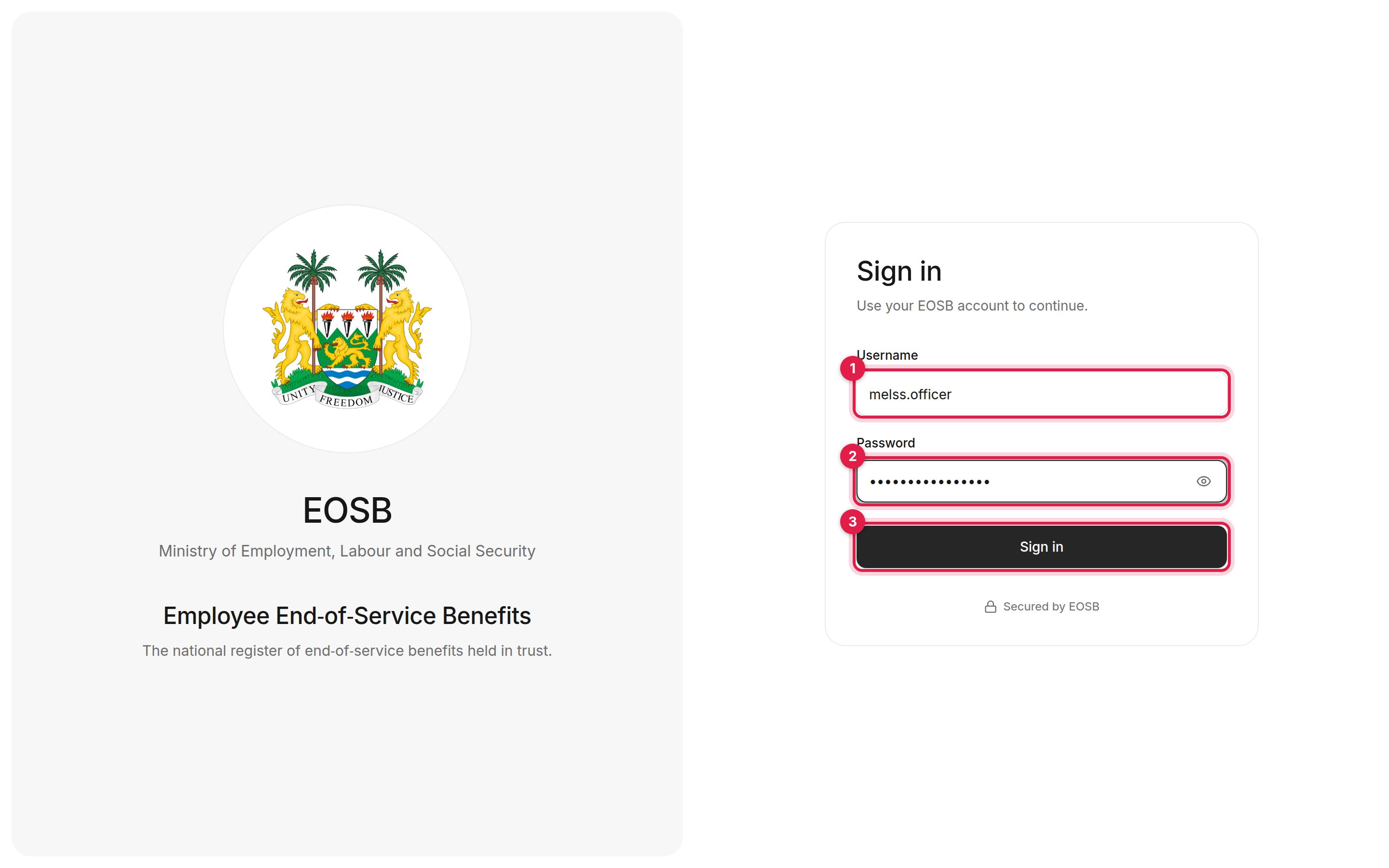 The username from your account email, for example `melss.officer`.
You arrive on **Employer verification**.
## Your workspace
The username from your account email, for example `melss.officer`.
You arrive on **Employer verification**.
## Your workspace
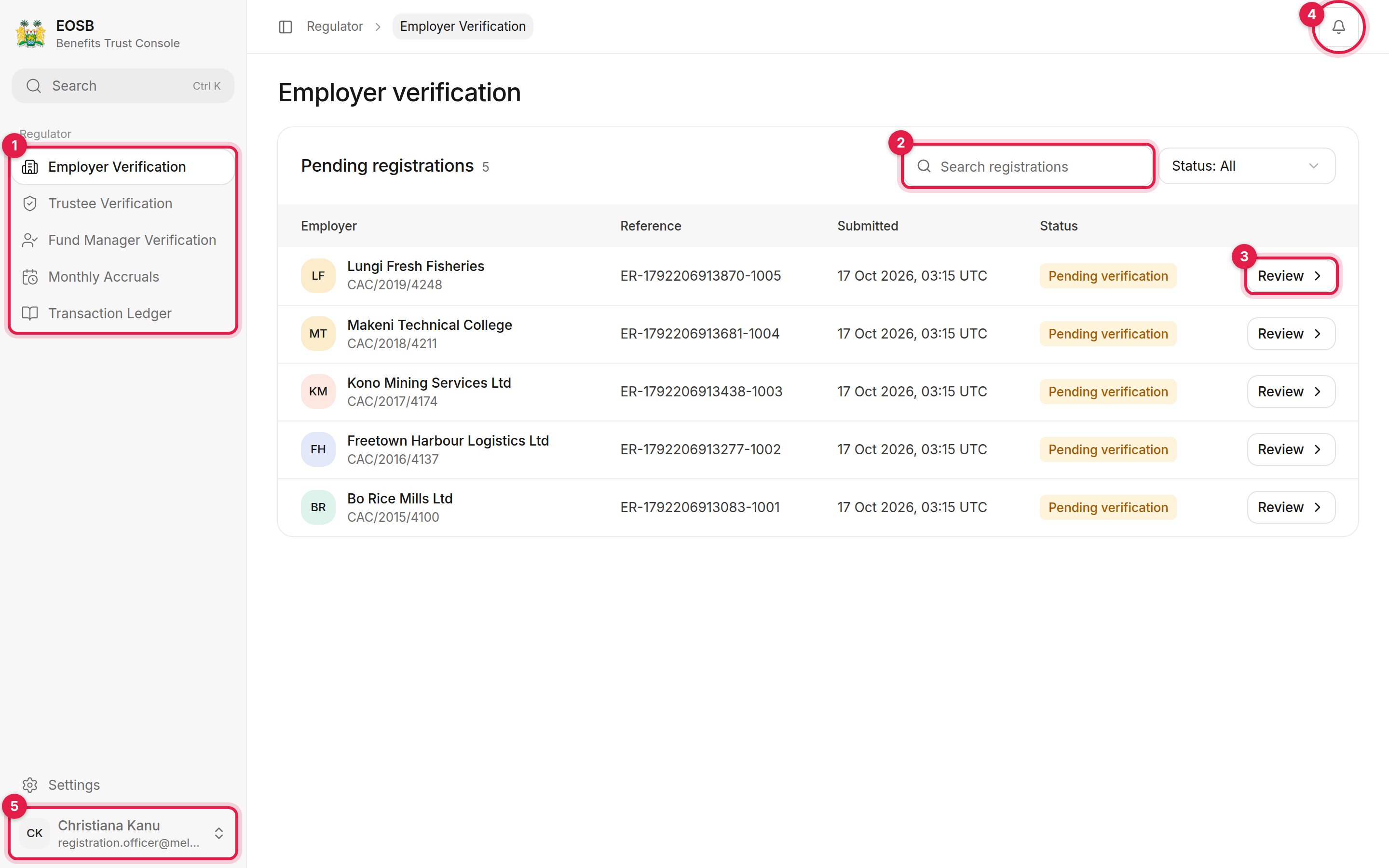 1. **Navigation**:
* **Employer Verification** — employer registrations waiting for your decision
* **Trustee Verification** and **Fund Manager Verification** — provider registrations
* **Monthly Accruals** — each month's benefit accrual, by employer and employee
* **Computation Exceptions** — accrual records the monthly run could not finalise
* **Transaction Ledger** — any active employer's liability ledger
2. **Search** narrows the list. Use **Status** next to it to filter.
3. **Review** opens a case.
4. **Notifications.**
5. **User menu**, with **Settings** and **Sign out**. Settings work the same for every user; see [Your account](/employer/account).
**Next:** [verify employers](/regulator/employer-verification), the queue you land on.
This documentation is built and hosted on [Mintlify](https://mintlify.com), a developer documentation platform.
1. **Navigation**:
* **Employer Verification** — employer registrations waiting for your decision
* **Trustee Verification** and **Fund Manager Verification** — provider registrations
* **Monthly Accruals** — each month's benefit accrual, by employer and employee
* **Computation Exceptions** — accrual records the monthly run could not finalise
* **Transaction Ledger** — any active employer's liability ledger
2. **Search** narrows the list. Use **Status** next to it to filter.
3. **Review** opens a case.
4. **Notifications.**
5. **User menu**, with **Settings** and **Sign out**. Settings work the same for every user; see [Your account](/employer/account).
**Next:** [verify employers](/regulator/employer-verification), the queue you land on.
This documentation is built and hosted on [Mintlify](https://mintlify.com), a developer documentation platform.