> ## Documentation Index
> Fetch the complete documentation index at: https://docs.eosb.org/llms.txt
> Use this file to discover all available pages before exploring further.
# Return money to the trust
> Send benefit funding, investment income or surplus cash back to an EOSB trust.
You send money back to a trust when it needs cash — most often to pay leavers' benefits — or to pass on investment income, proceeds of a sale, or everything at the end of a mandate.
**Where:** **Transfers to Trust** in the menu. **Before you start:** you can only return cash you hold for that trust. For a bank transfer, make it first and have the bank's reference to hand.
The trustee then confirms receipt. The page has three tabs: **Log transfer**, **Drafts** and **Transfer register**.
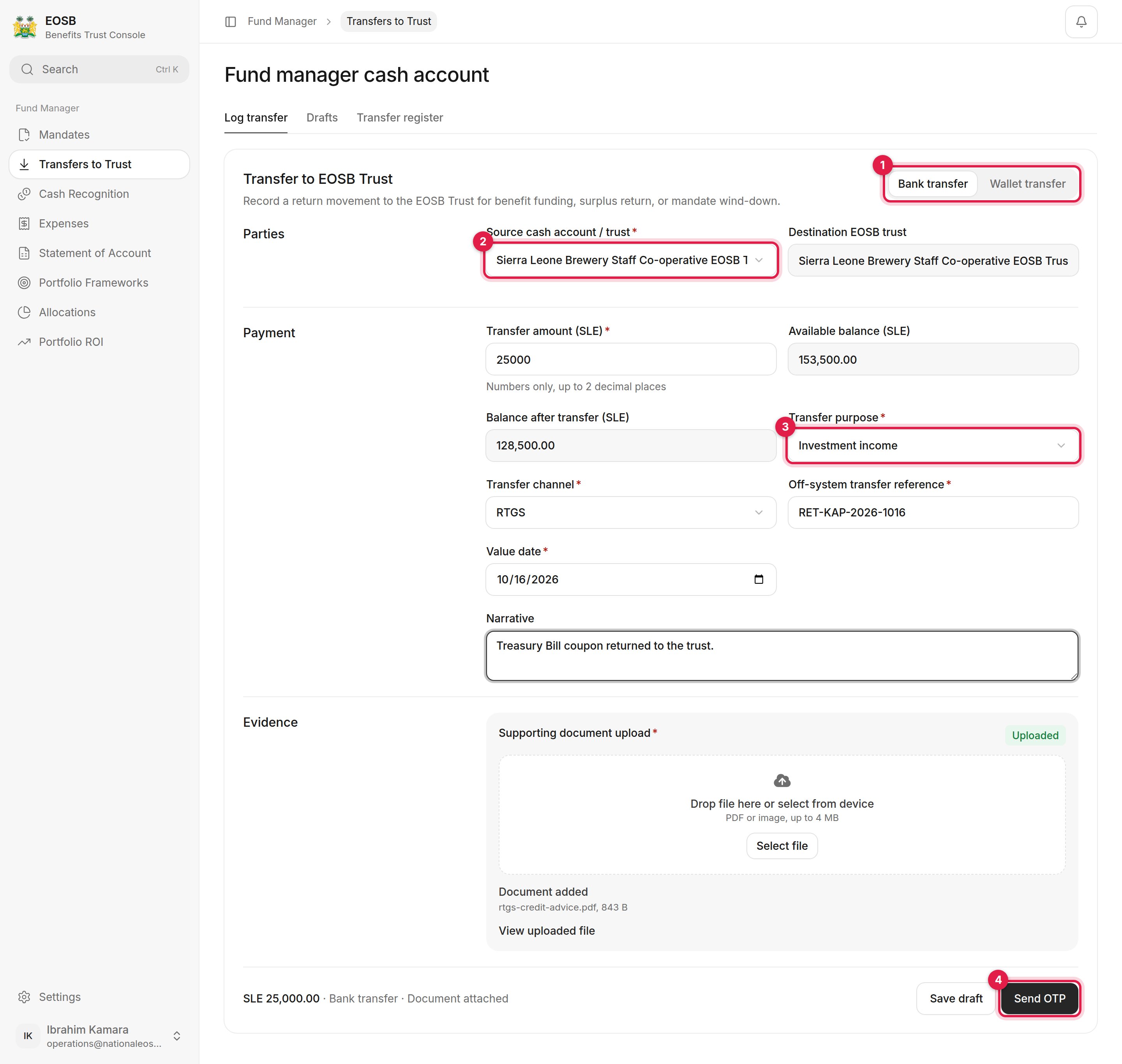 A **bank transfer** records an instruction you have already made. A **wallet transfer** moves the money for you when you confirm.
**Destination EOSB trust** fills in. **Available balance** shows the cash you hold for that trust, and **Balance after transfer** what will be left.
| Field | What to enter |
| - | - |
| Transfer amount (SLE) \* | No more than the available balance |
| Transfer purpose \* (3) | **Benefit funding**, **Investment income**, **Sale of assets** or **Mandate wind-down** |
| Transfer channel \* | RTGS, wire, cheque, internal bank transfer or other |
| Off-system transfer reference \* | The bank's reference |
| Value date \* | When the money moved |
| Narrative | Notes for the trustee |
Wait until it says **Uploaded**.
A **bank transfer** records an instruction you have already made. A **wallet transfer** moves the money for you when you confirm.
**Destination EOSB trust** fills in. **Available balance** shows the cash you hold for that trust, and **Balance after transfer** what will be left.
| Field | What to enter |
| - | - |
| Transfer amount (SLE) \* | No more than the available balance |
| Transfer purpose \* (3) | **Benefit funding**, **Investment income**, **Sale of assets** or **Mandate wind-down** |
| Transfer channel \* | RTGS, wire, cheque, internal bank transfer or other |
| Off-system transfer reference \* | The bank's reference |
| Value date \* | When the money moved |
| Narrative | Notes for the trustee |
Wait until it says **Uploaded**.
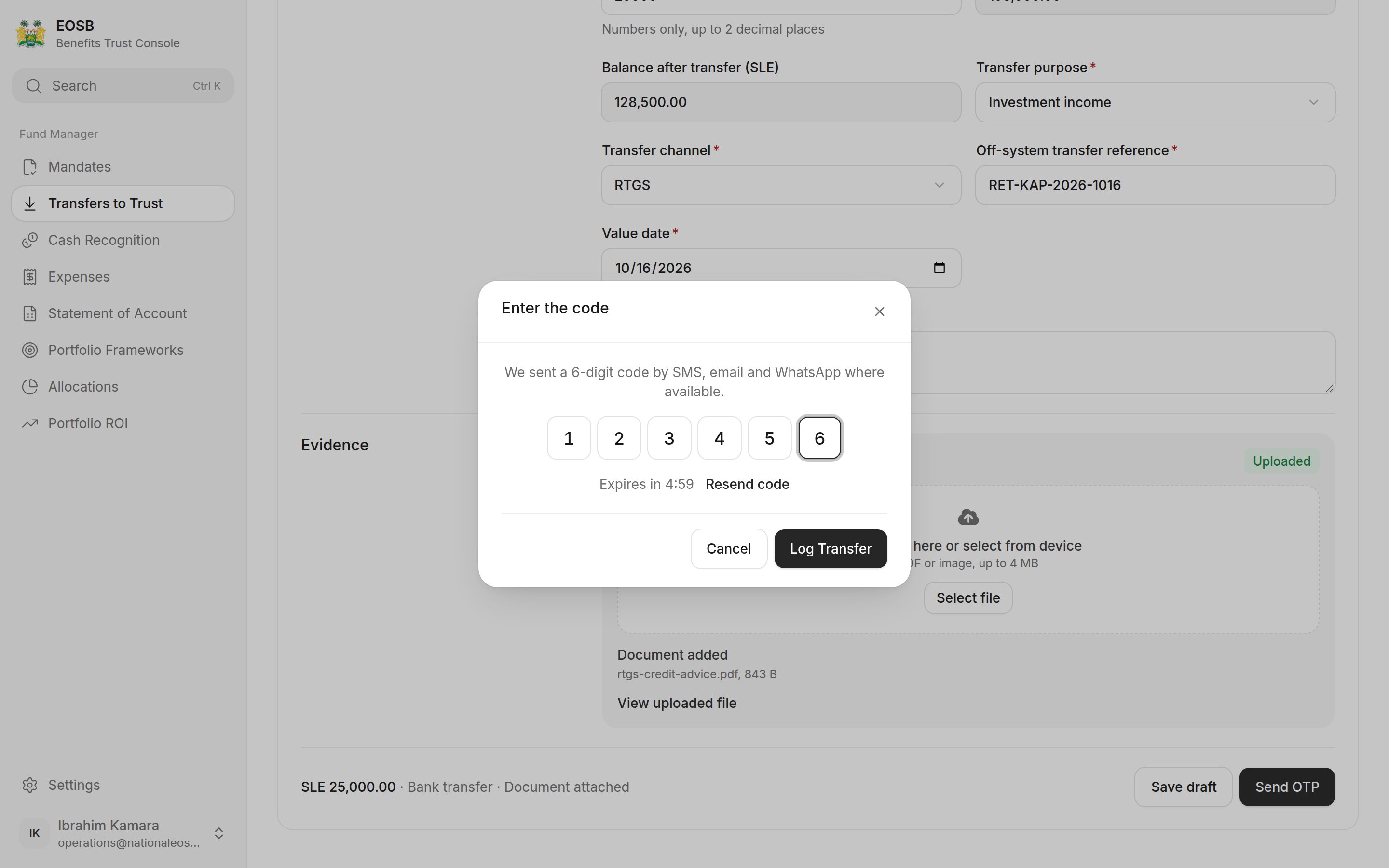 Select **Save draft** to finish later; drafts are listed under **Drafts** with **Resume**.
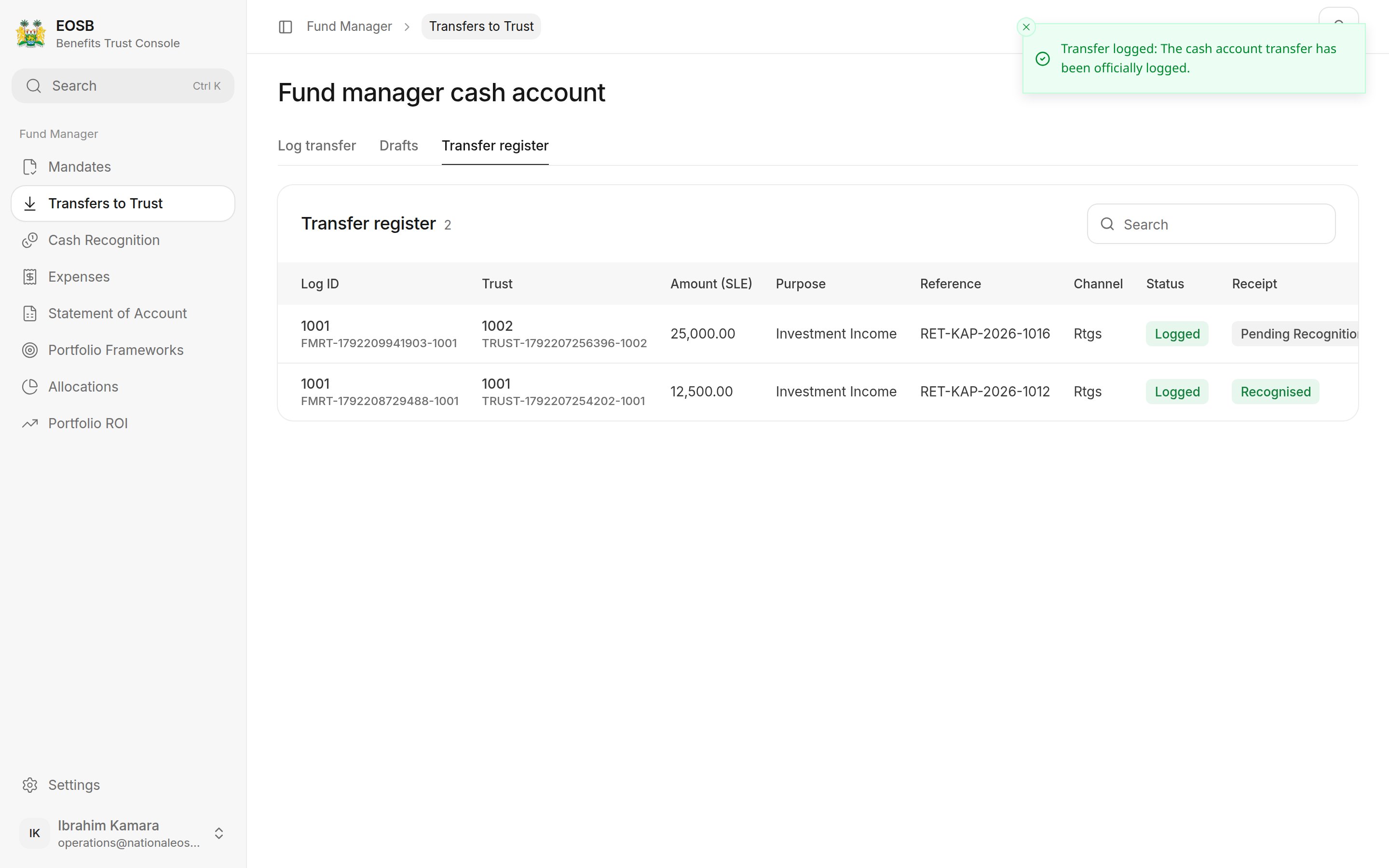
The transfer appears in the **Transfer register** as **Logged**, with the trustee's **Receipt** status: **Pending recognition** until they confirm it, then **Recognised**.
Select **Save draft** to finish later; drafts are listed under **Drafts** with **Resume**.
The transfer appears in the **Transfer register** as **Logged**, with the trustee's **Receipt** status: **Pending recognition** until they confirm it, then **Recognised**.
 If the same reference was used recently, the page asks you to **Confirm duplicate reference** before continuing. Check you are not logging the same transfer twice.
## What happens next
The trustee checks the trust's bank statement and [confirms receipt](/trustee/cash-recognition#cash-returned-to-the-trust). Follow it in the **Transfer register**: **Receipt** moves from **Pending recognition** to **Recognised**. If the trustee cannot match it, they give a reason; talk to them and correct the record.
This documentation is built and hosted on [Mintlify](https://mintlify.com), a developer documentation platform.
If the same reference was used recently, the page asks you to **Confirm duplicate reference** before continuing. Check you are not logging the same transfer twice.
## What happens next
The trustee checks the trust's bank statement and [confirms receipt](/trustee/cash-recognition#cash-returned-to-the-trust). Follow it in the **Transfer register**: **Receipt** moves from **Pending recognition** to **Recognised**. If the trustee cannot match it, they give a reason; talk to them and correct the record.
This documentation is built and hosted on [Mintlify](https://mintlify.com), a developer documentation platform.