> ## Documentation Index
> Fetch the complete documentation index at: https://docs.eosb.org/llms.txt
> Use this file to discover all available pages before exploring further.
# Portfolio frameworks
> Set up a trust's portfolio and the policy mix it must hold, then activate it.
A portfolio framework sets out how a trust's money is to be invested: which asset types, and in what proportions. You must activate a framework before you can buy assets for it.
**Where:** **Portfolio Frameworks** in the menu. **Before you start:** agree the policy mix with the trustee — it is what the trustee measures you against.
Open **Portfolio Frameworks**. It has two tabs: **Create portfolio** and **Portfolio list**.
## Create a framework
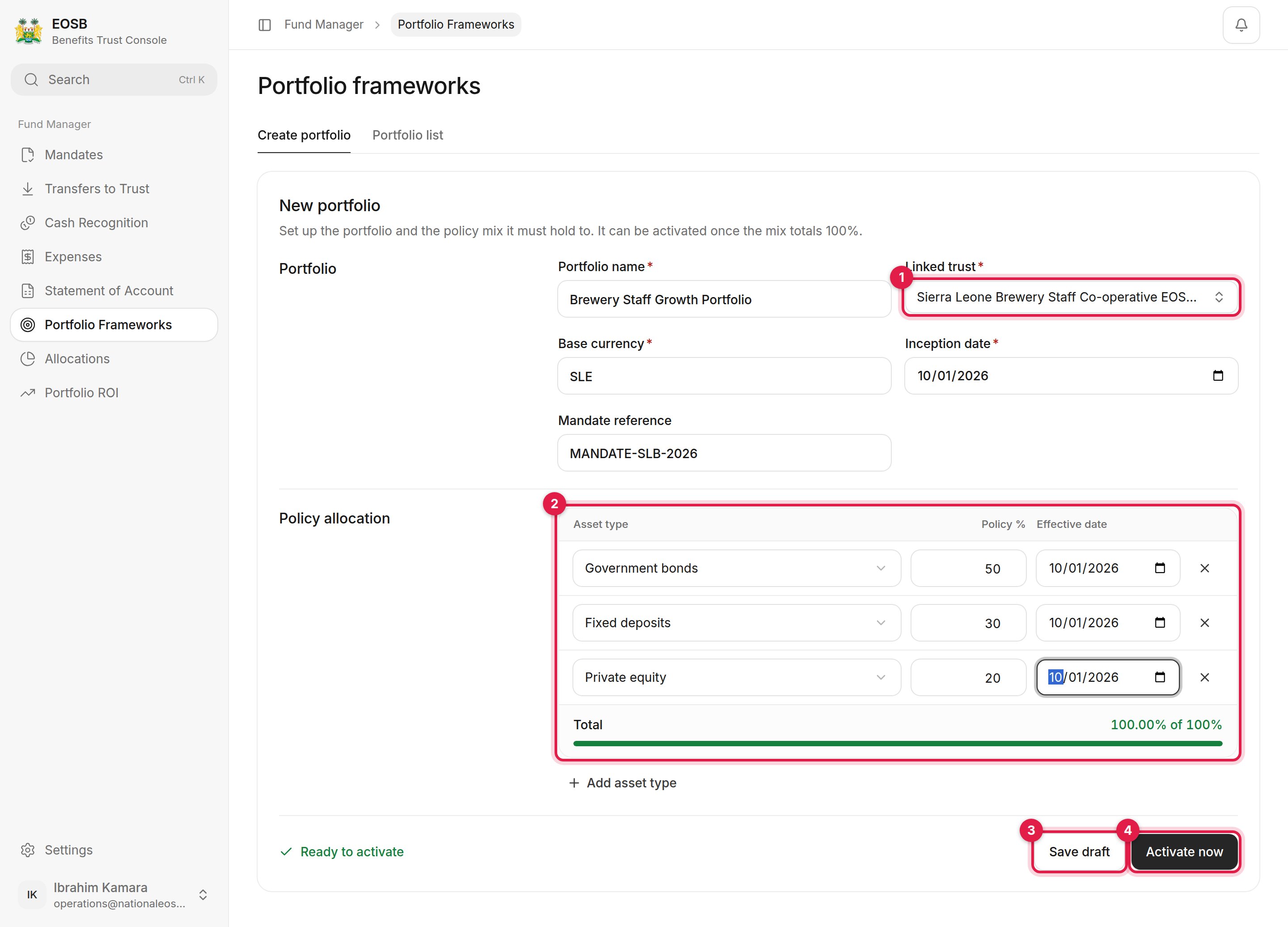 Also set the **Base currency**, **Inception date** and, optionally, the **Mandate reference**.
One row per asset type, with its **Policy %** and **Effective date**. Use **Add asset type** for more rows. The rows must total exactly **100%**; the bar turns green and the page says **Ready to activate**.
## The portfolio list
Also set the **Base currency**, **Inception date** and, optionally, the **Mandate reference**.
One row per asset type, with its **Policy %** and **Effective date**. Use **Add asset type** for more rows. The rows must total exactly **100%**; the bar turns green and the page says **Ready to activate**.
## The portfolio list
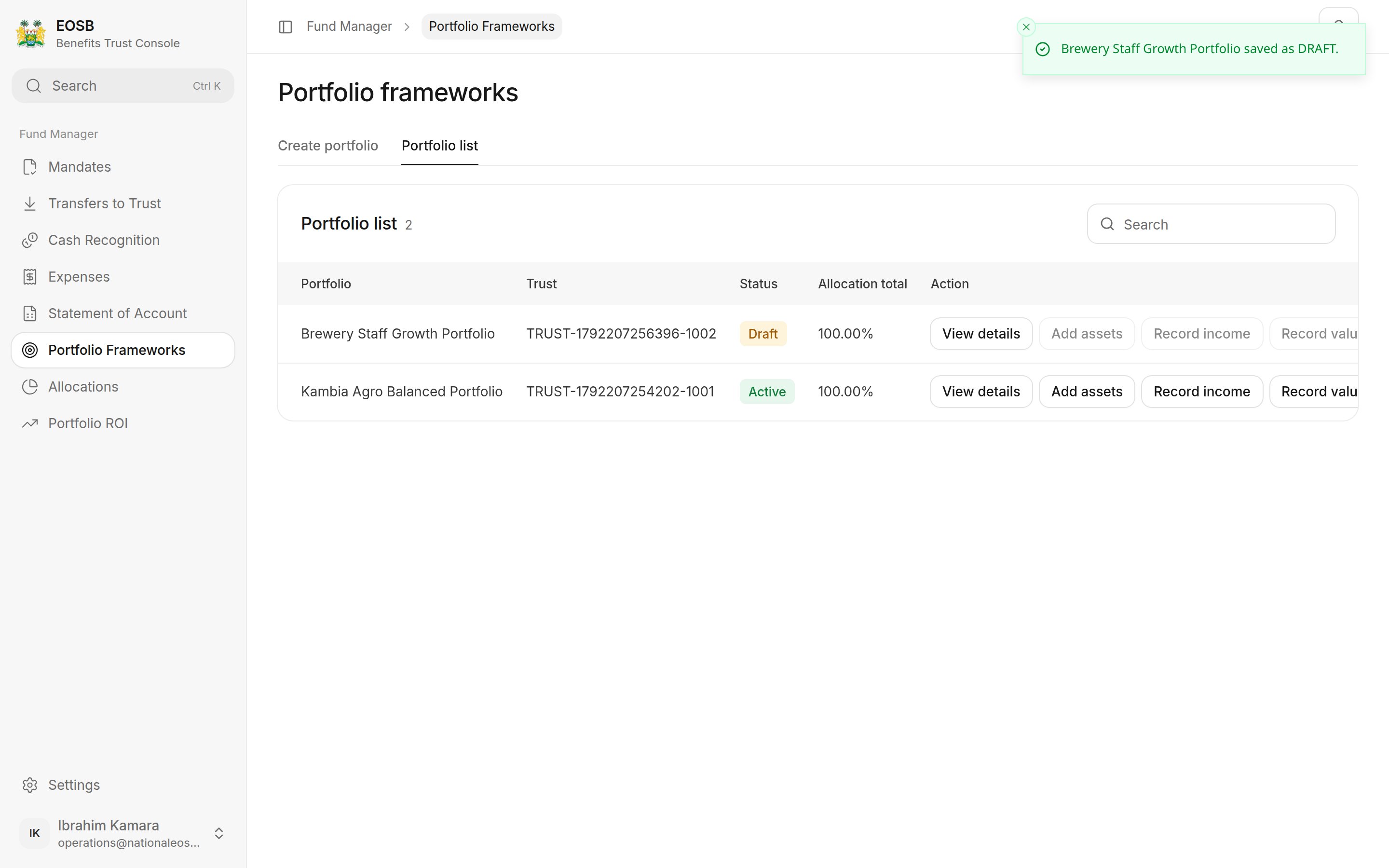 Each portfolio shows its trust, status and allocation total, with shortcuts to **View details**, **Add assets**, **Record income** and **Record valuation**. The shortcuts are disabled for drafts.
## Activate a draft
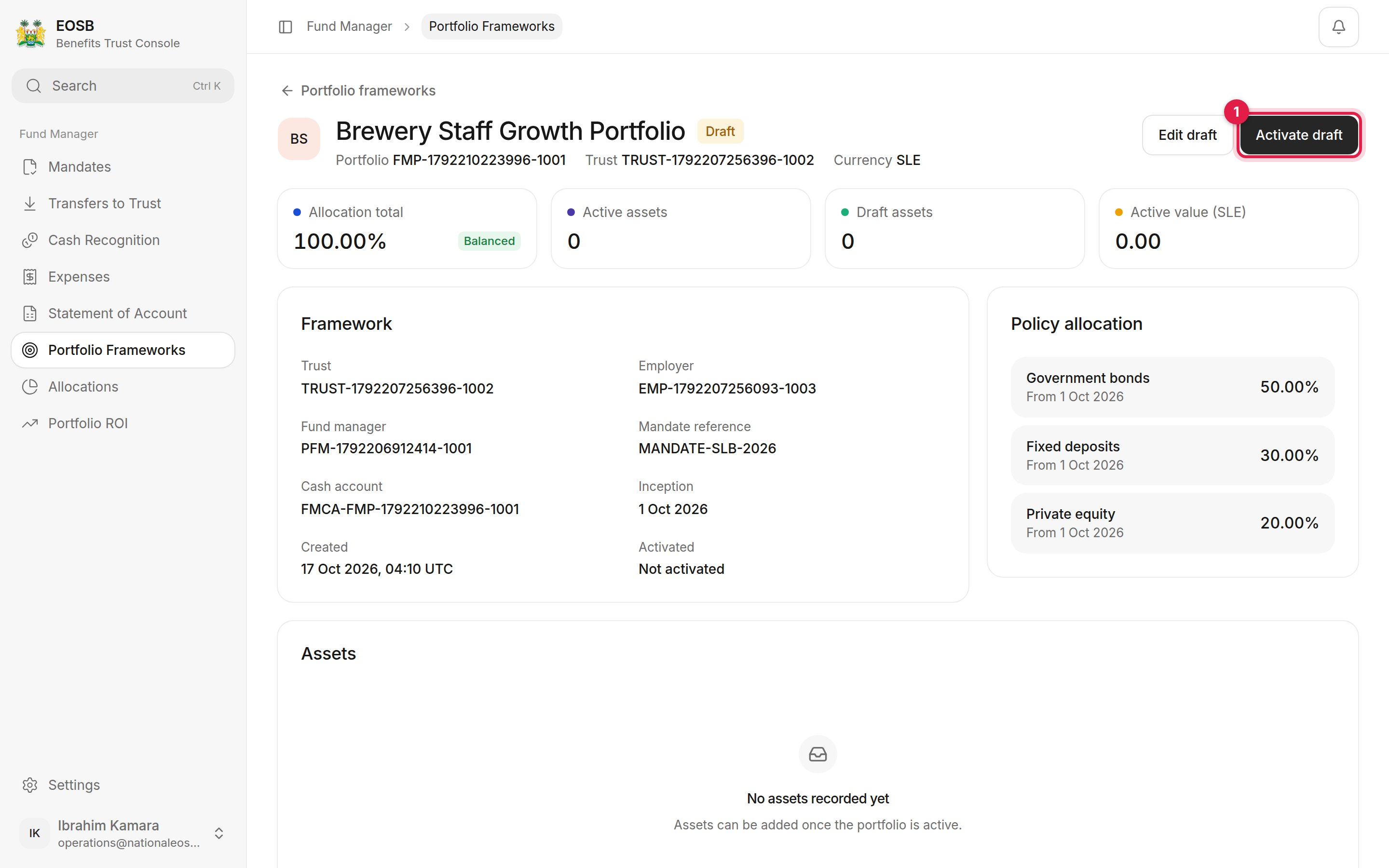
Open the draft with **View details** and select **Activate draft**. You can also **Edit draft** first.
Each portfolio shows its trust, status and allocation total, with shortcuts to **View details**, **Add assets**, **Record income** and **Record valuation**. The shortcuts are disabled for drafts.
## Activate a draft
Open the draft with **View details** and select **Activate draft**. You can also **Edit draft** first.
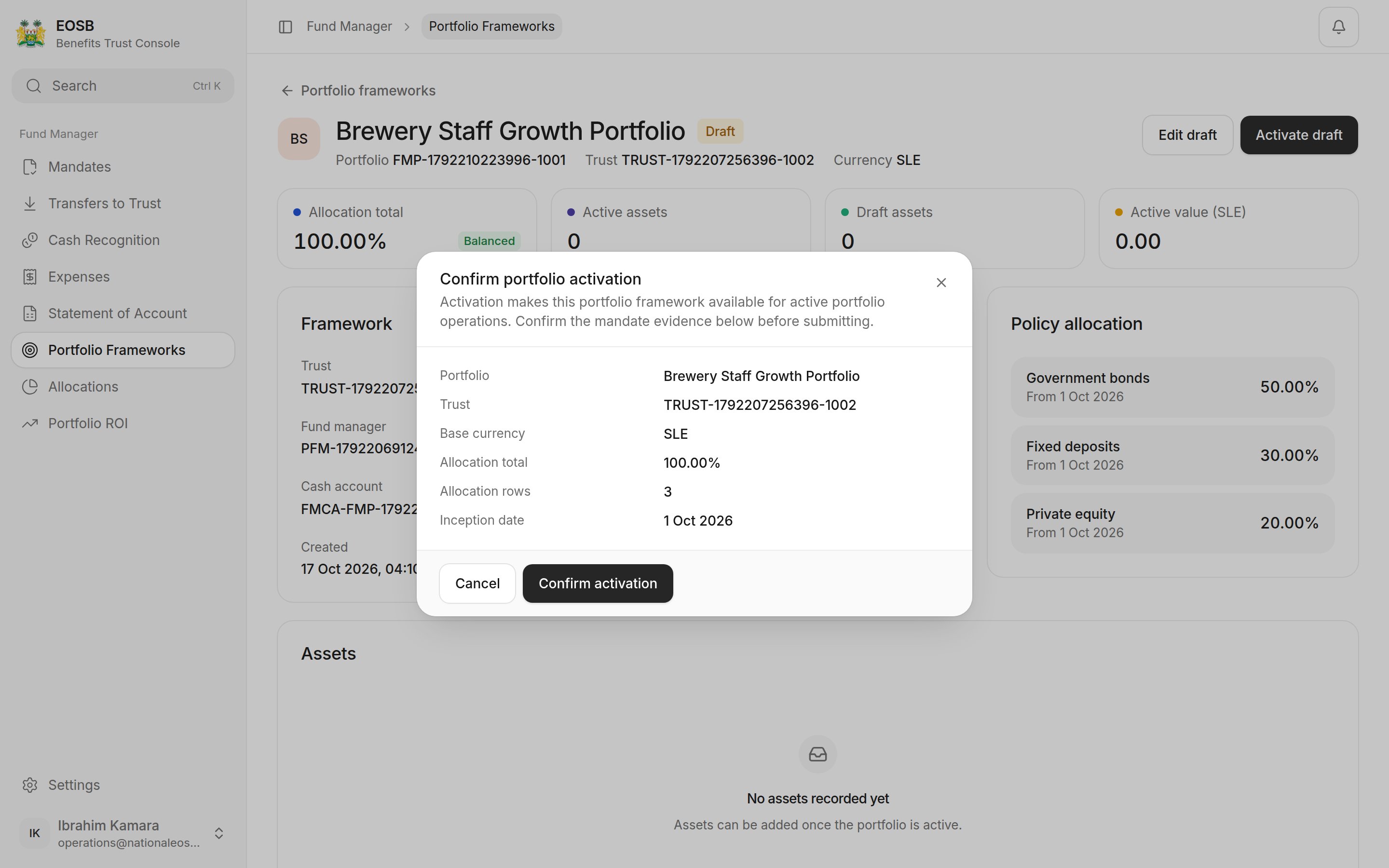
 Check the summary and select **Confirm activation**.
 ## An active framework
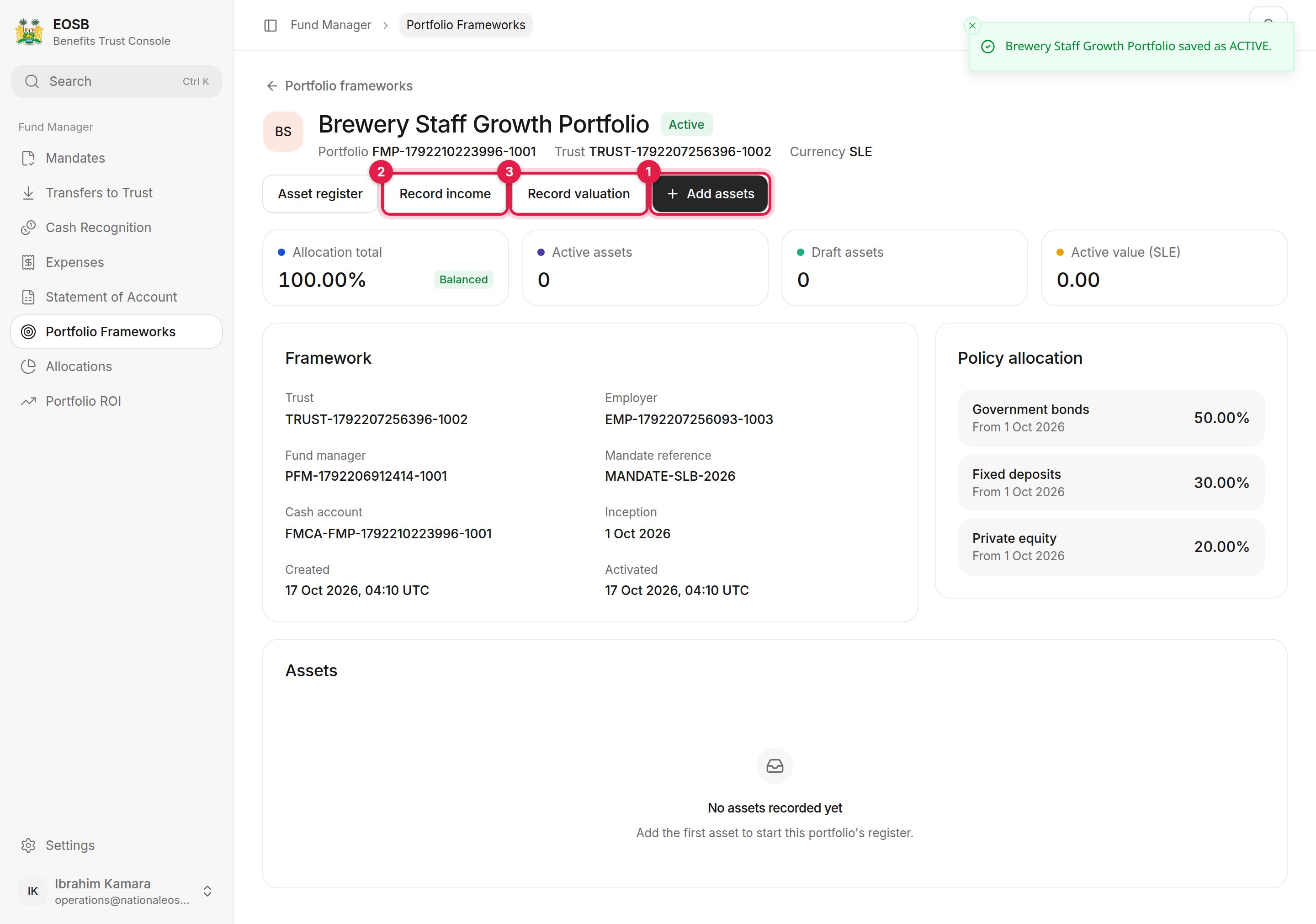 From here you can **Add assets (1)**, **Record income (2)**, **Record valuation (3)** or open the **Asset register**. See [Assets, income and valuations](/fund-manager/assets).
**Next:** [add assets](/fund-manager/assets).
This documentation is built and hosted on [Mintlify](https://mintlify.com), a developer documentation platform.
From here you can **Add assets (1)**, **Record income (2)**, **Record valuation (3)** or open the **Asset register**. See [Assets, income and valuations](/fund-manager/assets).
**Next:** [add assets](/fund-manager/assets).
This documentation is built and hosted on [Mintlify](https://mintlify.com), a developer documentation platform.