> ## Documentation Index
> Fetch the complete documentation index at: https://docs.eosb.org/llms.txt
> Use this file to discover all available pages before exploring further.
# Budgets and expenses
> Propose an expense budget, then post mandate expenses against it.
Mandate costs — your fees, the trustee's fees, audit, bank and investment costs — are paid from the trust's cash. You can only post an expense within an approved budget.
**Where:** **Expenses** in the menu. **Before you start:** propose a budget first; until one is approved, every expense is blocked.
**Expenses** has five tabs: **Record expense**, **Drafts**, **Expense register**, **Budgets** and **Budget register**.
## Propose a budget
Open **Budgets**.
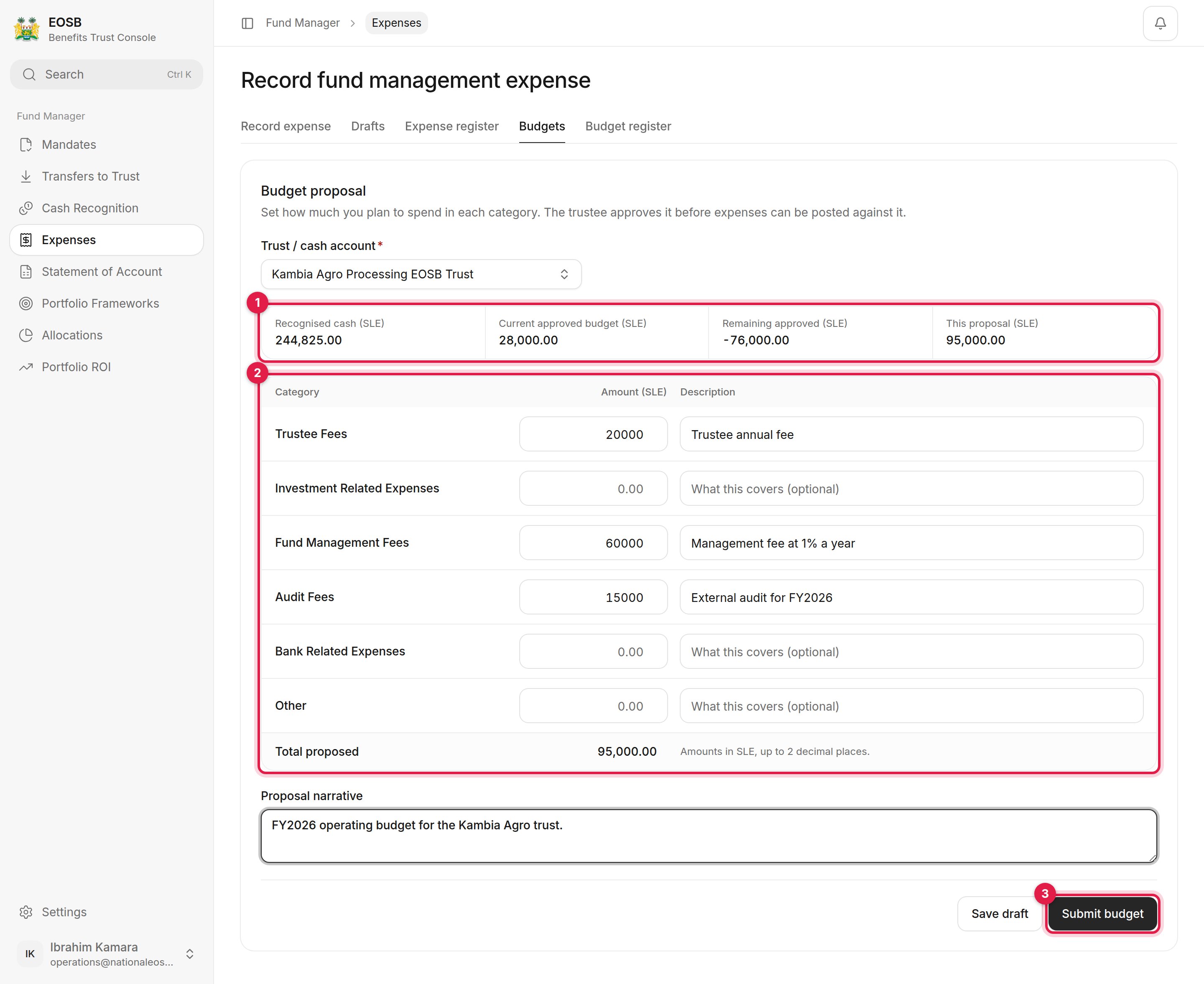 **Budget position (1)** shows the recognised cash, the current approved budget, what remains of it, and this proposal's total.
An amount, and optionally a description, for each category: trustee fees, investment-related expenses, fund management fees, audit fees, bank-related expenses and other.
Write a **Proposal narrative** for the trustee.
Or **Save draft** to finish later.
The budget waits as **Pending approval** for the trustee and the employer. Either can decide it; the first decision settles it. The **Budget register** shows every budget and its status.
**Budget position (1)** shows the recognised cash, the current approved budget, what remains of it, and this proposal's total.
An amount, and optionally a description, for each category: trustee fees, investment-related expenses, fund management fees, audit fees, bank-related expenses and other.
Write a **Proposal narrative** for the trustee.
Or **Save draft** to finish later.
The budget waits as **Pending approval** for the trustee and the employer. Either can decide it; the first decision settles it. The **Budget register** shows every budget and its status.
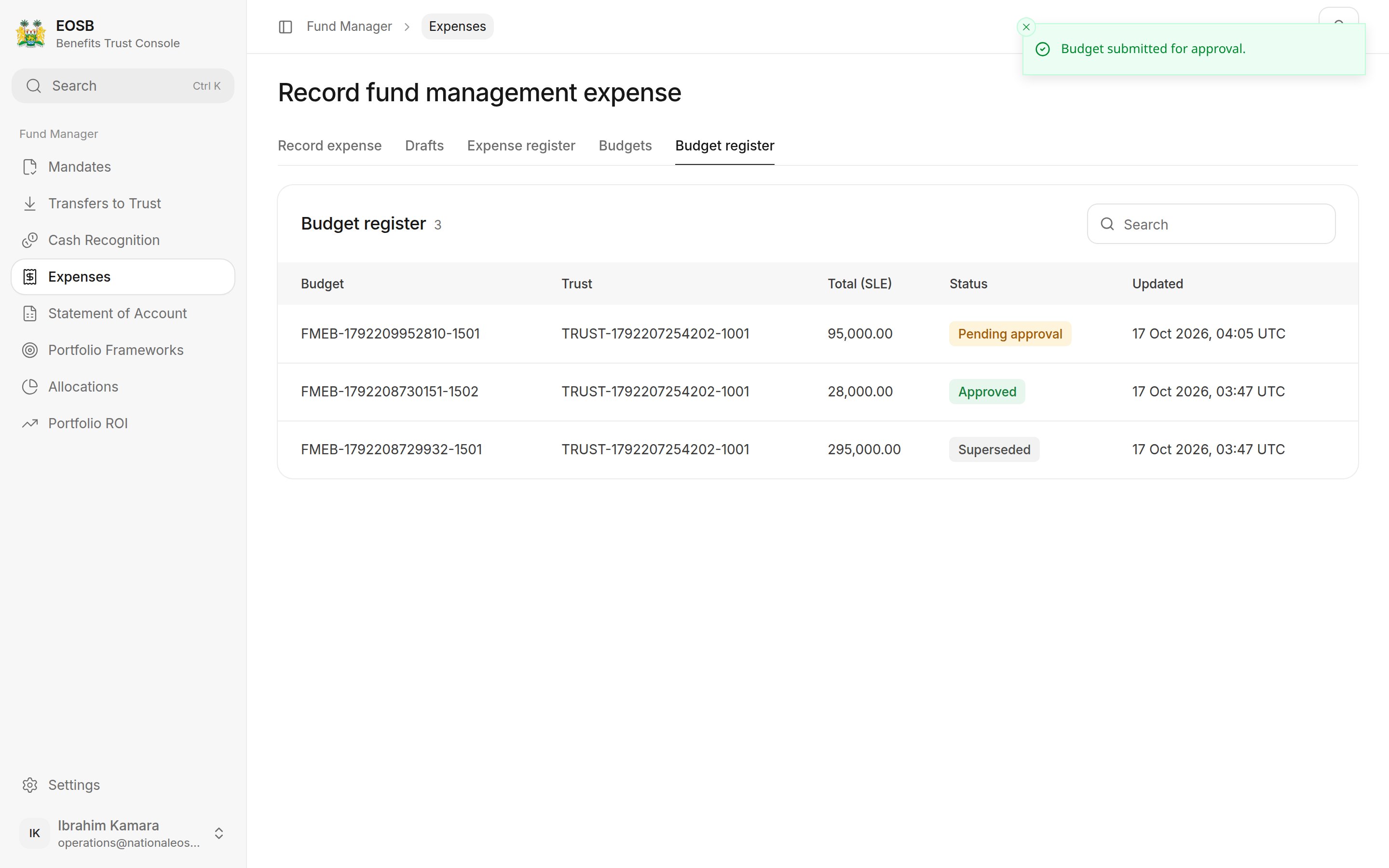 When the trustee approves a new budget, it **replaces** your current approved budget for that trust (the old one shows as **Superseded**). Each new budget must cover everything you still need to spend, including expenses already posted this year.
## Record an expense
When the trustee approves a new budget, it **replaces** your current approved budget for that trust (the old one shows as **Superseded**). Each new budget must cover everything you still need to spend, including expenses already posted this year.
## Record an expense
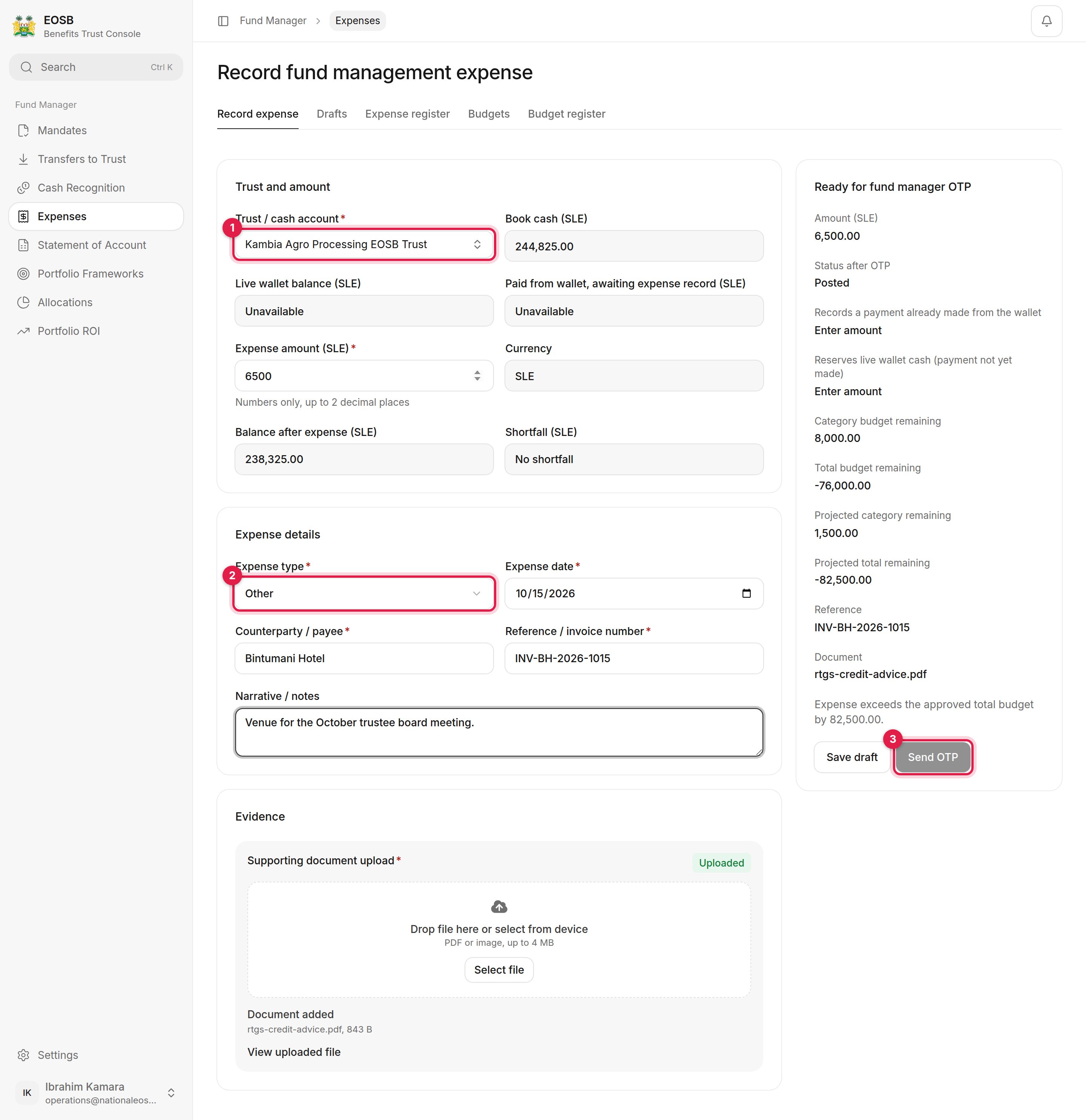
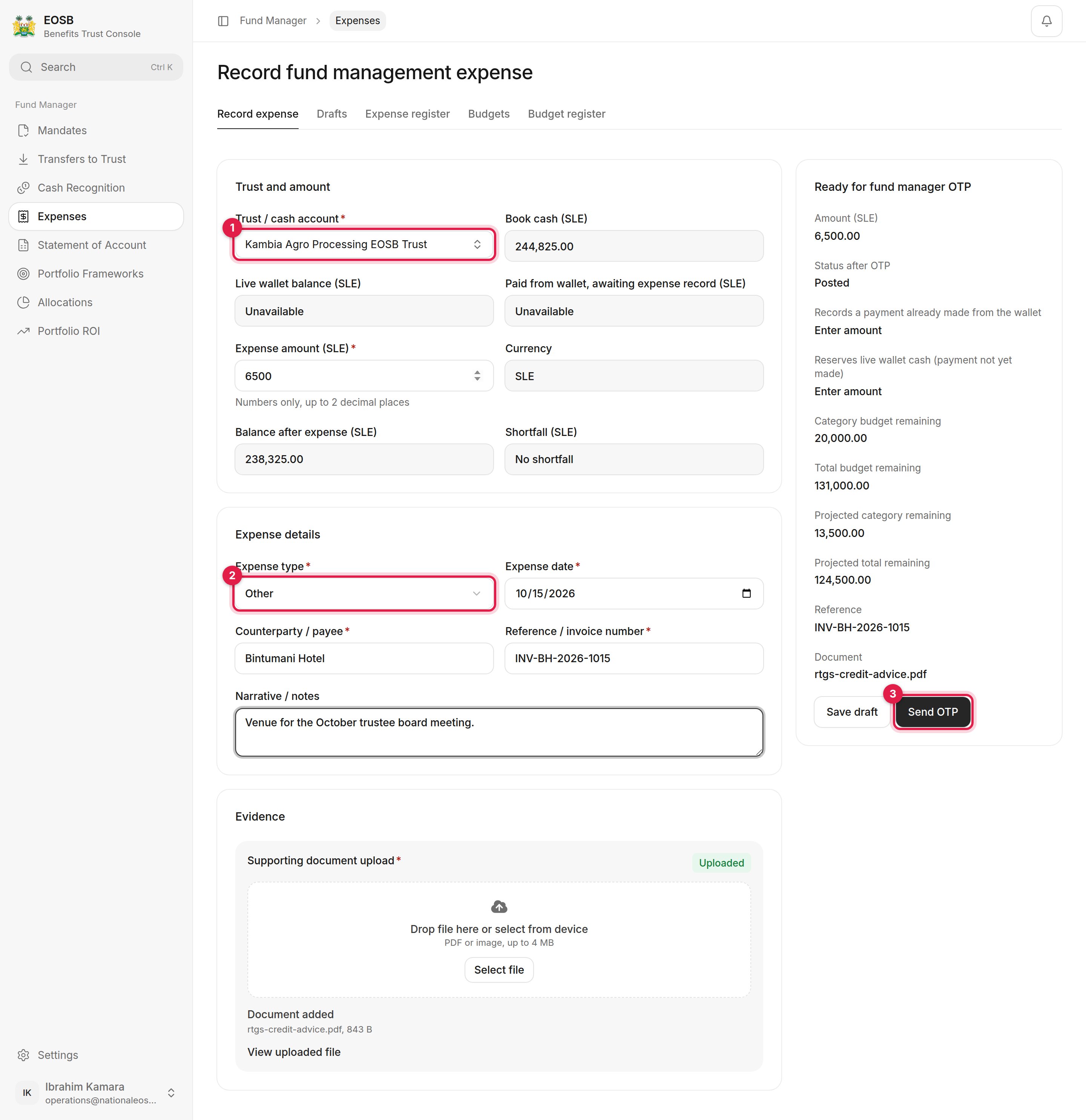 **Book cash** shows the cash you hold for it.
| Field | What to enter |
| - | - |
| Expense amount (SLE) \* | |
| Expense type \* (2) | The budget category |
| Expense date \* | |
| Counterparty / payee \* | Who is paid |
| Reference / invoice number \* | |
| Narrative / notes | What it was for |
It shows the budget remaining for the category and in total, before and after this expense, and the status the expense will have.
| Expense | Status after the code |
| - | - |
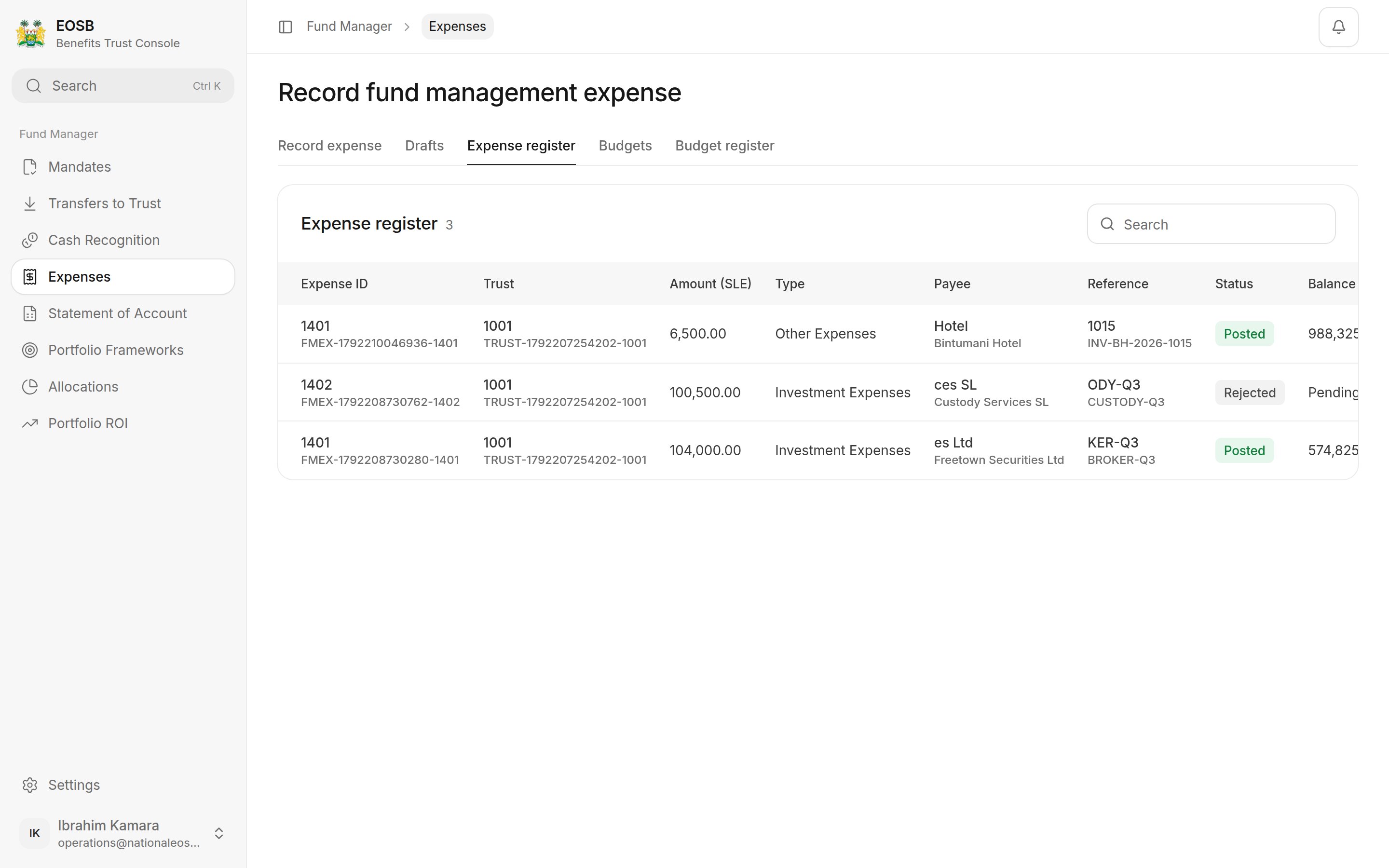
| SLE 100,000 or less, within budget | **Posted** — the cash is debited straight away |
| Above SLE 100,000 | **Pending trustee approval** — see the [trustee's guide](/trustee/expenses) |
The **Expense register** lists every expense, with the payee and reference as you entered them; a posted expense can be **Reversed** from there.
**Book cash** shows the cash you hold for it.
| Field | What to enter |
| - | - |
| Expense amount (SLE) \* | |
| Expense type \* (2) | The budget category |
| Expense date \* | |
| Counterparty / payee \* | Who is paid |
| Reference / invoice number \* | |
| Narrative / notes | What it was for |
It shows the budget remaining for the category and in total, before and after this expense, and the status the expense will have.
| Expense | Status after the code |
| - | - |
| SLE 100,000 or less, within budget | **Posted** — the cash is debited straight away |
| Above SLE 100,000 | **Pending trustee approval** — see the [trustee's guide](/trustee/expenses) |
The **Expense register** lists every expense, with the payee and reference as you entered them; a posted expense can be **Reversed** from there.
 ## When the budget is not enough
**Send OTP** stays disabled and the panel explains why, for example **Expense exceeds the approved total budget by 82,500.00**. Propose a new budget that covers the expense and wait for it to be approved.
## When the budget is not enough
**Send OTP** stays disabled and the panel explains why, for example **Expense exceeds the approved total budget by 82,500.00**. Propose a new budget that covers the expense and wait for it to be approved.
 This documentation is built and hosted on [Mintlify](https://mintlify.com), a developer documentation platform.