> ## Documentation Index
> Fetch the complete documentation index at: https://docs.eosb.org/llms.txt
> Use this file to discover all available pages before exploring further.
# Assets, income and valuations
> Record what the portfolio buys, the income it earns, changes in value and write-offs.
Once a framework is active, this is where you record everything about its holdings: purchases, income, changes in value and write-offs. The asset register built from these records is what the trustee and employer see.
| Action | Trust cash |
| - | - |
| Add an asset | Goes **down** by the purchase price |
| Record income | Goes **up** by the amount received |
| Record a change in value | Does not move |
| Write off an asset | Does not move |
**Where:** an active portfolio in **Portfolio Frameworks**. **Before you start:** recognise enough cash for the trust to cover the purchase.
## Add an asset
From an active portfolio select **Add assets**. The page has tabs for **Add asset**, **Drafts**, **Asset register**, **Allocation variance**, **Asset ROI**, **Portfolio ROI** and **Bulk upload**.
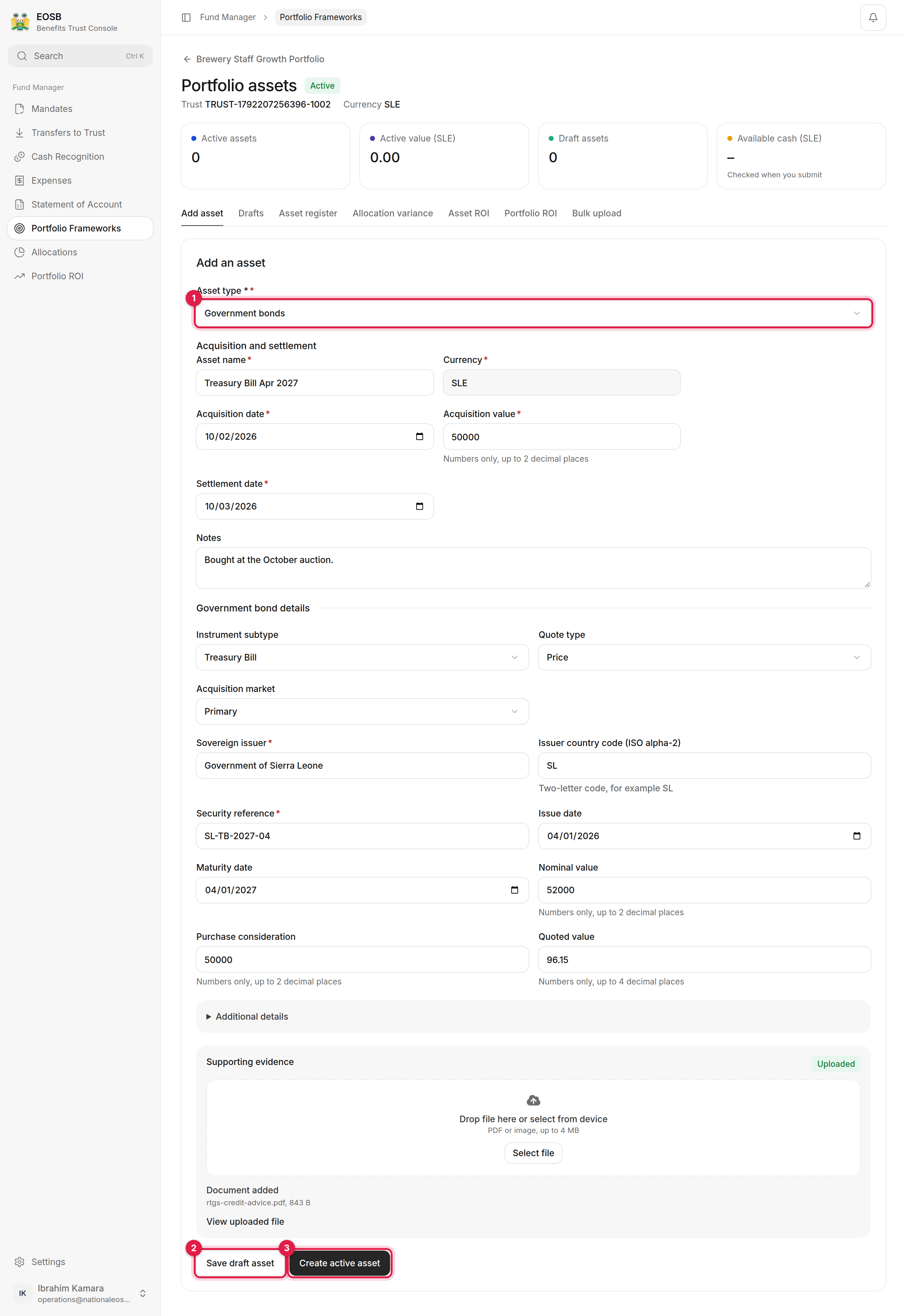 Only types in the portfolio's policy allocation are offered. The form then shows the fields for that type.
Asset name, acquisition date and value, settlement date and notes. The acquisition date cannot be in the future.
For example, for a government bond: instrument subtype, quote type, acquisition market, sovereign issuer, country, security reference, issue and maturity dates, nominal value, purchase consideration and quoted value. **Additional details** holds optional fields.
The contract note or certificate.
Review the summary and select **Confirm active asset**. The purchase is paid from the trust's recognised cash. To finish later, select **Save draft asset (2)**.
If something stops the asset being activated, the field concerned is marked, and anything without a field of its own (for example a problem with the uploaded evidence) is listed above the buttons under **The asset can't be activated yet**.
The **Drafts** tab lists your draft assets, but you can't open or activate them from there. To activate a drafted asset, enter it again under **Add asset** and select **Create active asset**.
### Bulk upload
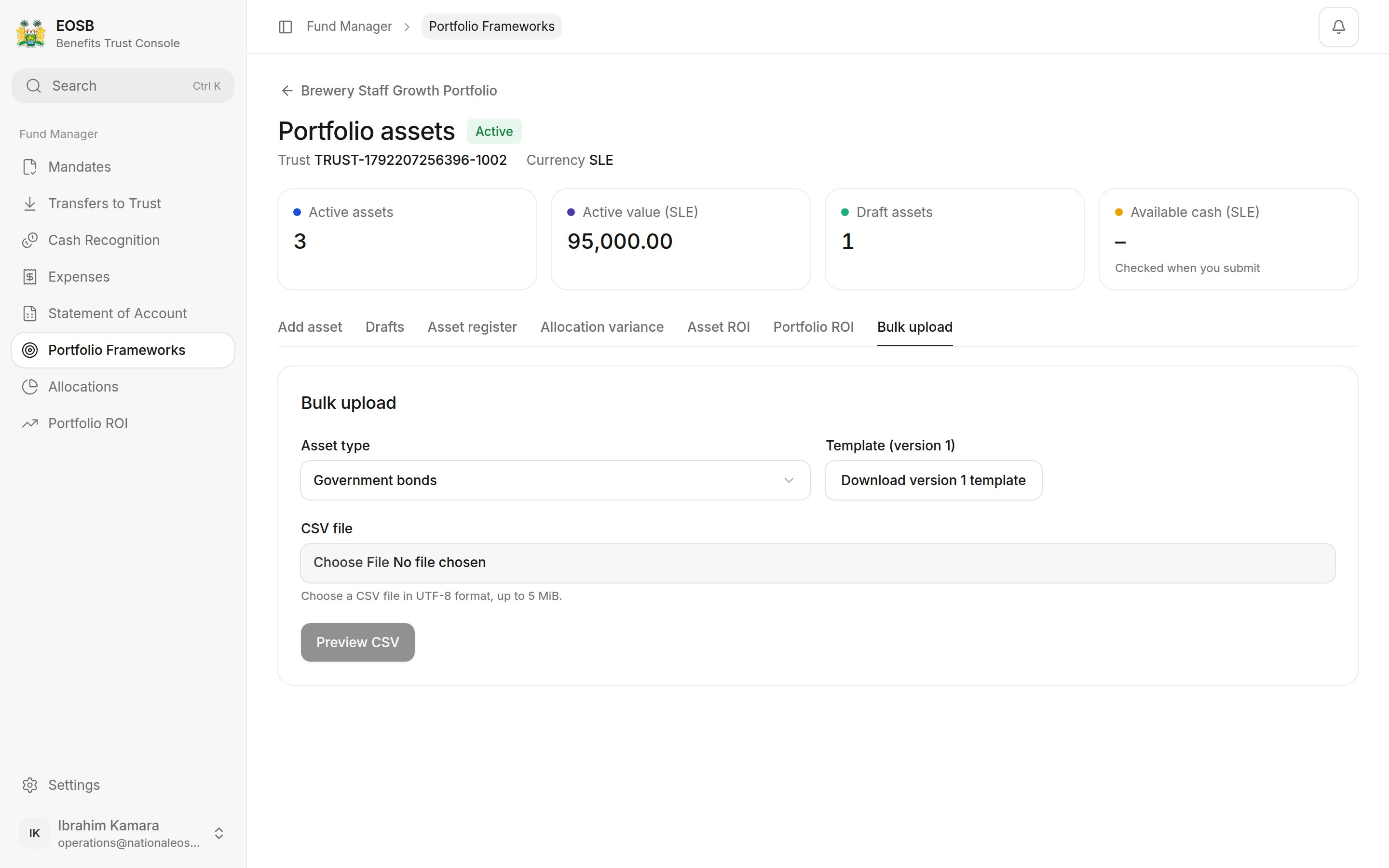
**Bulk upload** adds many assets of one type from a CSV file. Download the template for the asset type, fill it in, upload it, and attach one evidence file per asset reference.
Only types in the portfolio's policy allocation are offered. The form then shows the fields for that type.
Asset name, acquisition date and value, settlement date and notes. The acquisition date cannot be in the future.
For example, for a government bond: instrument subtype, quote type, acquisition market, sovereign issuer, country, security reference, issue and maturity dates, nominal value, purchase consideration and quoted value. **Additional details** holds optional fields.
The contract note or certificate.
Review the summary and select **Confirm active asset**. The purchase is paid from the trust's recognised cash. To finish later, select **Save draft asset (2)**.
If something stops the asset being activated, the field concerned is marked, and anything without a field of its own (for example a problem with the uploaded evidence) is listed above the buttons under **The asset can't be activated yet**.
The **Drafts** tab lists your draft assets, but you can't open or activate them from there. To activate a drafted asset, enter it again under **Add asset** and select **Create active asset**.
### Bulk upload
**Bulk upload** adds many assets of one type from a CSV file. Download the template for the asset type, fill it in, upload it, and attach one evidence file per asset reference.
 ## The asset register
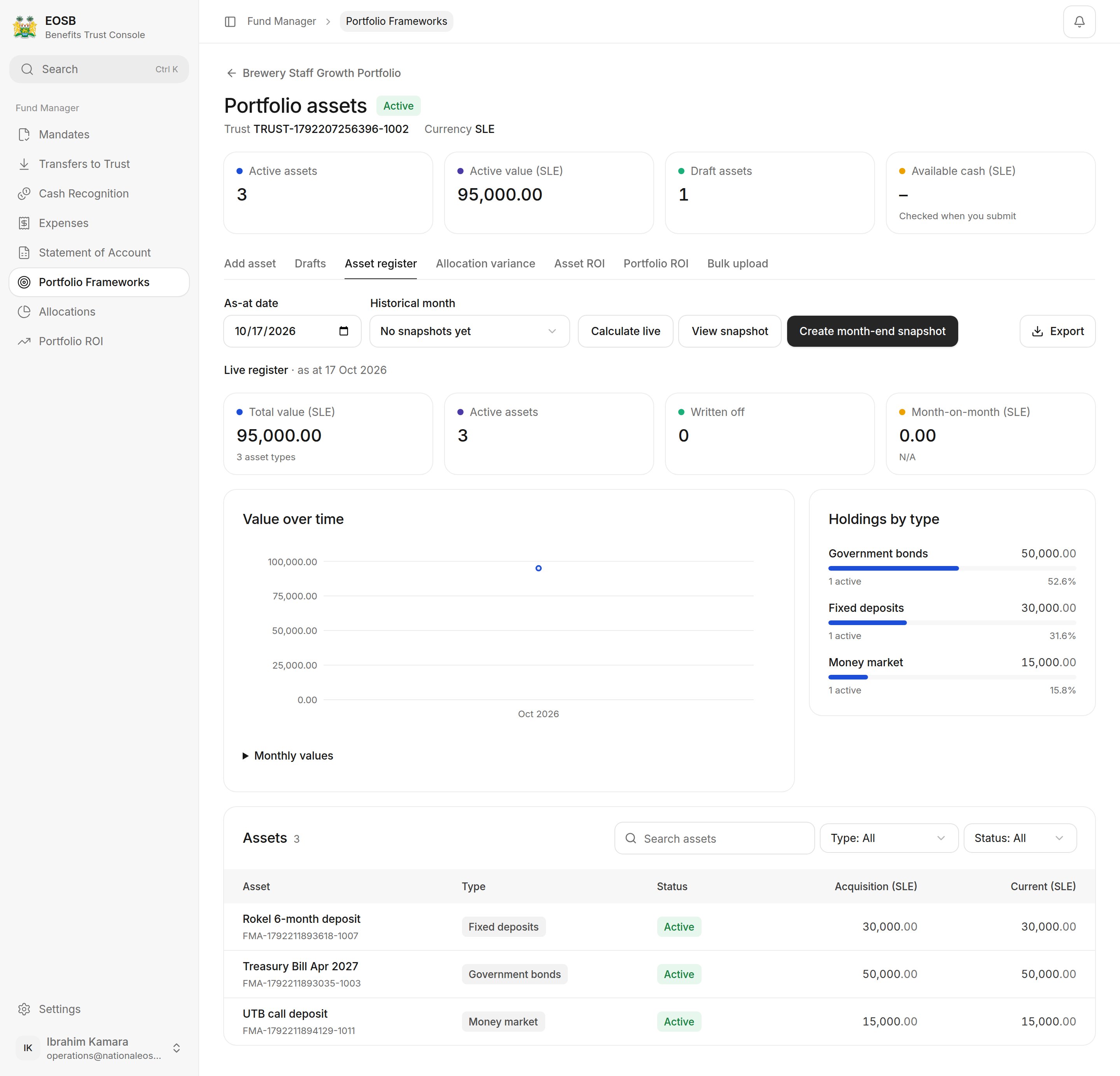 Pick an **As-at date** and select **Calculate live**, or a **Historical month** and **View snapshot**. Select **Create month-end snapshot** at each month-end — the trustee's reports and the ROI are built from these snapshots. **Export** downloads the register.
## Record income
From the portfolio select **Record income**.
Pick an **As-at date** and select **Calculate live**, or a **Historical month** and **View snapshot**. Select **Create month-end snapshot** at each month-end — the trustee's reports and the ROI are built from these snapshots. **Export** downloads the register.
## Record income
From the portfolio select **Record income**.
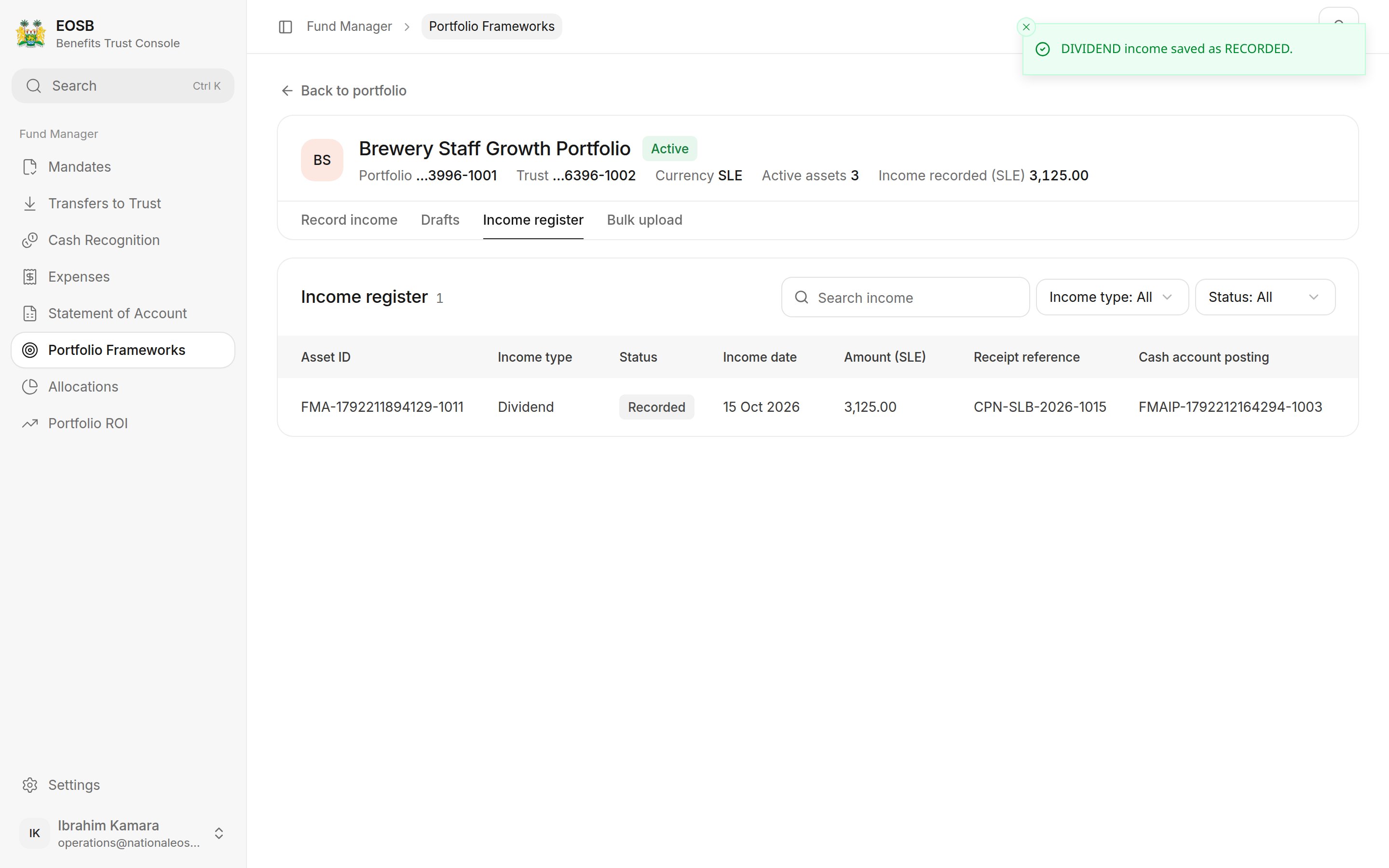
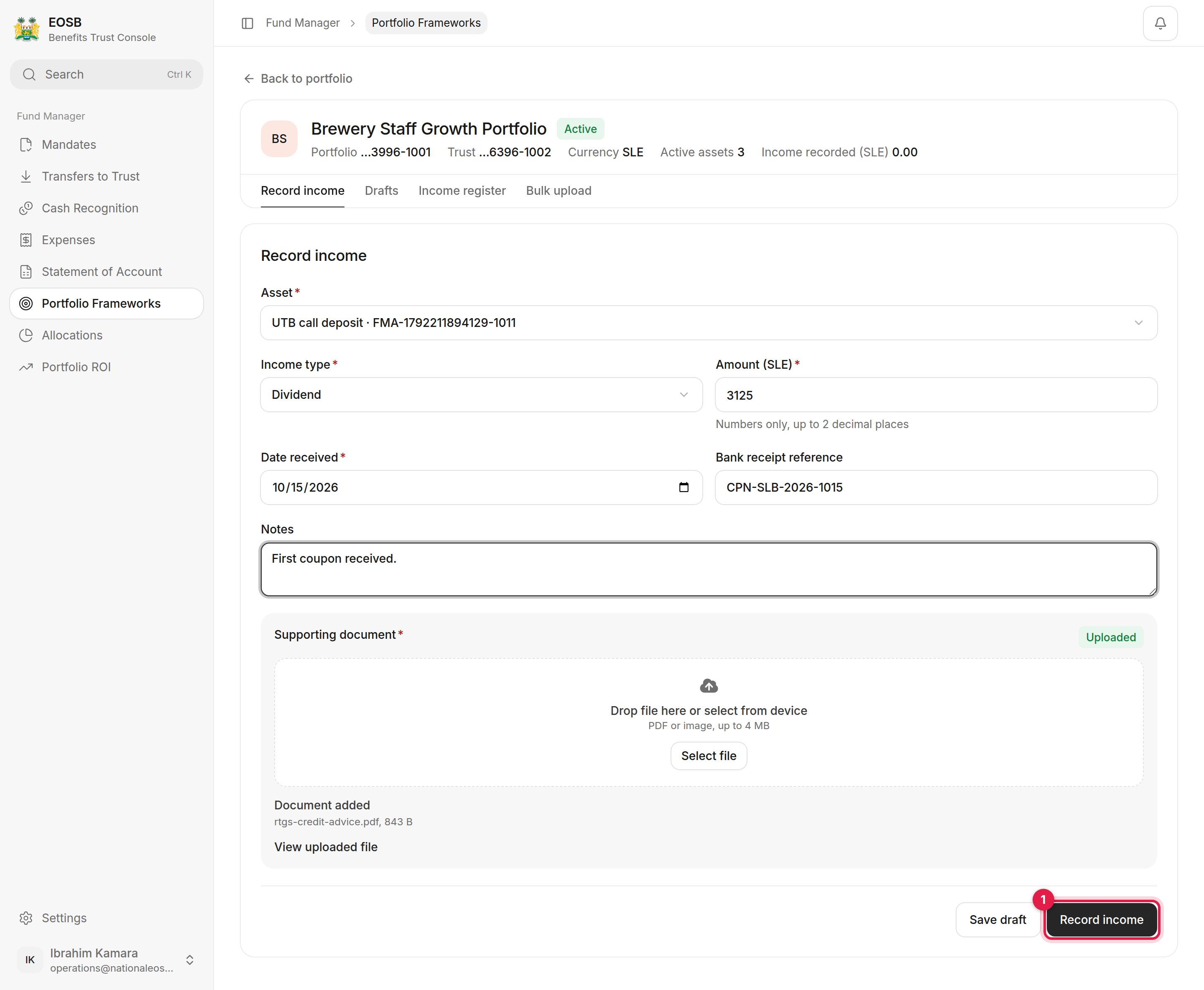 Choose the **Asset** and **Income type** (for example coupon, interest or dividend), enter the **Amount**, **Date received** and **Bank receipt reference**, upload the evidence and select **Record income (1)**. The income is added to the trust's cash with you. **Save draft** keeps it for later; **Bulk upload** takes a CSV.
 ## Record a change in value
From the portfolio select **Record valuation**.
## Record a change in value
From the portfolio select **Record valuation**.
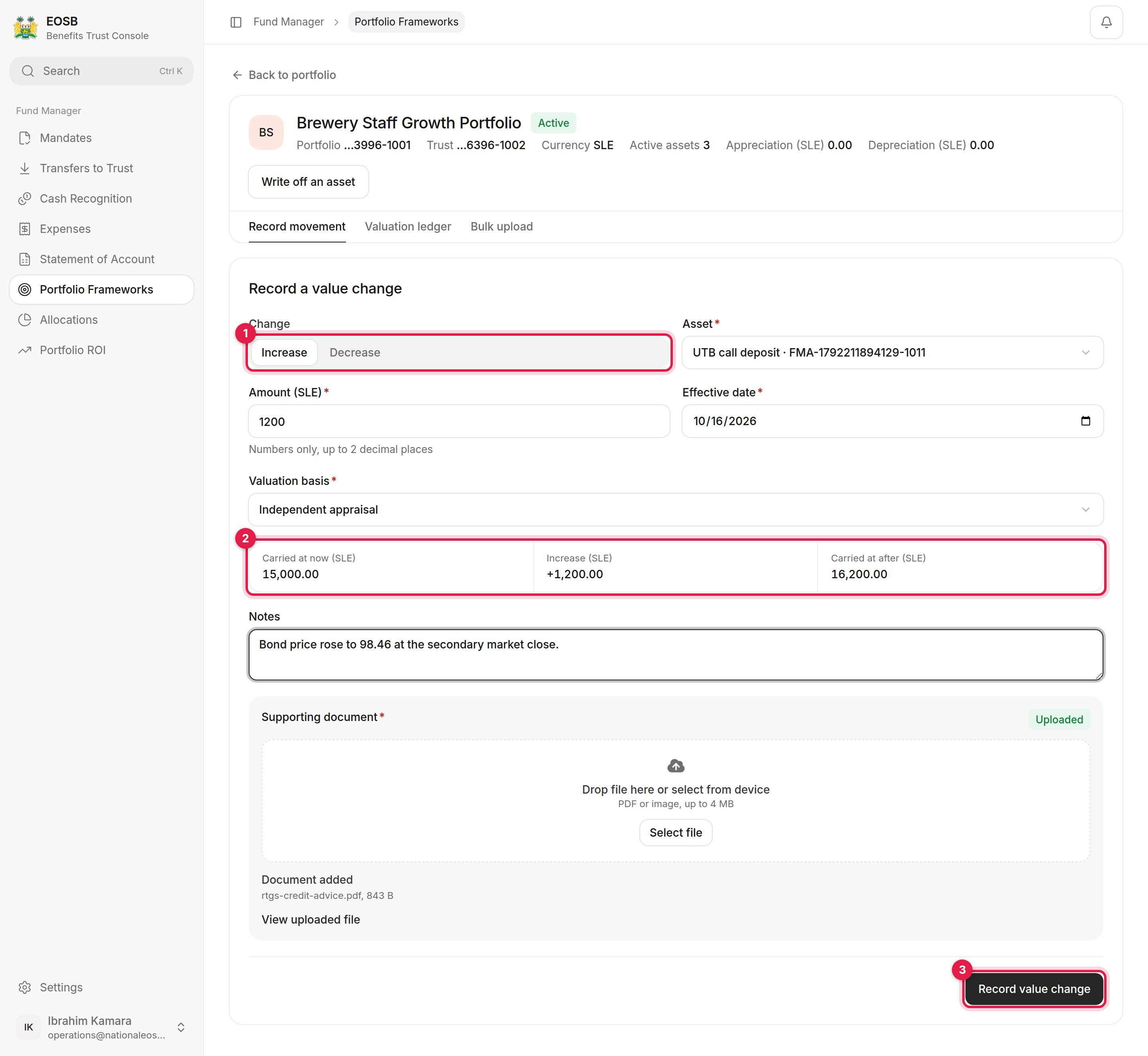 Choose **Increase** or **Decrease (1)**, the asset, the amount, the effective date and the **Valuation basis**. Check the carrying value before and after **(2)**, add notes and evidence, and select **Record value change (3)**. Trust cash does not move.
 ## Write off an asset
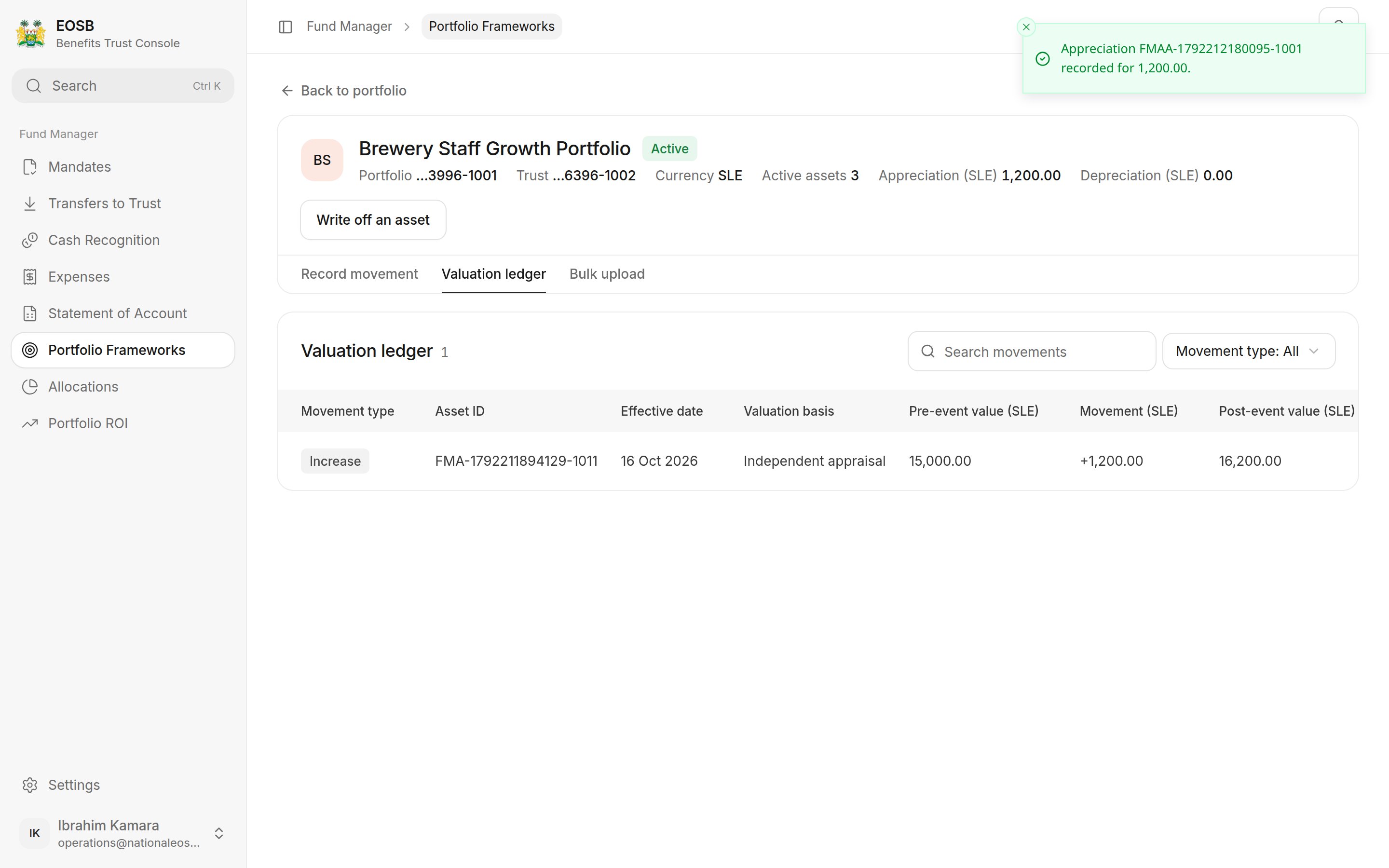
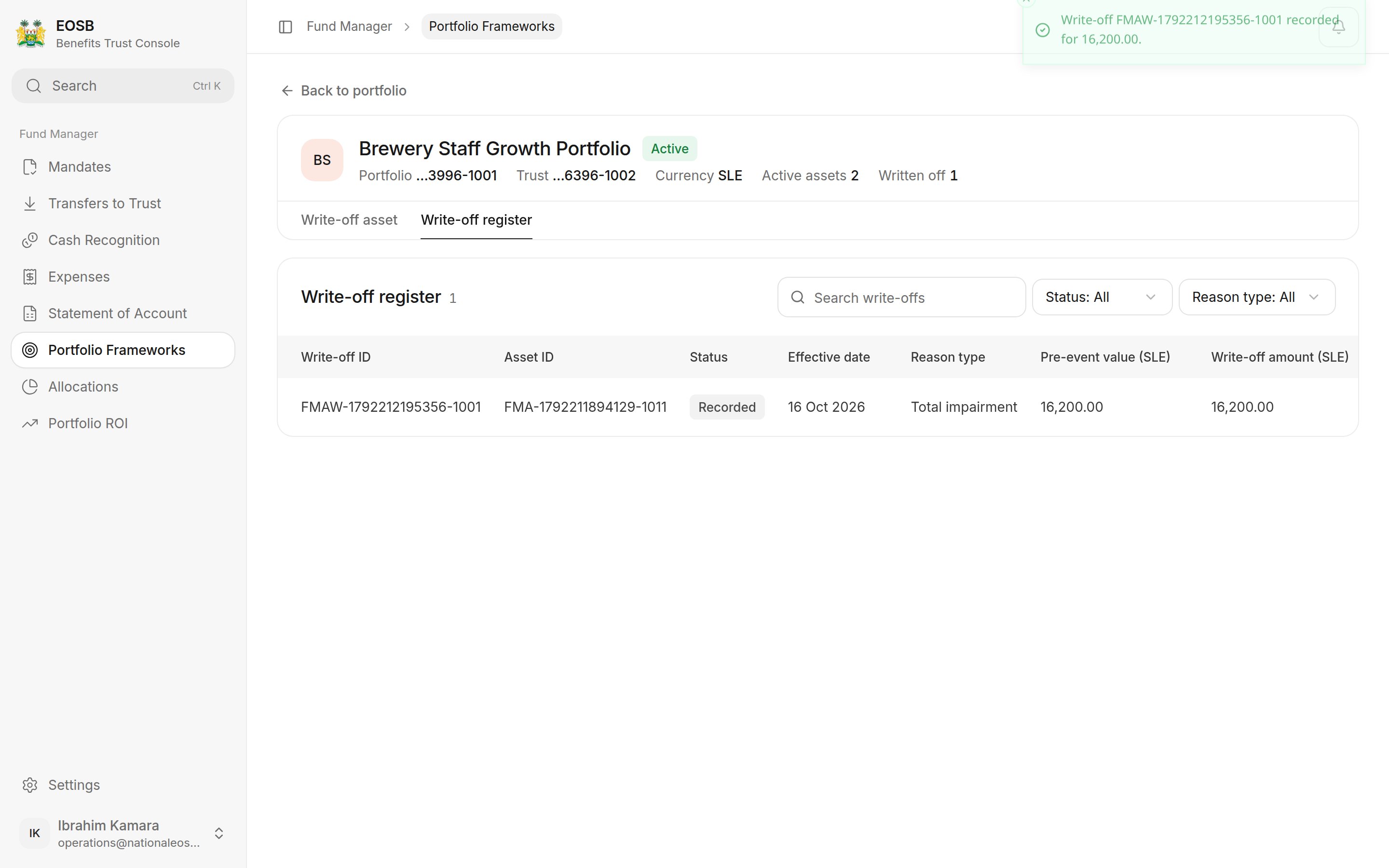
When an asset has lost all its value, select **Write off an asset** on the valuation page. A write-off takes the carrying value to zero; trust cash does not move.
Choose the asset, the effective date and the **Reason**, explain why, and upload the evidence. Select **Save write-off**.
## Write off an asset
When an asset has lost all its value, select **Write off an asset** on the valuation page. A write-off takes the carrying value to zero; trust cash does not move.
Choose the asset, the effective date and the **Reason**, explain why, and upload the evidence. Select **Save write-off**.
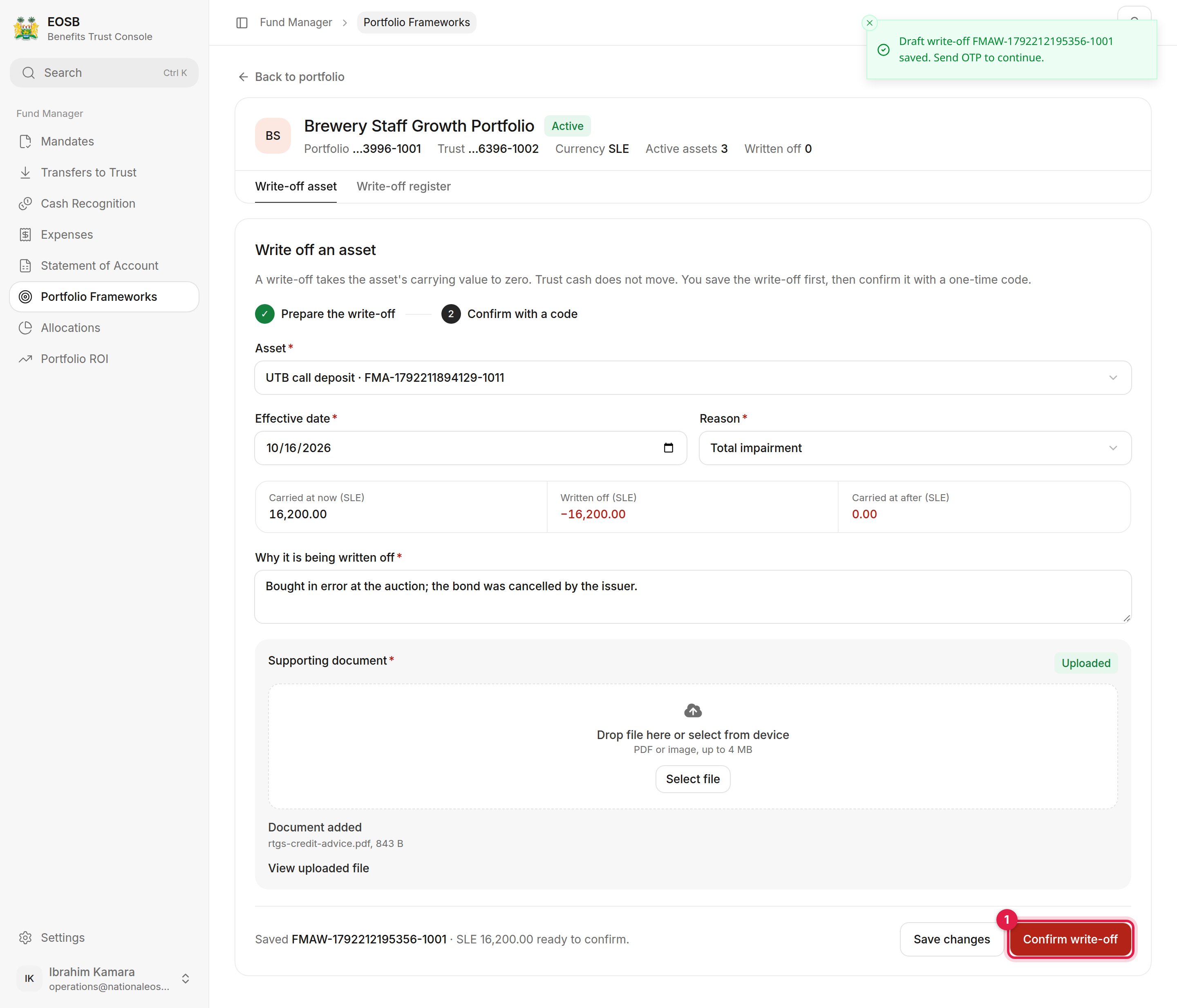 Select **Confirm write-off (1)**, enter the code and select **Confirm write-off** again.
 **Next:** [allocations and ROI](/fund-manager/allocations-and-roi).
This documentation is built and hosted on [Mintlify](https://mintlify.com), a developer documentation platform.
**Next:** [allocations and ROI](/fund-manager/allocations-and-roi).
This documentation is built and hosted on [Mintlify](https://mintlify.com), a developer documentation platform.