> ## Documentation Index
> Fetch the complete documentation index at: https://docs.eosb.org/llms.txt
> Use this file to discover all available pages before exploring further.
# Sign in and find your way around
> Sign in with your employer profile ID and learn the layout of the employer workspace.
**Where:** the EOSB sign-in page. **Before you start:** you have [set your password](/employer/getting-started/set-password).
## Sign in
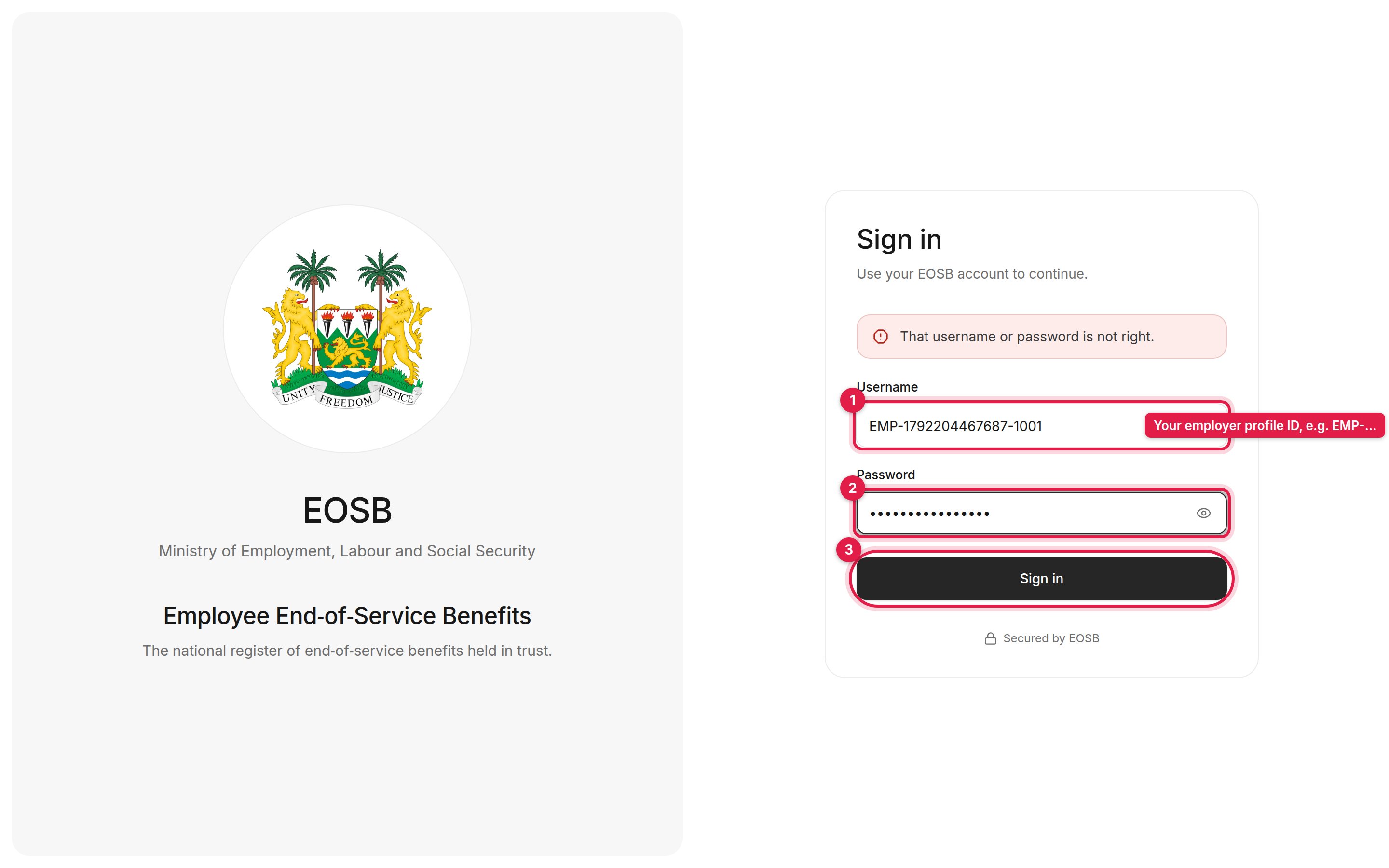 Your username is your **employer profile ID**, for example `EMP-1792204467687-1001`. It is in your account email.
Use the password you chose on the [Set your password](/employer/getting-started/set-password) page.
You arrive in your employer workspace.
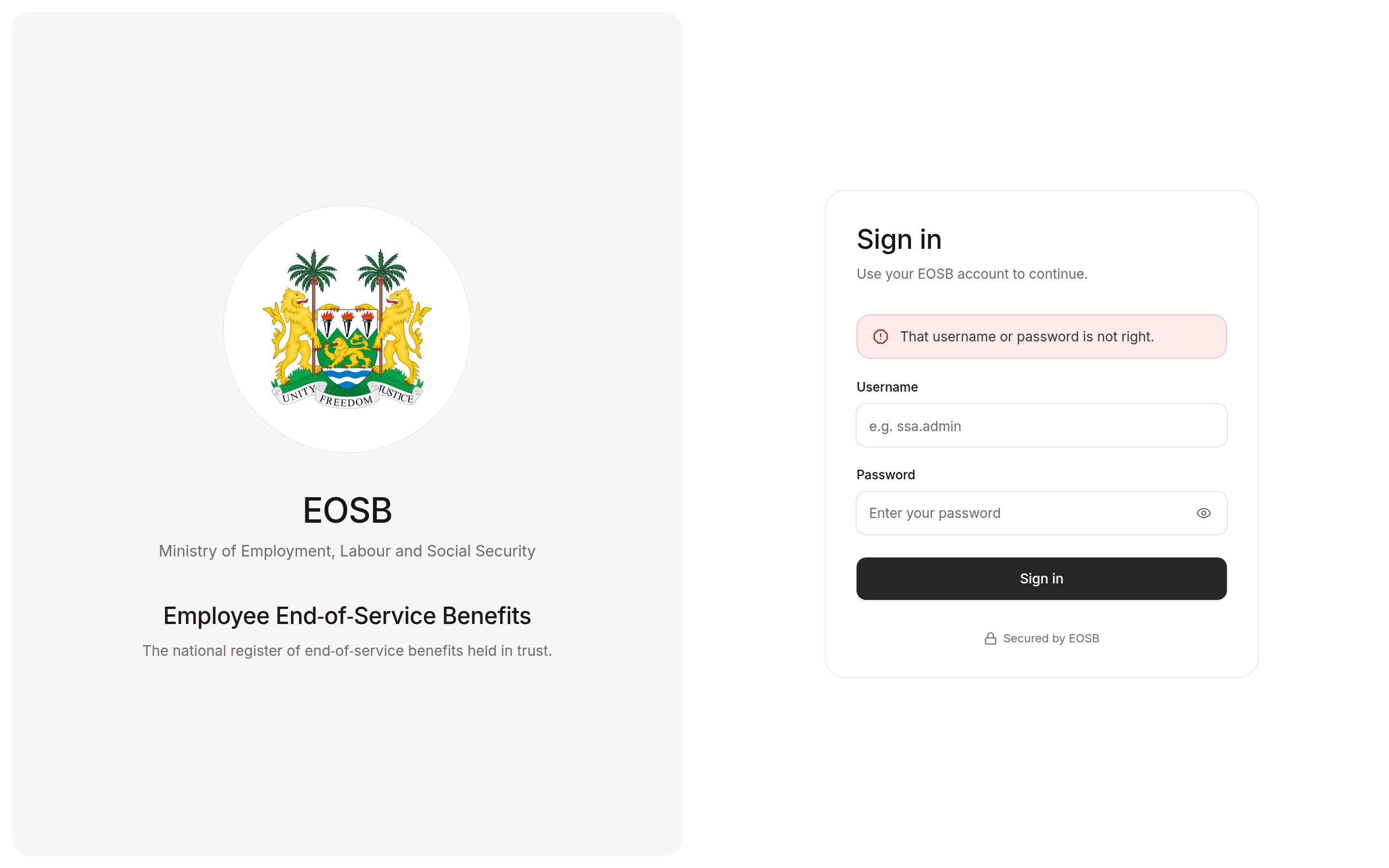
If the username or password is wrong, the page says **That username or password is not right.** Check both and try again. If you have forgotten your password, ask the platform administrator for a new set-password link.
Your username is your **employer profile ID**, for example `EMP-1792204467687-1001`. It is in your account email.
Use the password you chose on the [Set your password](/employer/getting-started/set-password) page.
You arrive in your employer workspace.
If the username or password is wrong, the page says **That username or password is not right.** Check both and try again. If you have forgotten your password, ask the platform administrator for a new set-password link.
 ## Your workspace
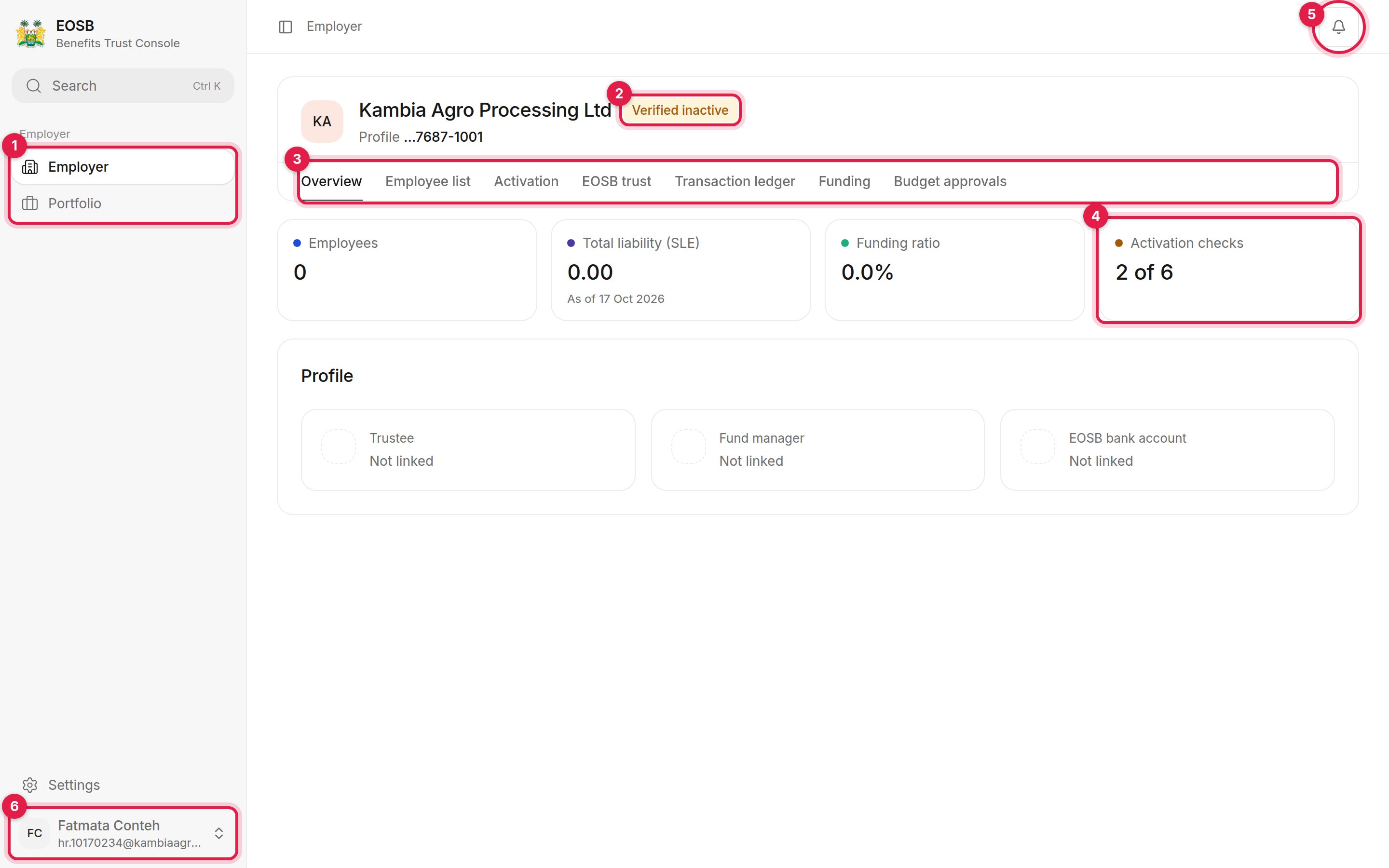 1. **Navigation.** **Employer** opens this workspace. **Portfolio** shows how the fund manager has invested your trust's money.
2. **Your status.** Shows whether your account is **Verified inactive**, **Active** or restricted. See [Activation](/employer/activation).
3. **Workspace tabs.** Each tab is one area of work:
* **Overview** — headline figures and who manages your trust
* **Employee list** — your employees and everything you do with them
* **Activation** — the checks that must pass before your account is active
* **EOSB trust** — the trust that holds your employees' benefits
* **Transaction ledger** — how your liability and funding are built up
* **Funding** — pay into the trust and follow your payments
* **Budget approvals** — fund manager budgets waiting for your decision
4. **Headline figures.** Employees, total liability, funding ratio and activation checks.
5. **Notifications.** A red count shows unread messages. See [Your account](/employer/account#notifications).
6. **User menu.** Opens **Settings** and **Sign out**.
Press Ctrl + K, or select **Search** at the top of the navigation, to jump to any page.
## What happens next
When you first sign in, your status is probably **Verified inactive**: you can look around, but your trust is still being set up. Most tabs are empty until then.
**Next:** [follow your activation](/employer/activation) until your status is **Active**.
This documentation is built and hosted on [Mintlify](https://mintlify.com), a developer documentation platform.
1. **Navigation.** **Employer** opens this workspace. **Portfolio** shows how the fund manager has invested your trust's money.
2. **Your status.** Shows whether your account is **Verified inactive**, **Active** or restricted. See [Activation](/employer/activation).
3. **Workspace tabs.** Each tab is one area of work:
* **Overview** — headline figures and who manages your trust
* **Employee list** — your employees and everything you do with them
* **Activation** — the checks that must pass before your account is active
* **EOSB trust** — the trust that holds your employees' benefits
* **Transaction ledger** — how your liability and funding are built up
* **Funding** — pay into the trust and follow your payments
* **Budget approvals** — fund manager budgets waiting for your decision
4. **Headline figures.** Employees, total liability, funding ratio and activation checks.
5. **Notifications.** A red count shows unread messages. See [Your account](/employer/account#notifications).
6. **User menu.** Opens **Settings** and **Sign out**.
Press Ctrl + K, or select **Search** at the top of the navigation, to jump to any page.
## What happens next
When you first sign in, your status is probably **Verified inactive**: you can look around, but your trust is still being set up. Most tabs are empty until then.
**Next:** [follow your activation](/employer/activation) until your status is **Active**.
This documentation is built and hosted on [Mintlify](https://mintlify.com), a developer documentation platform.