> ## Documentation Index
> Fetch the complete documentation index at: https://docs.eosb.org/llms.txt
> Use this file to discover all available pages before exploring further.
# Set your password
> Open the link in your account email and choose a password.
This is the first thing you do on the platform. It takes about a minute.
**Where:** the link in your account email. **Before you start:** the regulator must have approved your organisation's registration — the platform sends the email automatically when it does.
When the regulator approves your organisation, the platform emails the contact address on your registration. The subject is **Your EOSB account has been created**. The email contains:
* your **username** — your employer profile ID, for example `EMP-1792204467687-1001`
* a **Set your password** link
The link works **once** and expires after **72 hours**. If it has expired, ask the EOSB platform administrator for a new one.
## Choose a password
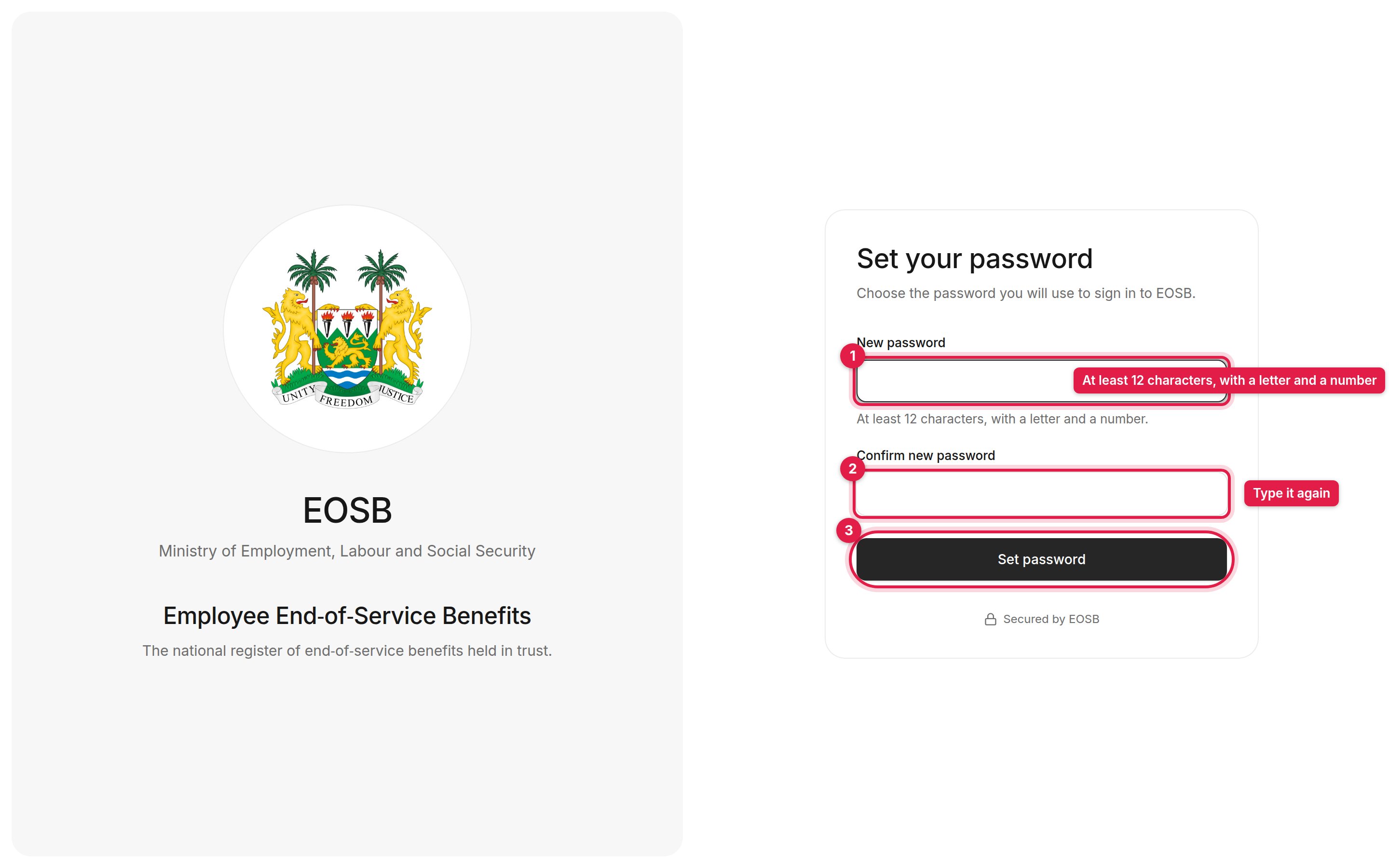 Use at least **12 characters**, including at least one letter and one number. Select the eye icon to show what you typed.
Enter it in **Confirm new password**.
The page confirms the password is set.
Use at least **12 characters**, including at least one letter and one number. Select the eye icon to show what you typed.
Enter it in **Confirm new password**.
The page confirms the password is set.
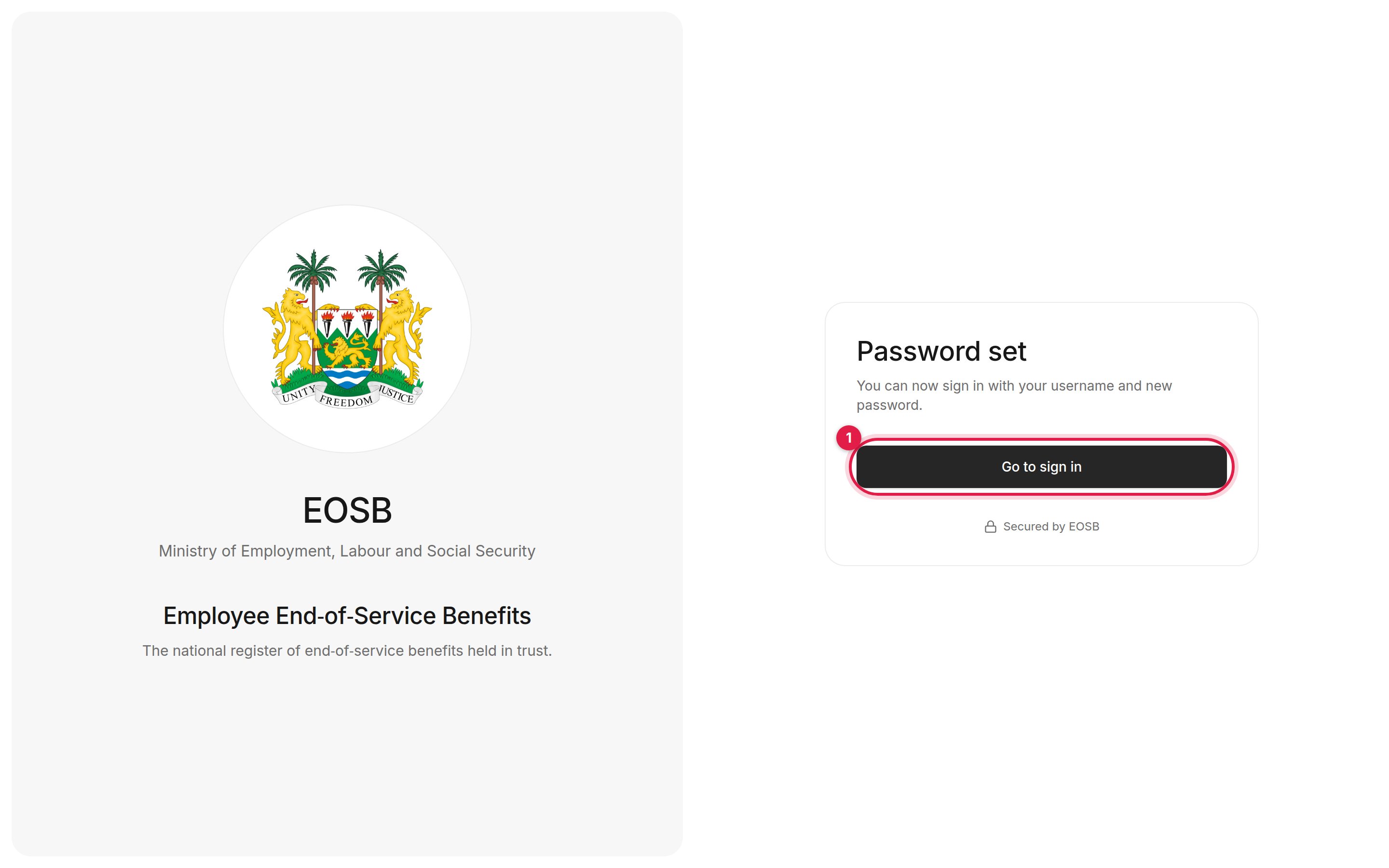 Select **Go to sign in (1)**.
**Next:** [sign in and take a tour of your workspace](/employer/getting-started/sign-in).
## If something goes wrong
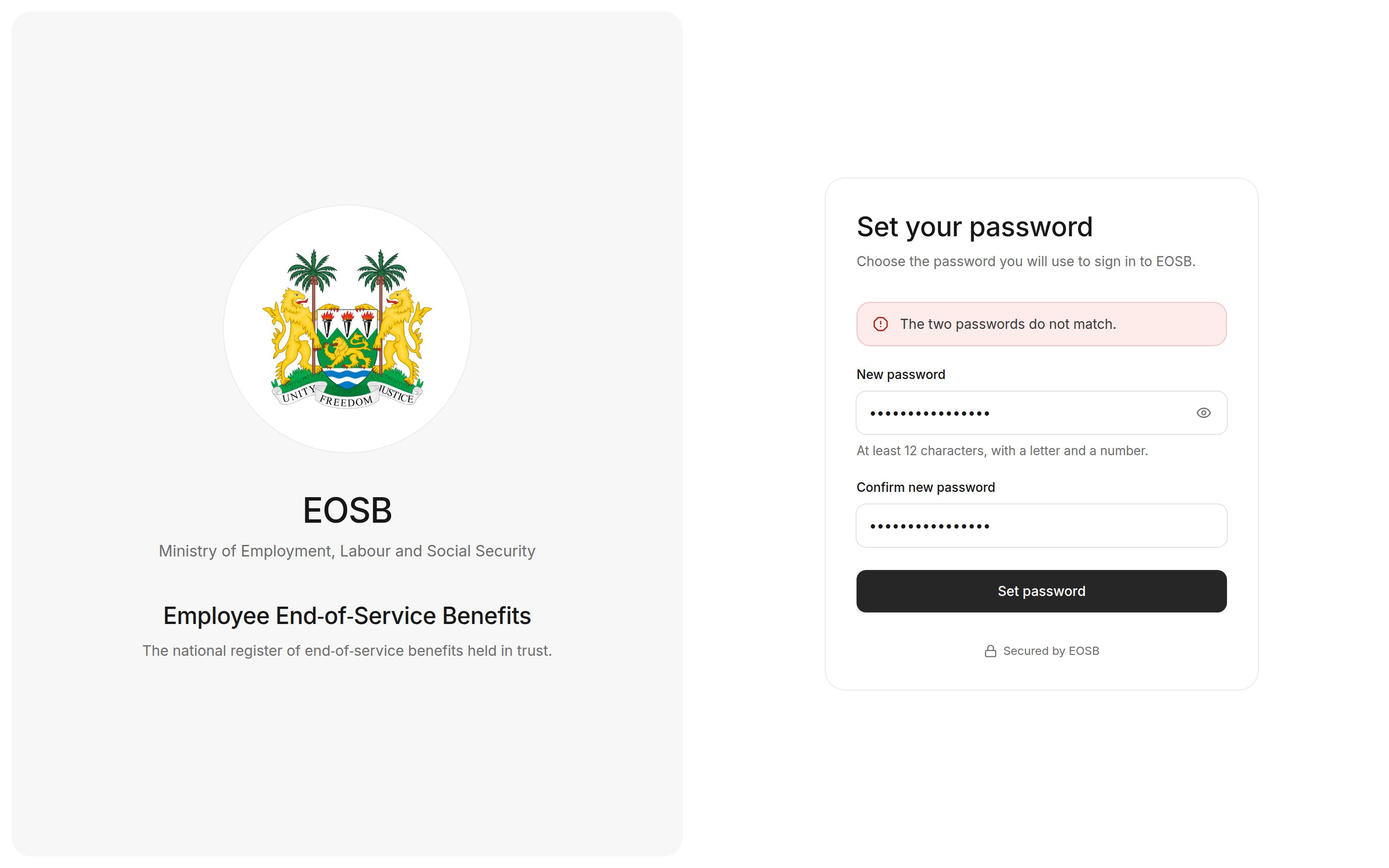
The two fields must be identical. Retype both and try again.
Select **Go to sign in (1)**.
**Next:** [sign in and take a tour of your workspace](/employer/getting-started/sign-in).
## If something goes wrong
The two fields must be identical. Retype both and try again.
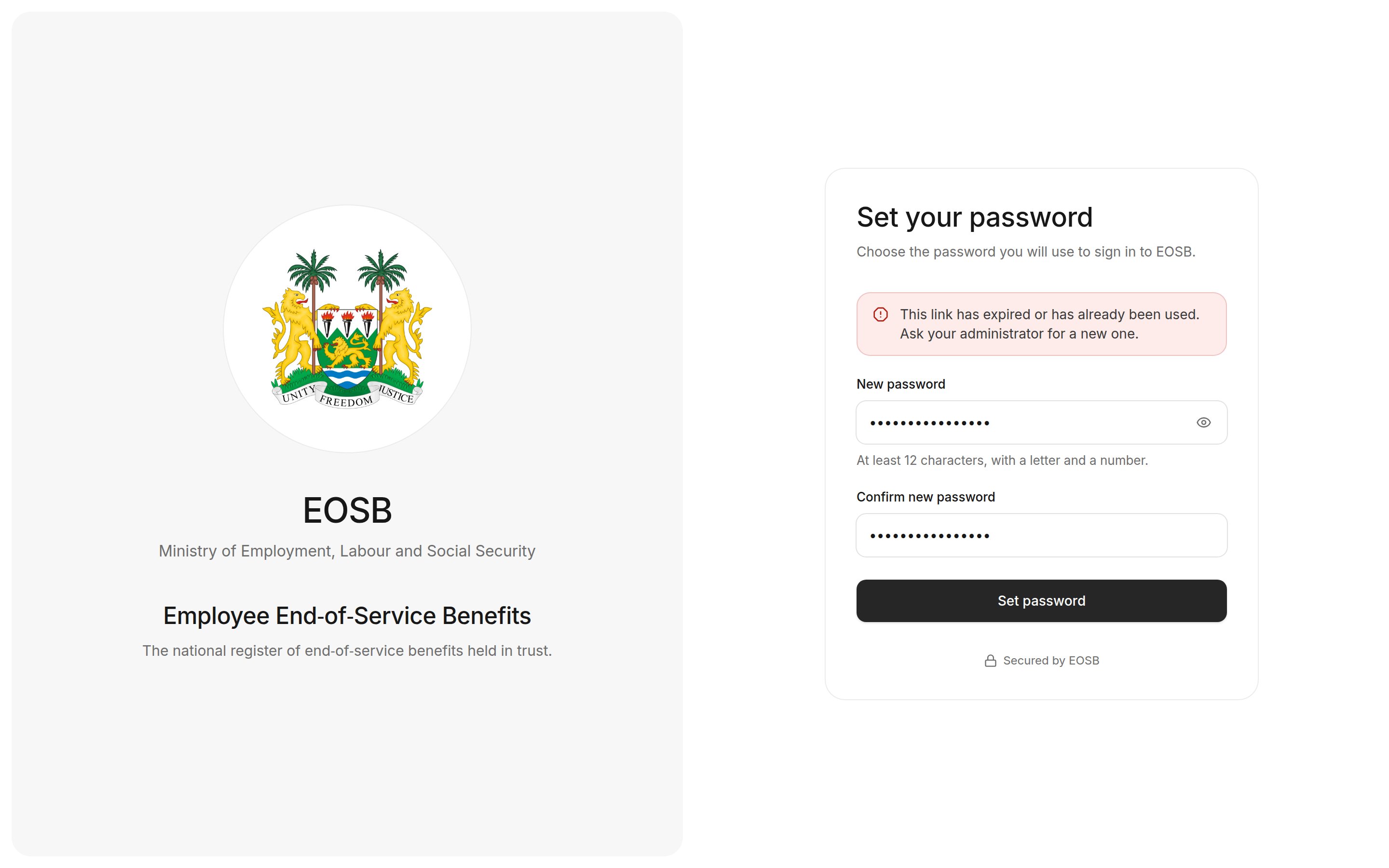
 Each link can set a password only once. If you have already set your password, go to the sign-in page. Otherwise, ask the platform administrator to send a new link.
 Choose a longer password that mixes letters and numbers.
This documentation is built and hosted on [Mintlify](https://mintlify.com), a developer documentation platform.
Choose a longer password that mixes letters and numbers.
This documentation is built and hosted on [Mintlify](https://mintlify.com), a developer documentation platform.