> ## Documentation Index
> Fetch the complete documentation index at: https://docs.eosb.org/llms.txt
> Use this file to discover all available pages before exploring further.
# Fund your EOSB trust
> Record a bank or mobile money payment for the trustee to confirm, or pay from your SmartPay wallet.
Paying into the trust is how you cover the benefits your employees earn. The aim is a [funding ratio](/employer/overview-tab#headline-figures) that keeps pace with your liability.
**Where:** Employer › **Funding**. **Before you start:** your account must be [Active](/employer/activation). The trust's bank account is on the [Overview tab](/employer/overview-tab#profile).
The tab has two sub-tabs: **Add funds** and **Funding ledger**. On **Add funds**, the switch in the top-right corner chooses how you pay:
* **Manual proof** — you have paid by bank transfer or mobile money and upload the evidence. A trustee confirms it.
* **Pay from wallet** — you move money from your SmartPay wallet to the trust and confirm with a one-time code.
## Submit a funding proof
Make the payment to the trust's bank account first, then record it here.
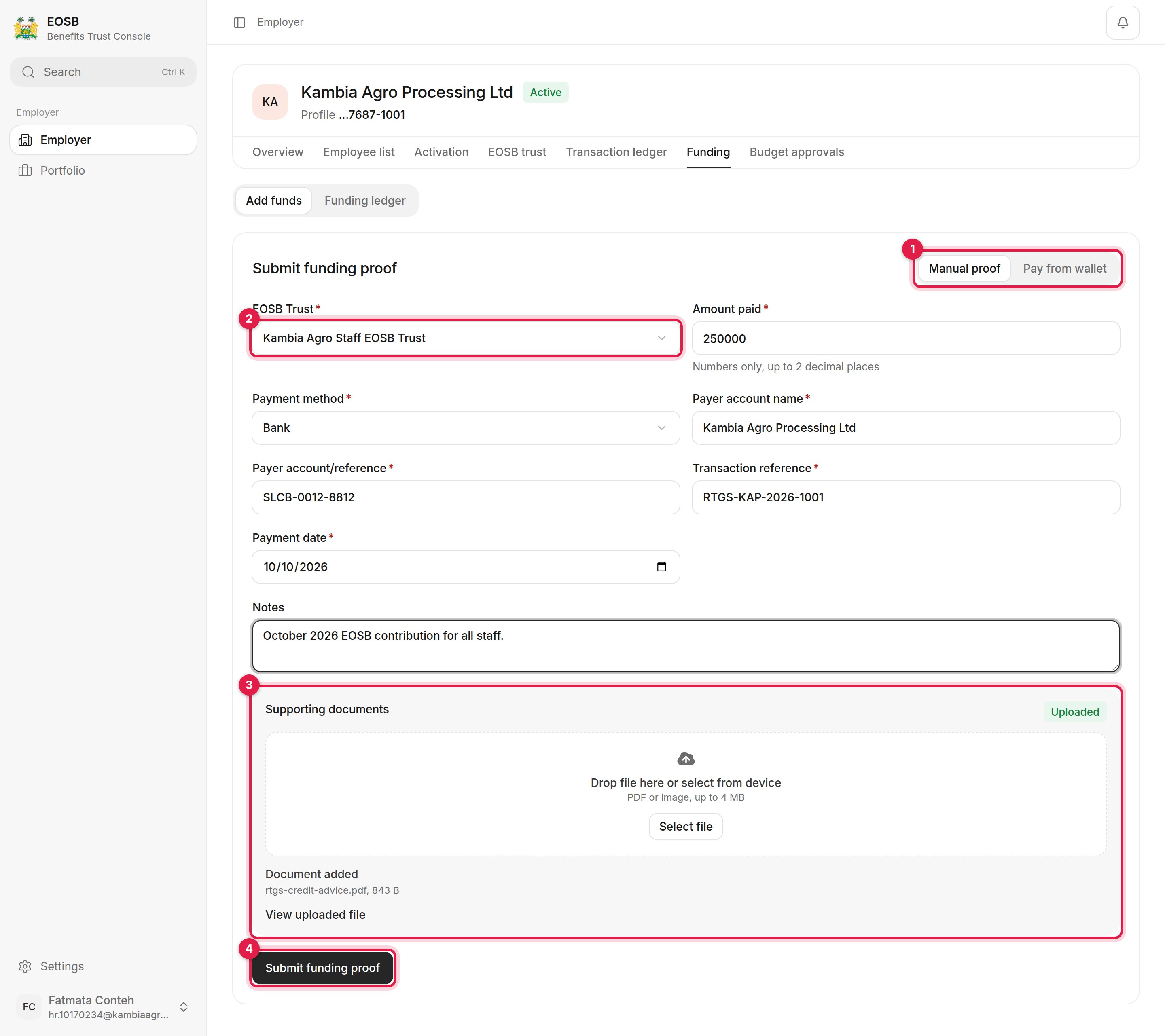 | Field | What to enter |
| - | - |
| EOSB Trust (2) | The trust you paid into |
| Amount paid | Numbers only, up to 2 decimal places |
| Payment method | Bank or mobile money |
| Payer account name | The name on the account you paid from |
| Payer account/reference | That account's number or reference |
| Transaction reference | The reference on your bank or mobile money receipt |
| Payment date | The date the money left your account |
| Notes | Optional context for the trustee |
Drop the file onto the box or select **Select file**. Use a PDF or image of up to 4 MB, such as the bank's credit advice. When it has uploaded, the box shows **Uploaded** and the file name.
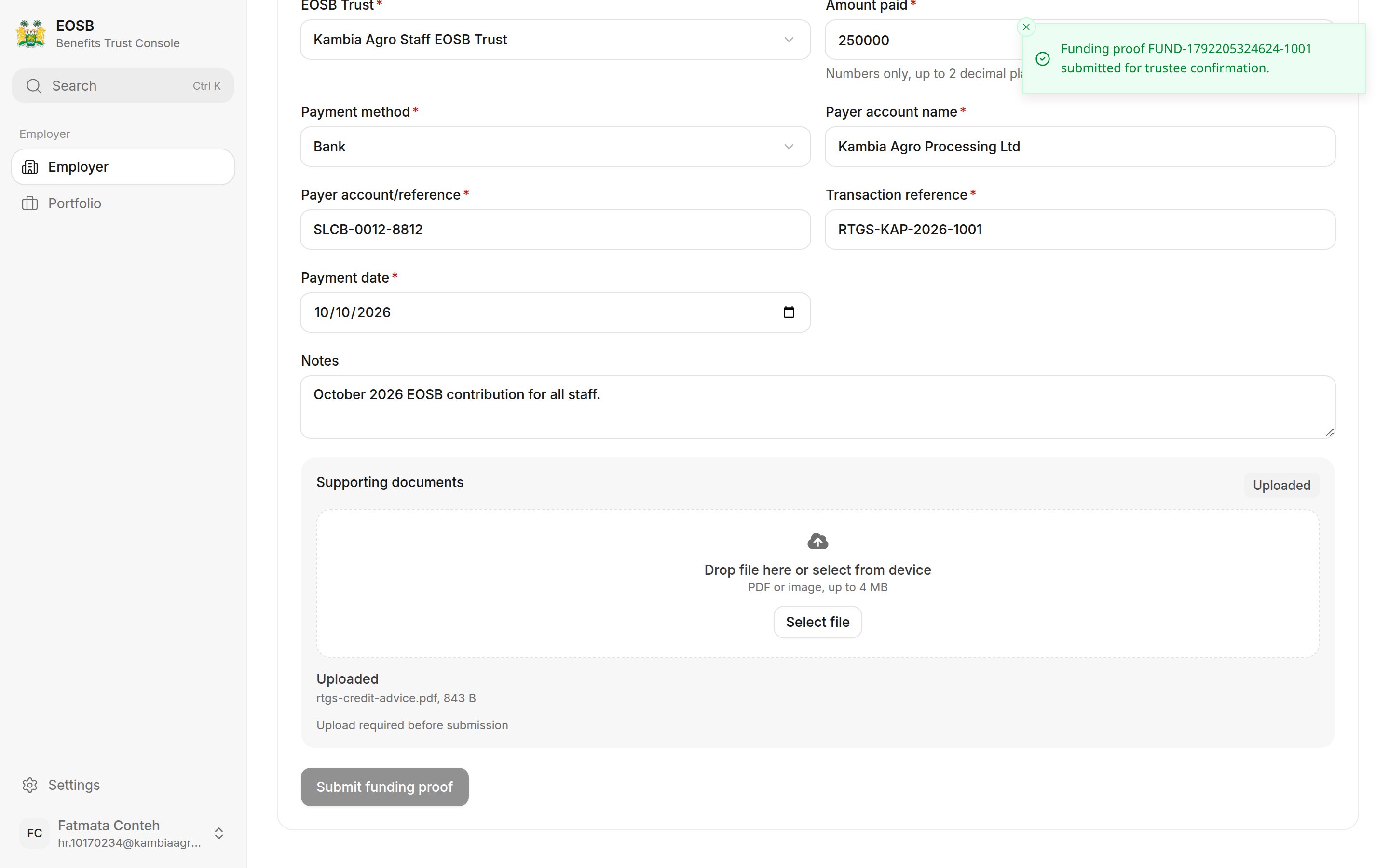
The button stays disabled until a document has uploaded. A message confirms the proof reference, starting **FUND-**, and that it was sent for trustee confirmation. The form then clears, ready for the next proof.
| Field | What to enter |
| - | - |
| EOSB Trust (2) | The trust you paid into |
| Amount paid | Numbers only, up to 2 decimal places |
| Payment method | Bank or mobile money |
| Payer account name | The name on the account you paid from |
| Payer account/reference | That account's number or reference |
| Transaction reference | The reference on your bank or mobile money receipt |
| Payment date | The date the money left your account |
| Notes | Optional context for the trustee |
Drop the file onto the box or select **Select file**. Use a PDF or image of up to 4 MB, such as the bank's credit advice. When it has uploaded, the box shows **Uploaded** and the file name.
The button stays disabled until a document has uploaded. A message confirms the proof reference, starting **FUND-**, and that it was sent for trustee confirmation. The form then clears, ready for the next proof.
 ## What happens next
The trustee checks the proof against the trust's bank statement. You get a notification when they decide:
* **Approved** — the payment shows as **Received**, counts towards your funded amount and appears in the [transaction ledger](/employer/transaction-ledger) as a funding receipt.
* **Rejected** — the notification gives the reason, such as an amount or reference that does not match. Nothing is added. Submit a corrected proof.
A proof is only your evidence that money was sent. The trustee confirms it actually arrived in the trust's account before it counts, so the funding ratio always reflects real money. Use the exact **transaction reference** from your bank receipt — it is what the trustee matches on.
## Pay from your wallet
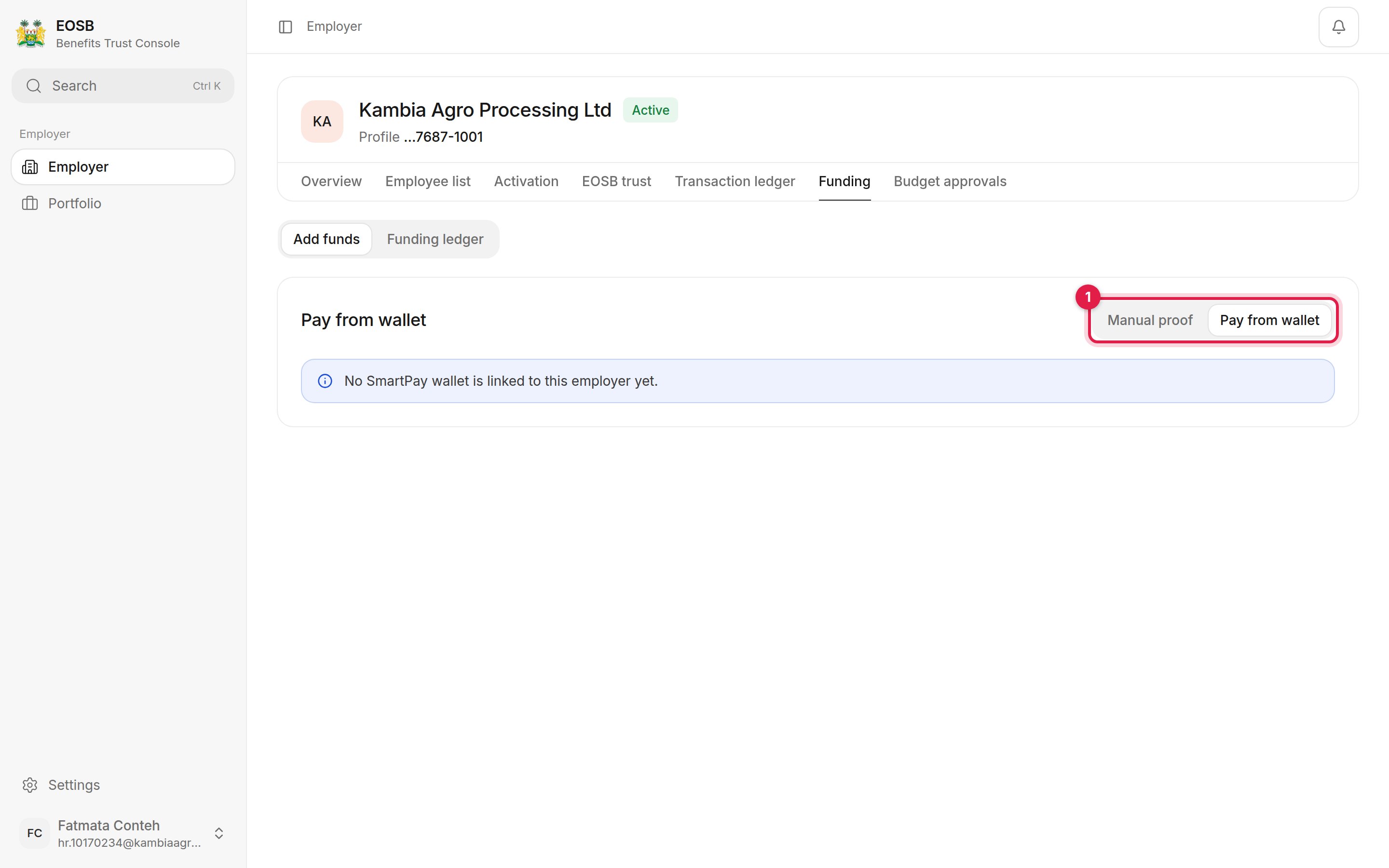
Select **Pay from wallet**, choose the trust, enter the amount and select **Send OTP**. Enter the one-time code sent to you and select **Transfer now**. Wallet payments settle without a trustee step: the payment counts once SmartPay has settled it into the trust wallet. See [SmartPay e-wallets](/concepts/e-wallets).
If no wallet is linked to your organisation, the page says so. Use **Manual proof** instead, or ask the platform administrator to link a wallet.
## What happens next
The trustee checks the proof against the trust's bank statement. You get a notification when they decide:
* **Approved** — the payment shows as **Received**, counts towards your funded amount and appears in the [transaction ledger](/employer/transaction-ledger) as a funding receipt.
* **Rejected** — the notification gives the reason, such as an amount or reference that does not match. Nothing is added. Submit a corrected proof.
A proof is only your evidence that money was sent. The trustee confirms it actually arrived in the trust's account before it counts, so the funding ratio always reflects real money. Use the exact **transaction reference** from your bank receipt — it is what the trustee matches on.
## Pay from your wallet
Select **Pay from wallet**, choose the trust, enter the amount and select **Send OTP**. Enter the one-time code sent to you and select **Transfer now**. Wallet payments settle without a trustee step: the payment counts once SmartPay has settled it into the trust wallet. See [SmartPay e-wallets](/concepts/e-wallets).
If no wallet is linked to your organisation, the page says so. Use **Manual proof** instead, or ask the platform administrator to link a wallet.
 ## Funding history
Select **Funding ledger** to see every payment.
## Funding history
Select **Funding ledger** to see every payment.
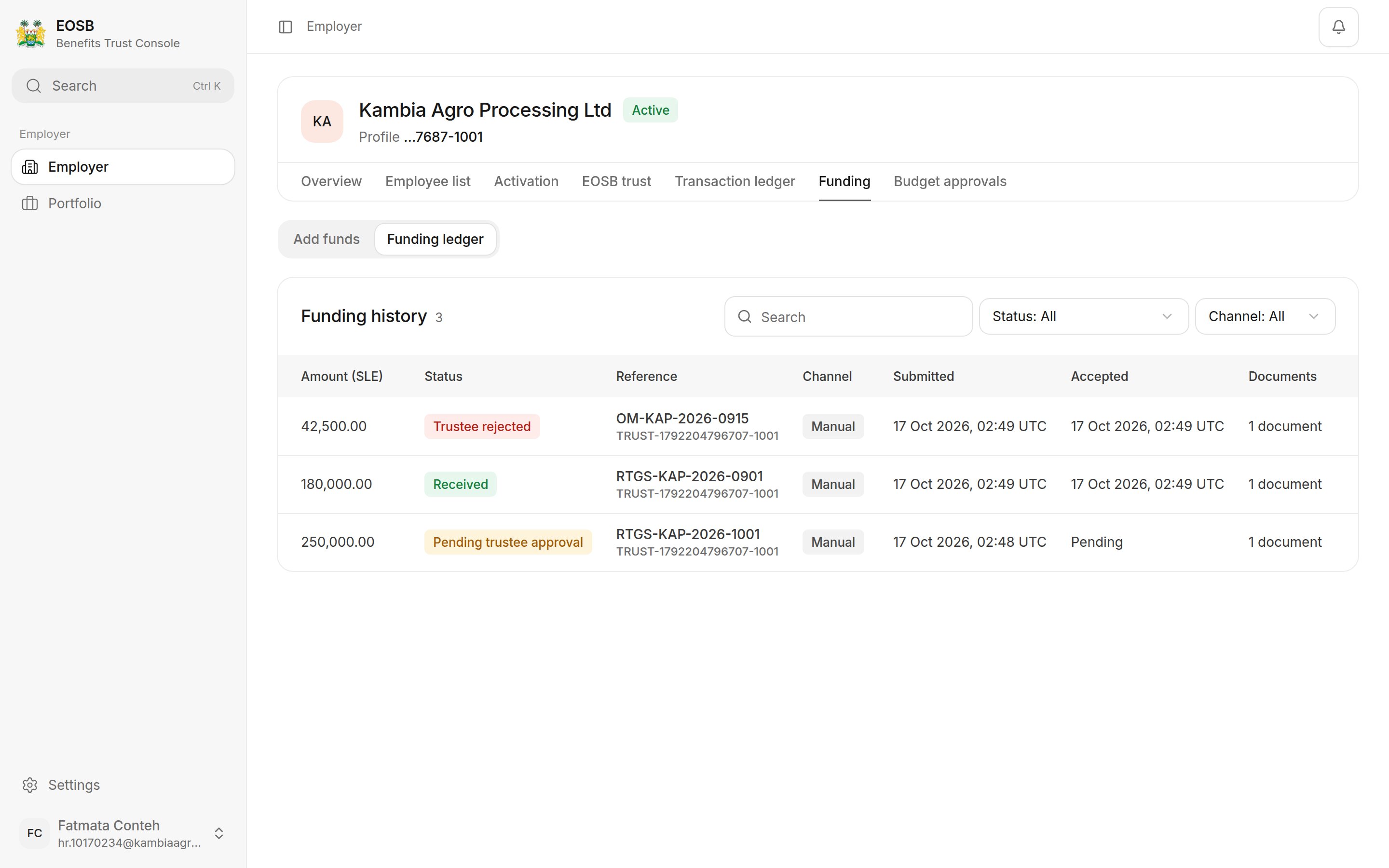 Use **Search**, **Status** and **Channel** to narrow the list. **Accepted** shows when the trustee confirmed a manual proof, or when a wallet payment settled.
### Payment statuses
| Status | Meaning |
| - | - |
| Pending trustee approval | Your proof is waiting for the trustee. |
| Received | The trustee confirmed the payment. It counts towards your funded amount. |
| Trustee rejected | The trustee could not match the payment. The notification gives the reason. Submit a corrected proof. |
| Pending OTP | A wallet payment is waiting for its one-time code. |
| OTP expired | The code was not entered in time. Start the wallet payment again. |
| Processing / Pending settlement | A wallet payment is on its way. |
| Succeeded | A wallet payment has settled. |
| Failed / Expired / Reversed | The payment did not complete. No money was added to the trust. |
This documentation is built and hosted on [Mintlify](https://mintlify.com), a developer documentation platform.
Use **Search**, **Status** and **Channel** to narrow the list. **Accepted** shows when the trustee confirmed a manual proof, or when a wallet payment settled.
### Payment statuses
| Status | Meaning |
| - | - |
| Pending trustee approval | Your proof is waiting for the trustee. |
| Received | The trustee confirmed the payment. It counts towards your funded amount. |
| Trustee rejected | The trustee could not match the payment. The notification gives the reason. Submit a corrected proof. |
| Pending OTP | A wallet payment is waiting for its one-time code. |
| OTP expired | The code was not entered in time. Start the wallet payment again. |
| Processing / Pending settlement | A wallet payment is on its way. |
| Succeeded | A wallet payment has settled. |
| Failed / Expired / Reversed | The payment did not complete. No money was added to the trust. |
This documentation is built and hosted on [Mintlify](https://mintlify.com), a developer documentation platform.