> ## Documentation Index
> Fetch the complete documentation index at: https://docs.eosb.org/llms.txt
> Use this file to discover all available pages before exploring further.
# Update employee records
> Change an employee's contact, employment and payout details. Some changes need approval.
Keep records current: a wrong phone number means the employee misses messages, and a wrong salary means a wrong benefit.
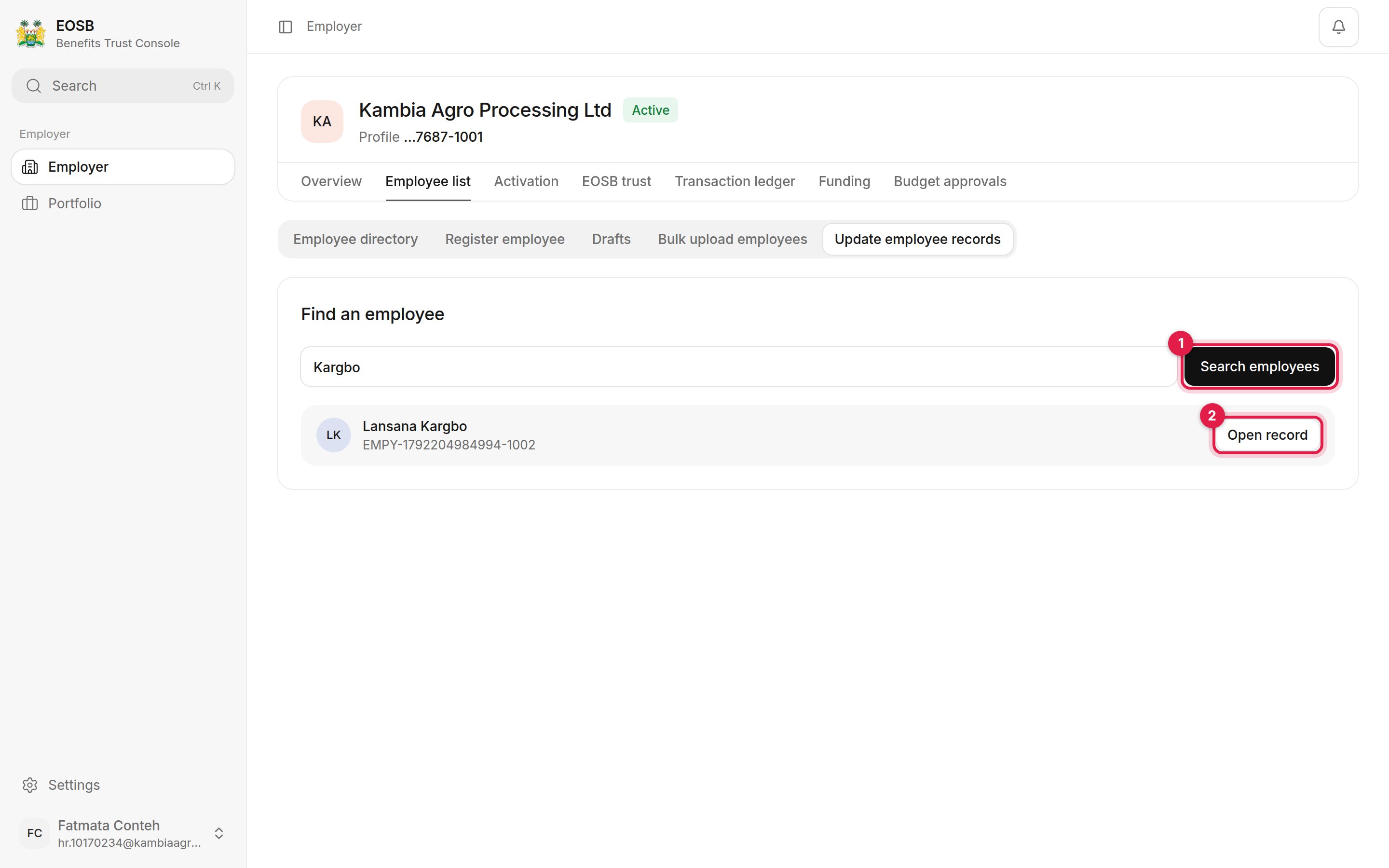
**Where:** the **Employee records** tab on an employee record, or Employer › **Employee list** › **Update employee records**.
There are two ways to open an employee's editable record:
* From the employee record: select **View** in the directory, then the **Employee records** tab.
* From **Employee list** › **Update employee records**: type a name or ID, select **Search employees (1)**, then **Open record (2)**.
 ## The record
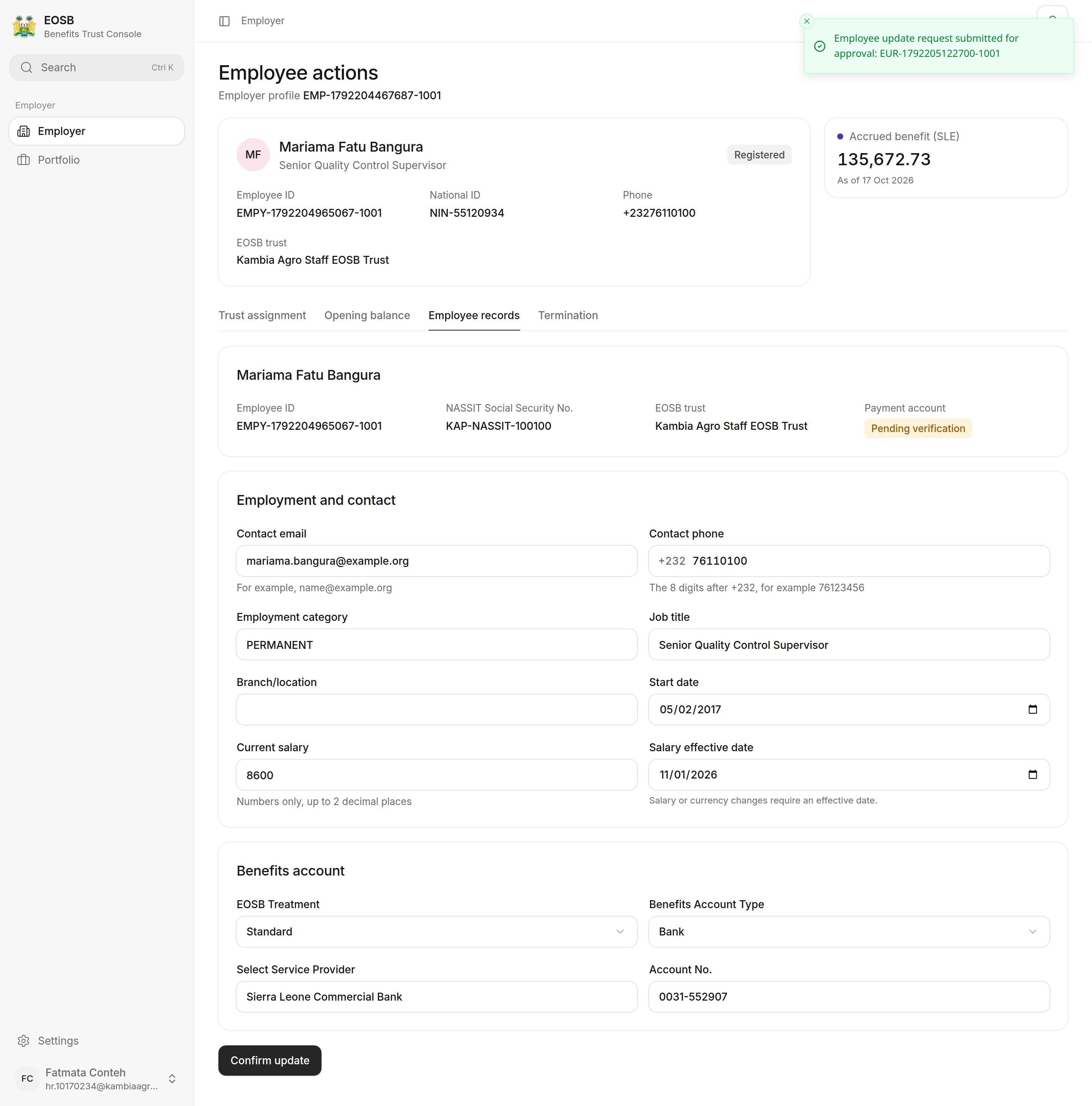
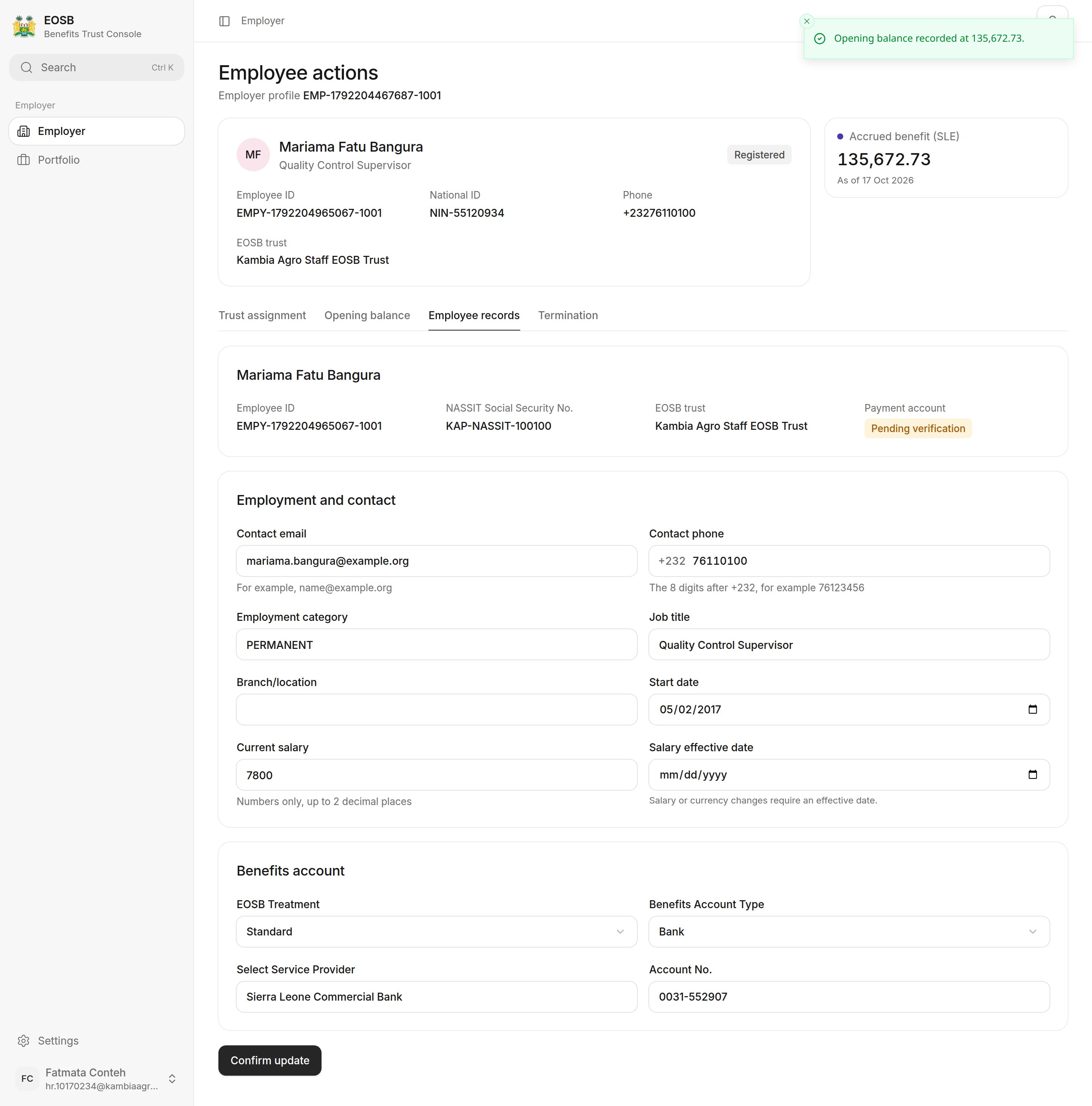 * The top panel — employee ID, NASSIT number, EOSB trust and payment account status — is fixed. To correct those, contact the platform administrator.
* **Employment and contact**: contact email and phone, employment category, job title, branch/location, start date, current salary and salary effective date.
* **Benefits account**: EOSB treatment, account type, service provider and account number.
## Changes that apply straight away
Contact details, job title, category and location are updated as soon as you confirm.
For example, a new job title.
* The top panel — employee ID, NASSIT number, EOSB trust and payment account status — is fixed. To correct those, contact the platform administrator.
* **Employment and contact**: contact email and phone, employment category, job title, branch/location, start date, current salary and salary effective date.
* **Benefits account**: EOSB treatment, account type, service provider and account number.
## Changes that apply straight away
Contact details, job title, category and location are updated as soon as you confirm.
For example, a new job title.
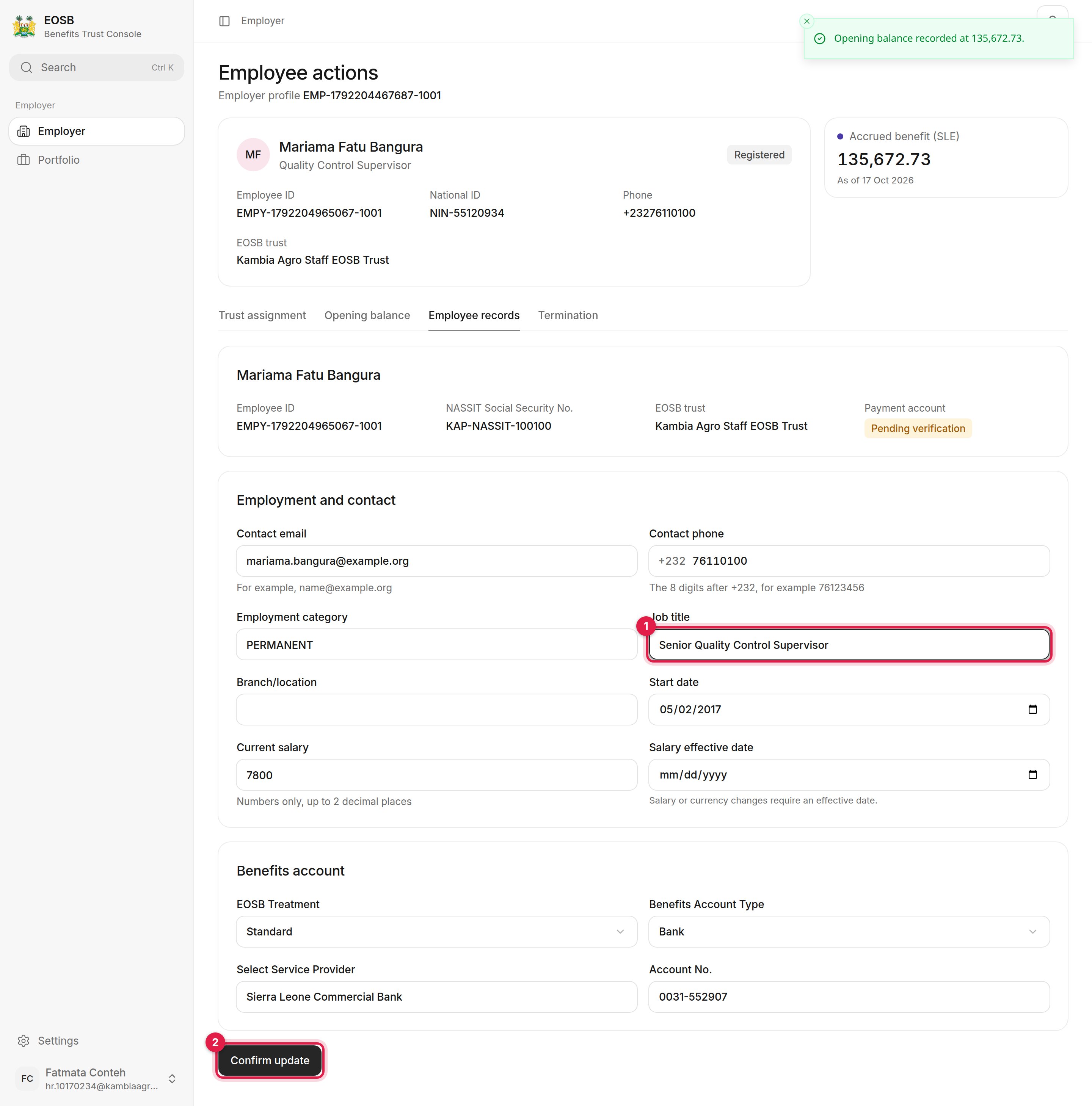 A message confirms **Employee record updated.**
 ## Changes that need approval
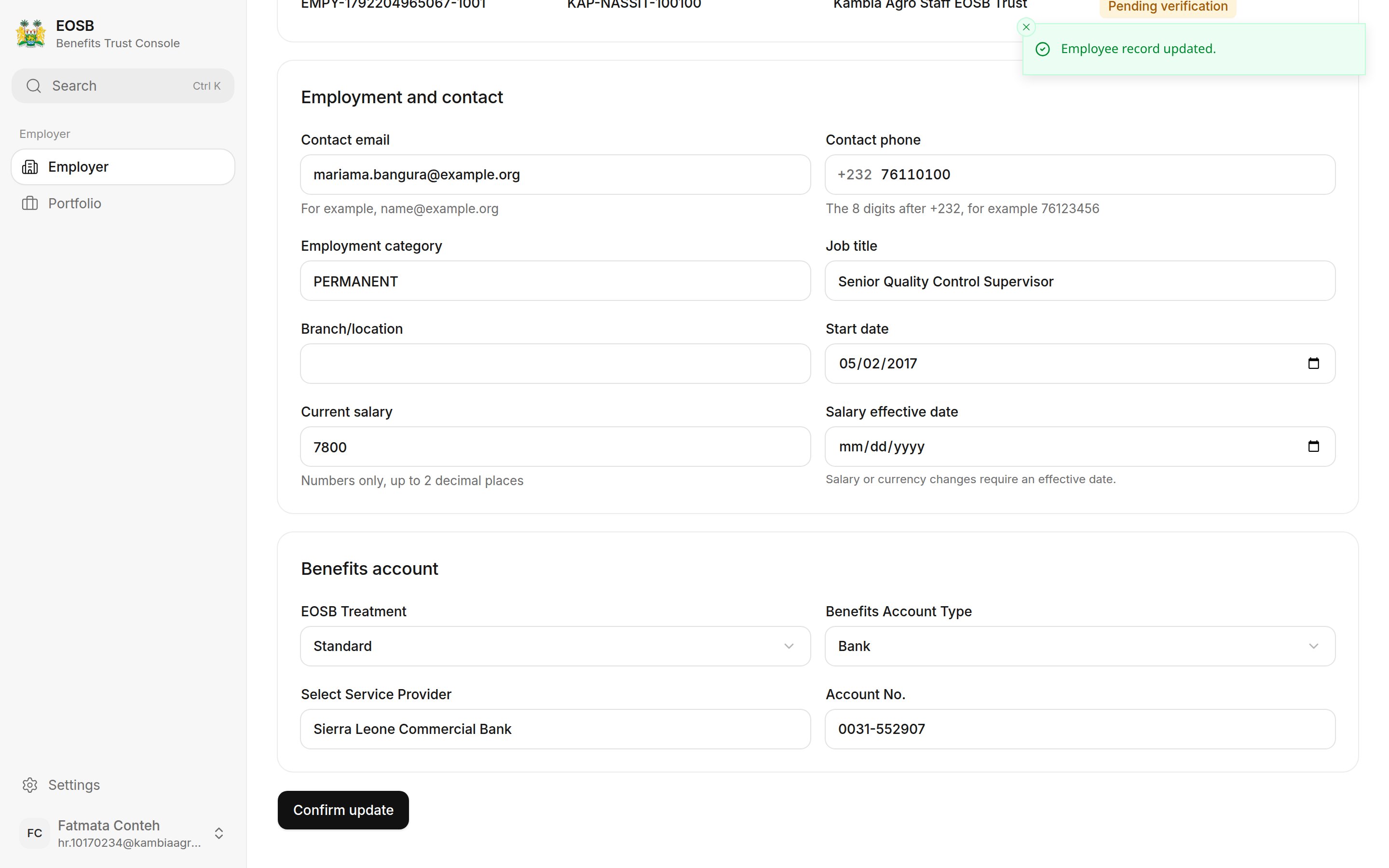
Changes to **salary**, **start date** or **payment details** are sent to the platform administrator for approval before they apply. Salary and start date decide how much the employee is owed, and payment details decide where the money goes, so a second person checks them.
Also set the **Salary effective date** — it is required whenever the salary changes.
A message confirms the request was submitted for approval and gives its reference, starting **EUR-**. The record keeps its current values until the request is approved.
## Changes that need approval
Changes to **salary**, **start date** or **payment details** are sent to the platform administrator for approval before they apply. Salary and start date decide how much the employee is owed, and payment details decide where the money goes, so a second person checks them.
Also set the **Salary effective date** — it is required whenever the salary changes.
A message confirms the request was submitted for approval and gives its reference, starting **EUR-**. The record keeps its current values until the request is approved.
 ## What happens next
* The administrator approves or rejects the request.
* If approved, the new values replace the old ones and the employee's benefit is recalculated. The difference shows in your [transaction ledger](/employer/transaction-ledger).
* If rejected, the record stays as it was. Check the details and submit again if needed.
The benefit is worked out on the employee's whole length of service at their current salary. A pay rise therefore increases the value of every year already worked, not only the months to come. See [How benefits are calculated](/employer/how-benefits-are-calculated).
This documentation is built and hosted on [Mintlify](https://mintlify.com), a developer documentation platform.
## What happens next
* The administrator approves or rejects the request.
* If approved, the new values replace the old ones and the employee's benefit is recalculated. The difference shows in your [transaction ledger](/employer/transaction-ledger).
* If rejected, the record stays as it was. Check the details and submit again if needed.
The benefit is worked out on the employee's whole length of service at their current salary. A pay rise therefore increases the value of every year already worked, not only the months to come. See [How benefits are calculated](/employer/how-benefits-are-calculated).
This documentation is built and hosted on [Mintlify](https://mintlify.com), a developer documentation platform.