> ## Documentation Index
> Fetch the complete documentation index at: https://docs.eosb.org/llms.txt
> Use this file to discover all available pages before exploring further.
# Employee record
> See an employee's details and accrued benefit, and manage their trust assignment and opening balance.
The employee record is one employee's page: who they are, what they have earned, and every task you can do for them.
**Where:** Employer › **Employee list** › select **View** on the employee's row.
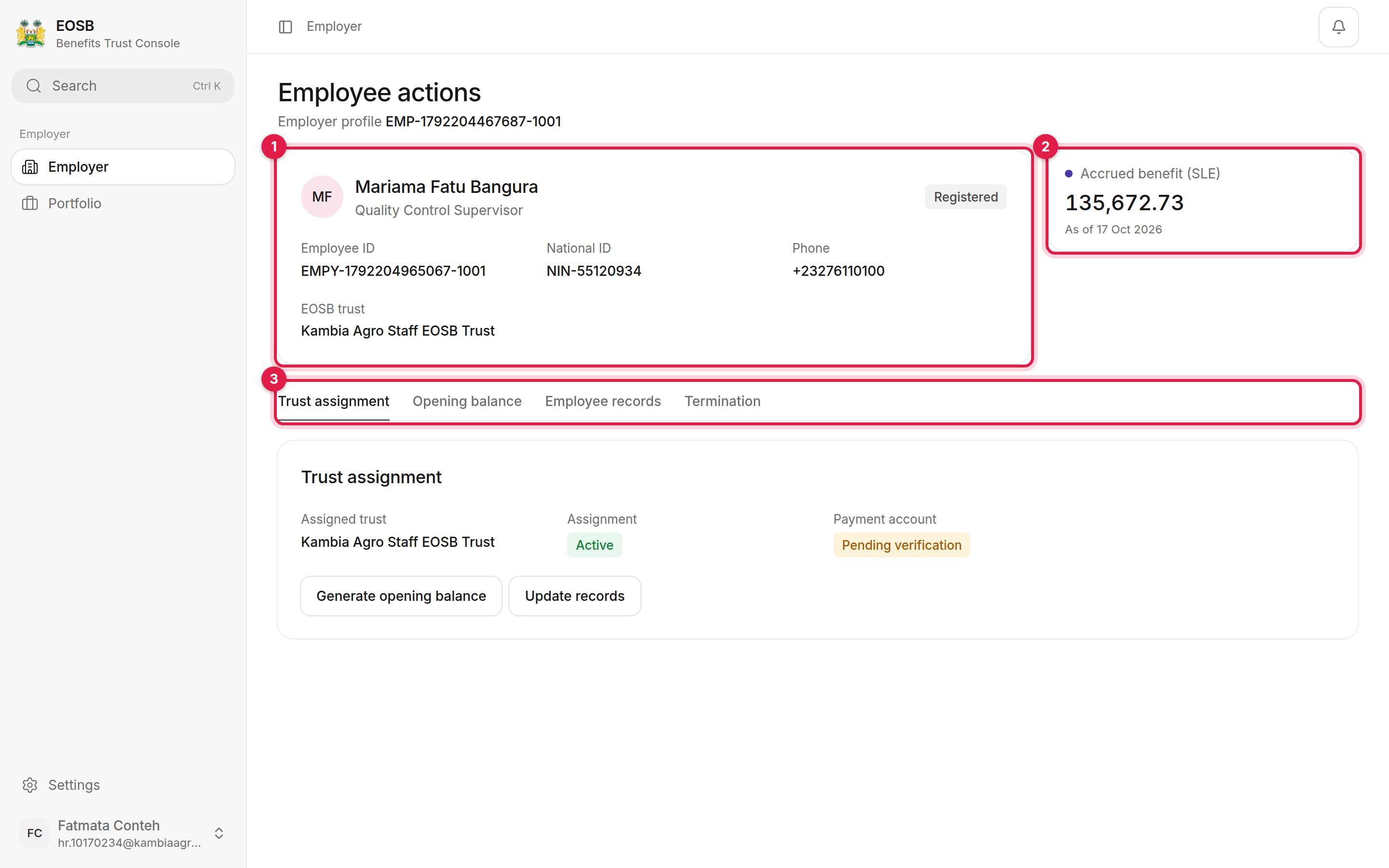 1. **Employee summary.** Name, job title, status, employee ID, national ID, phone and the EOSB trust they belong to.
2. **Accrued benefit (SLE).** What the employee has earned so far, and the date it was calculated.
3. **Tasks.** **Trust assignment**, **Opening balance**, **Employee records** and **Termination**.
## Trust assignment
Employees are assigned to your active EOSB trust automatically when they are registered. The **Trust assignment** tab shows:
* **Assigned trust** — the trust that holds the employee's benefit
* **Assignment** — **Active** when the assignment is in force
* **Payment account** — whether the employee's payout account is verified, for example **Pending verification**
From here you can jump to **Generate opening balance** or **Update records**.
If an employee has no trust, the tab shows an **Active EOSB Trust** list instead. Choose the trust and select **Assign to EOSB Trust**.
## Opening balance
The opening balance is the benefit the employee earned before they were added to the platform. It is calculated from their start date and salary and posted to your [transaction ledger](/employer/transaction-ledger).
1. **Employee summary.** Name, job title, status, employee ID, national ID, phone and the EOSB trust they belong to.
2. **Accrued benefit (SLE).** What the employee has earned so far, and the date it was calculated.
3. **Tasks.** **Trust assignment**, **Opening balance**, **Employee records** and **Termination**.
## Trust assignment
Employees are assigned to your active EOSB trust automatically when they are registered. The **Trust assignment** tab shows:
* **Assigned trust** — the trust that holds the employee's benefit
* **Assignment** — **Active** when the assignment is in force
* **Payment account** — whether the employee's payout account is verified, for example **Pending verification**
From here you can jump to **Generate opening balance** or **Update records**.
If an employee has no trust, the tab shows an **Active EOSB Trust** list instead. Choose the trust and select **Assign to EOSB Trust**.
## Opening balance
The opening balance is the benefit the employee earned before they were added to the platform. It is calculated from their start date and salary and posted to your [transaction ledger](/employer/transaction-ledger).
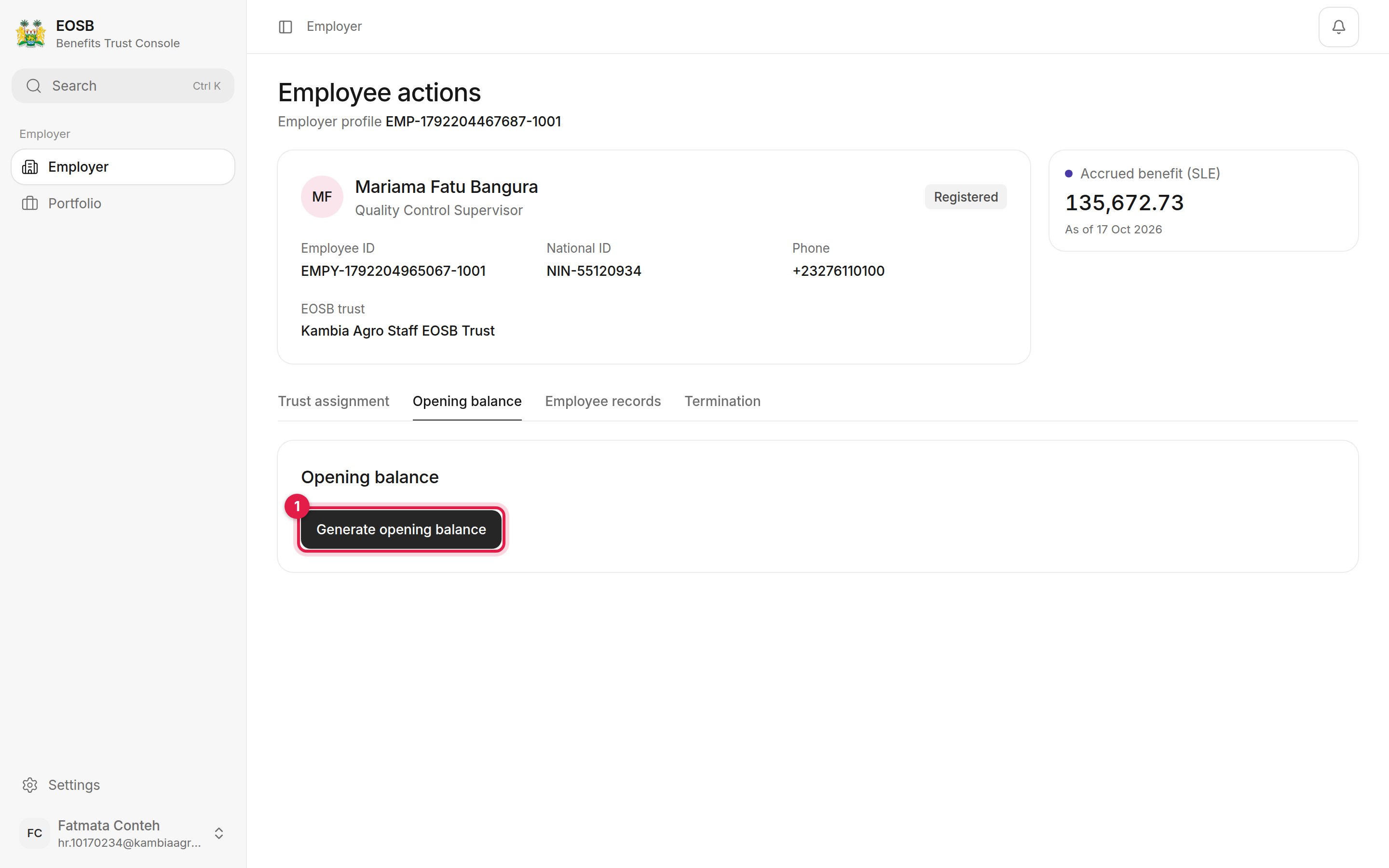 Select **Generate opening balance (1)**. A message shows the amount recorded.
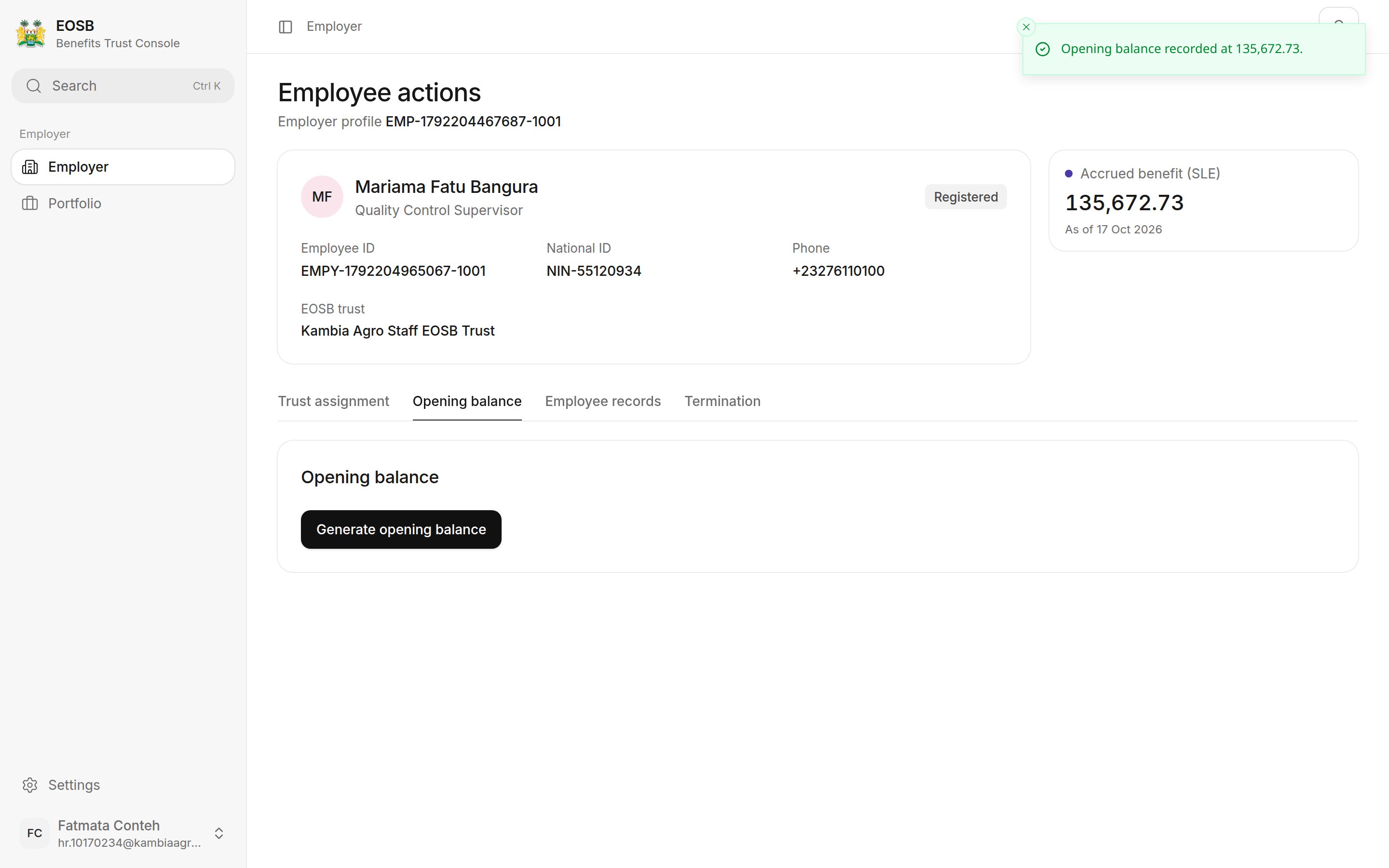 The platform already generates the opening balance at registration, so you normally only need this button if the directory shows **Not generated** for the employee. Selecting it again recalculates the balance as at the same date; it does not add another entry to the ledger.
## Employee records and termination
* To change contact, employment or payout details, see [Update employee records](/employer/employees/update-records).
* To end an employee's service, see [Terminate an employee](/employer/employees/termination).
This documentation is built and hosted on [Mintlify](https://mintlify.com), a developer documentation platform.
The platform already generates the opening balance at registration, so you normally only need this button if the directory shows **Not generated** for the employee. Selecting it again recalculates the balance as at the same date; it does not add another entry to the ledger.
## Employee records and termination
* To change contact, employment or payout details, see [Update employee records](/employer/employees/update-records).
* To end an employee's service, see [Terminate an employee](/employer/employees/termination).
This documentation is built and hosted on [Mintlify](https://mintlify.com), a developer documentation platform.