> ## Documentation Index
> Fetch the complete documentation index at: https://docs.eosb.org/llms.txt
> Use this file to discover all available pages before exploring further.
# Employee directory
> Find, filter and open the employees registered under your organisation.
The **Employee list** tab is where you do everything to do with your staff. It opens on the directory: the list of everyone registered under your organisation.
**Where:** Employer › **Employee list**. **Before you start:** your account must be [Active](/employer/activation) to add employees.
The tab has five sub-tabs along the top. The pages that follow take them in order:
| Sub-tab | Use it to |
| - | - |
| Employee directory | See and open every employee |
| Register employee | [Add one employee](/employer/employees/register) |
| Drafts | [Finish registrations you saved for later](/employer/employees/drafts) |
| Bulk upload employees | [Add many employees from a CSV file](/employer/employees/bulk-upload) |
| Update employee records | [Find an employee and change their details](/employer/employees/update-records) |
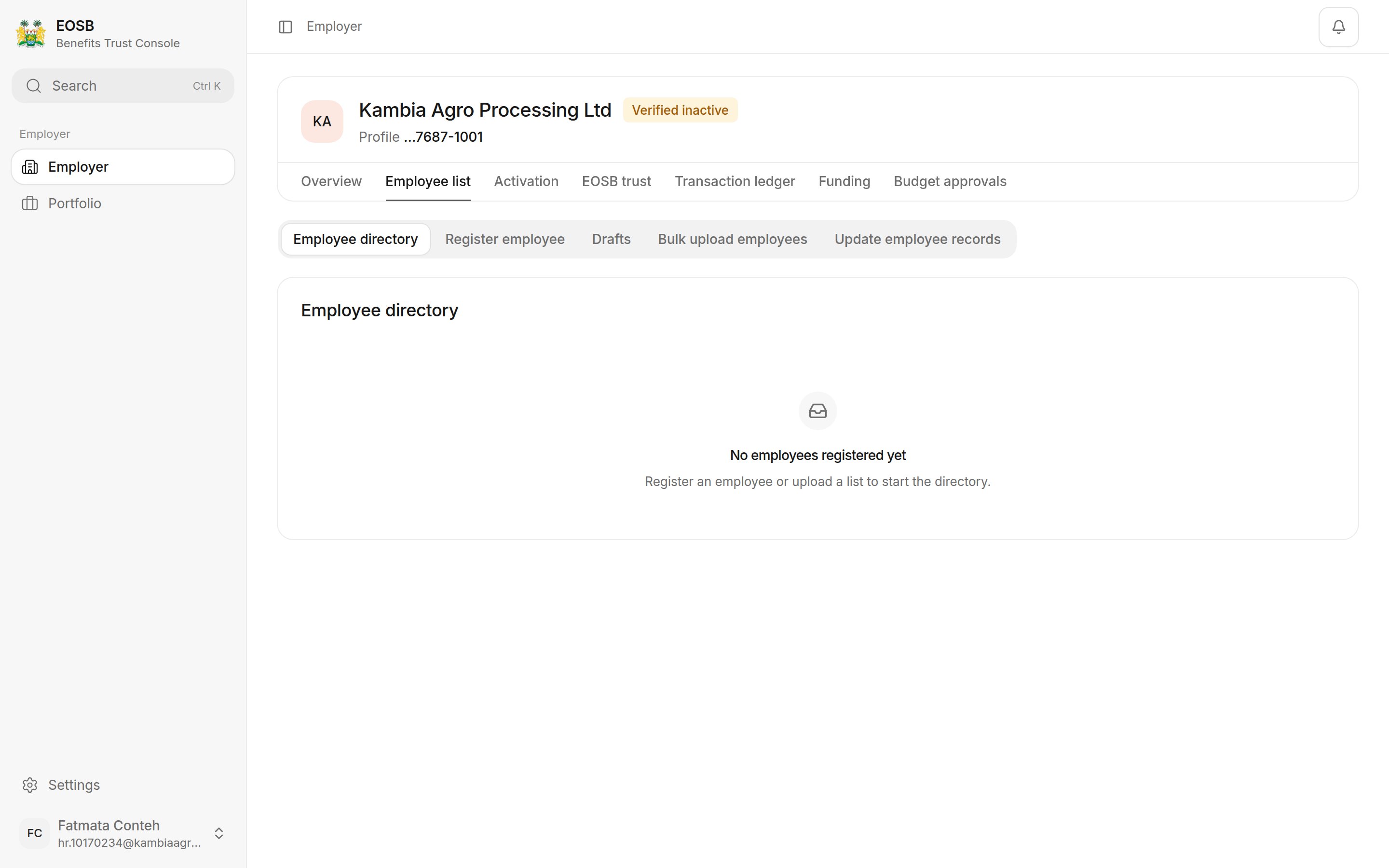
## Before you have employees
 ## Find an employee
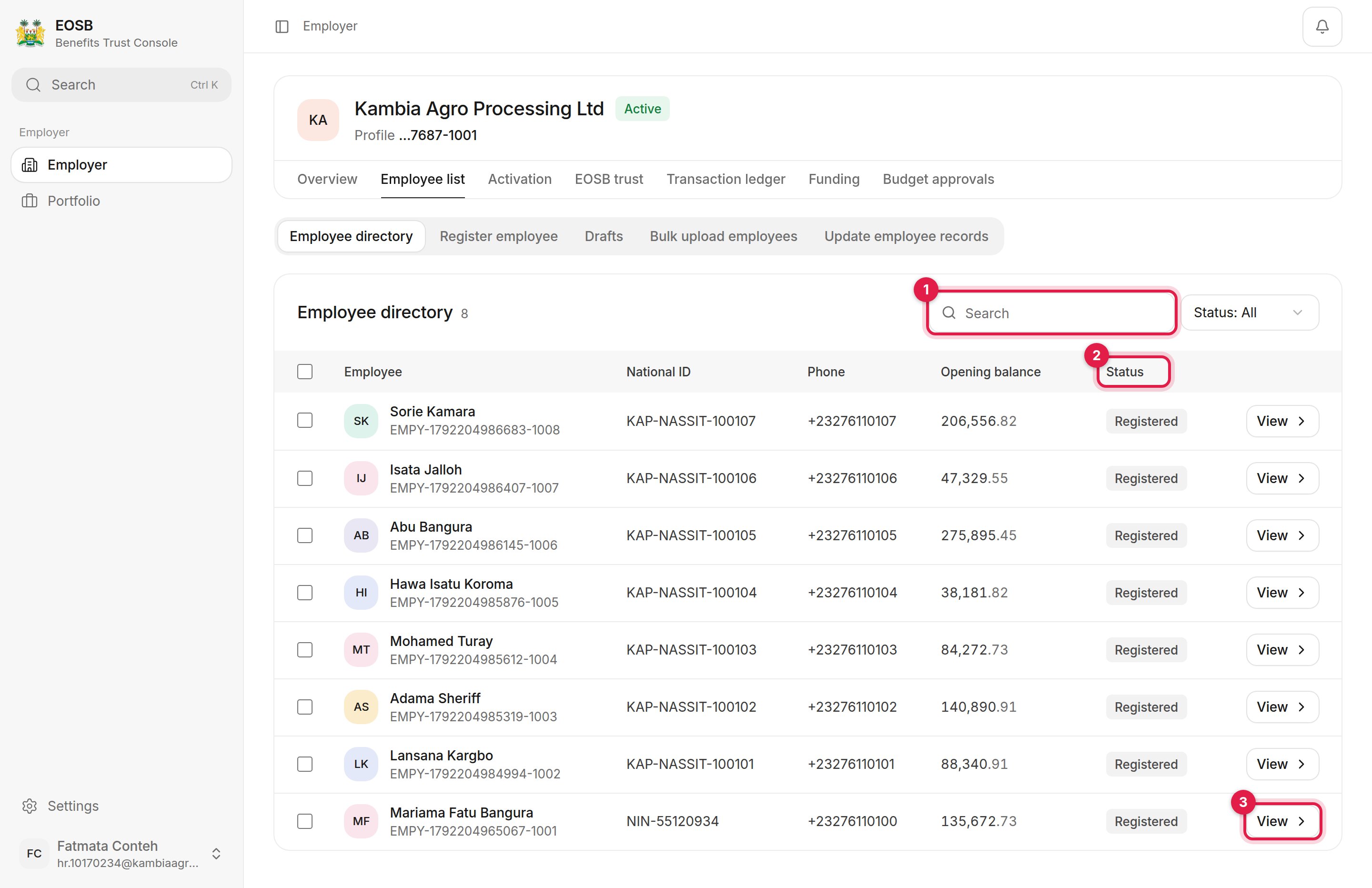 1. **Search** by name, employee ID, national ID or phone number.
2. **Status** filters the list, for example to show only **Registered** or **Terminated** employees.
3. **View** opens the [employee record](/employer/employees/employee-record).
Each row shows the employee's name and employee ID, national ID, phone, opening balance and status. Select a column heading to sort by it.
## Generate opening balances for several employees
The platform calculates an employee's [opening balance](/employer/employees/employee-record#opening-balance) automatically when you register them. If an employee shows **Not generated** in the **Opening balance** column, you can generate it here for several employees at once.
1. **Search** by name, employee ID, national ID or phone number.
2. **Status** filters the list, for example to show only **Registered** or **Terminated** employees.
3. **View** opens the [employee record](/employer/employees/employee-record).
Each row shows the employee's name and employee ID, national ID, phone, opening balance and status. Select a column heading to sort by it.
## Generate opening balances for several employees
The platform calculates an employee's [opening balance](/employer/employees/employee-record#opening-balance) automatically when you register them. If an employee shows **Not generated** in the **Opening balance** column, you can generate it here for several employees at once.
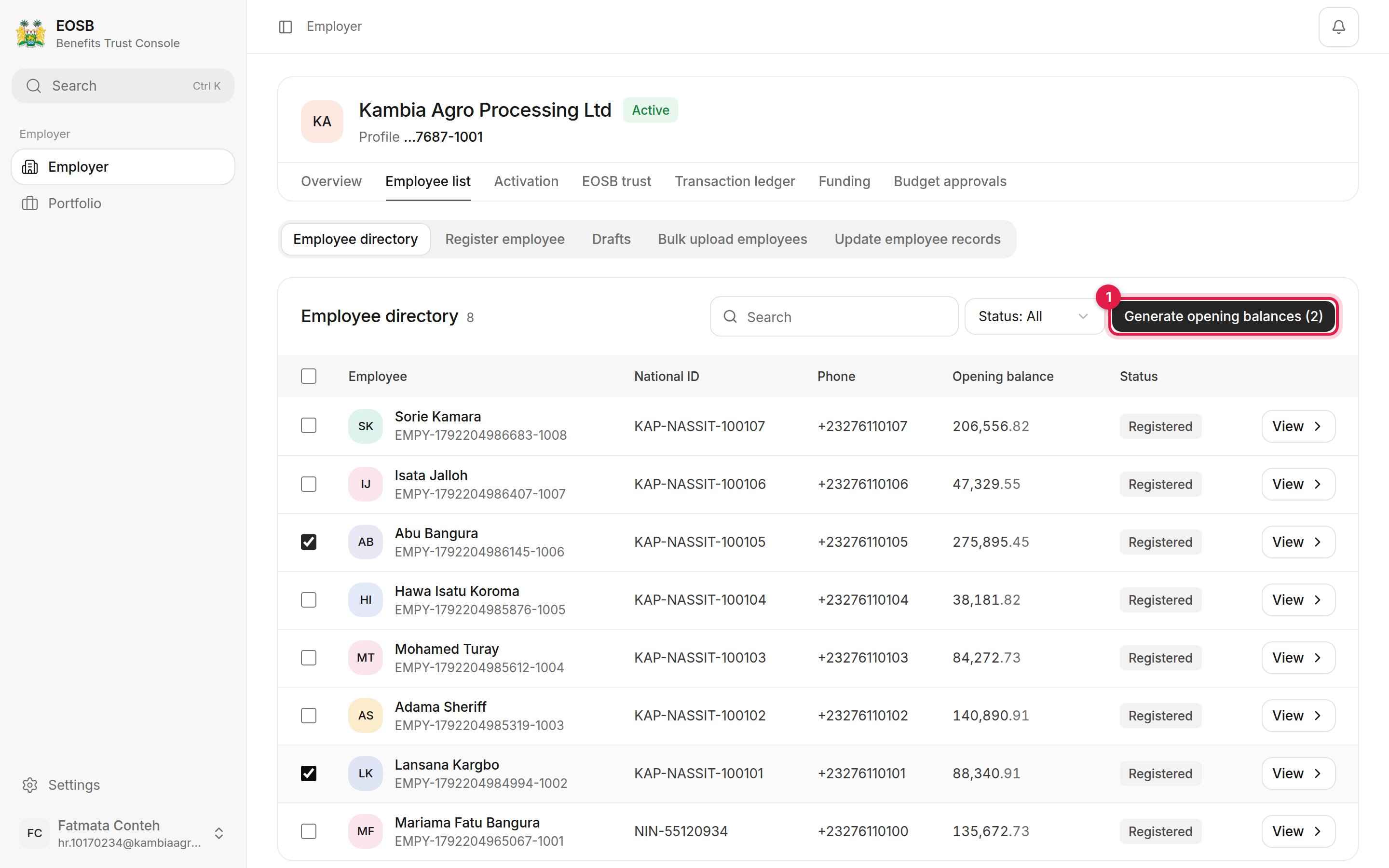 Tick the box at the start of each row, or the box in the heading row to select everyone.
The button shows how many employees are selected.
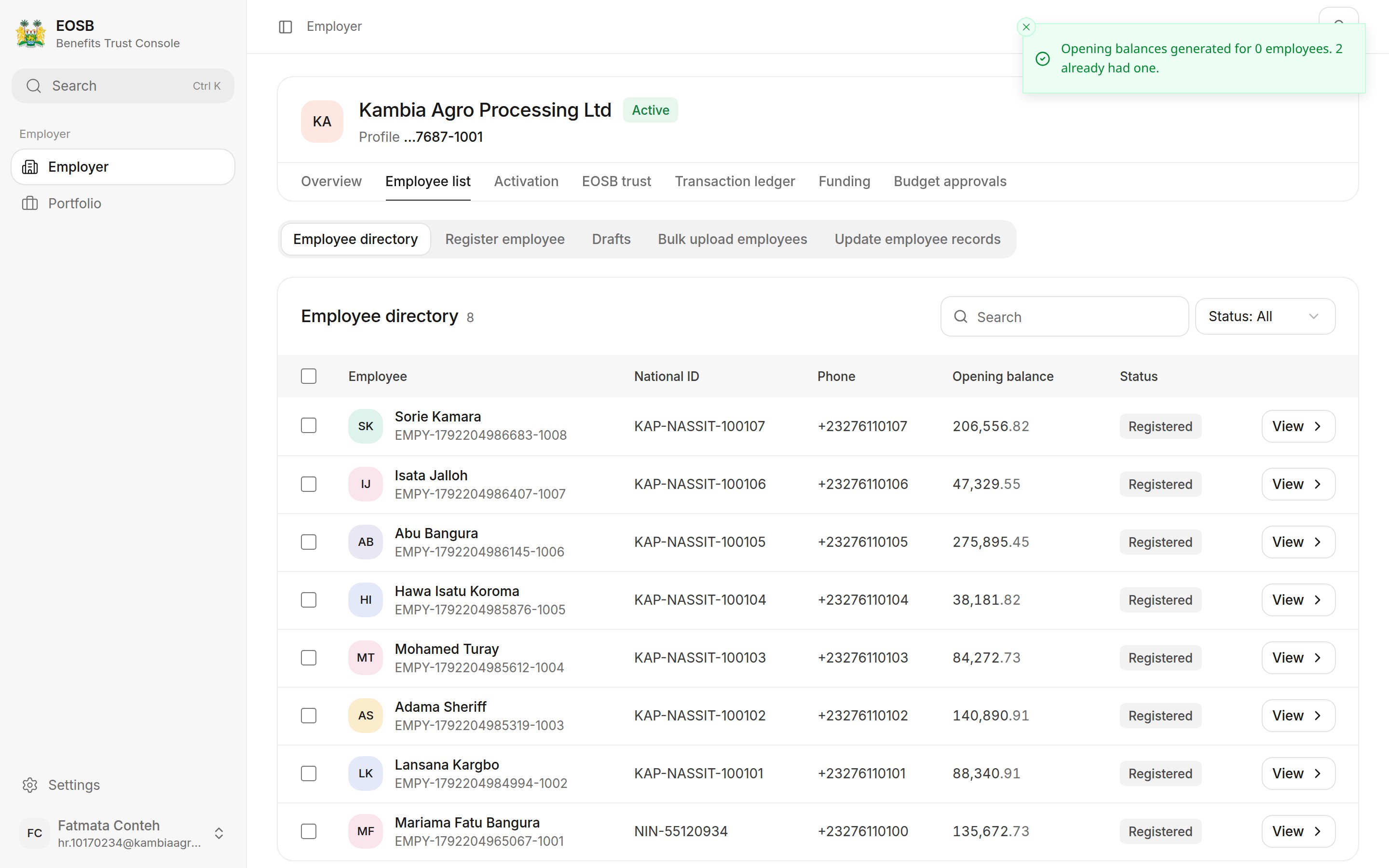
A message tells you how many balances were generated. Employees who already had a balance are skipped and counted separately.
Tick the box at the start of each row, or the box in the heading row to select everyone.
The button shows how many employees are selected.
A message tells you how many balances were generated. Employees who already had a balance are skipped and counted separately.
 | Status | Meaning |
| - | - |
| Registered | A current employee. Their benefit grows every month. |
| Terminated | Their service has ended. Their benefit is being settled or has been paid. They no longer accrue. |
**Next:** [register your first employee](/employer/employees/register).
This documentation is built and hosted on [Mintlify](https://mintlify.com), a developer documentation platform.
| Status | Meaning |
| - | - |
| Registered | A current employee. Their benefit grows every month. |
| Terminated | Their service has ended. Their benefit is being settled or has been paid. They no longer accrue. |
**Next:** [register your first employee](/employer/employees/register).
This documentation is built and hosted on [Mintlify](https://mintlify.com), a developer documentation platform.