> ## Documentation Index
> Fetch the complete documentation index at: https://docs.eosb.org/llms.txt
> Use this file to discover all available pages before exploring further.
# Onboarding organisations
> How employers, trustees and fund managers join the platform: registration, verification, accounts and activation.
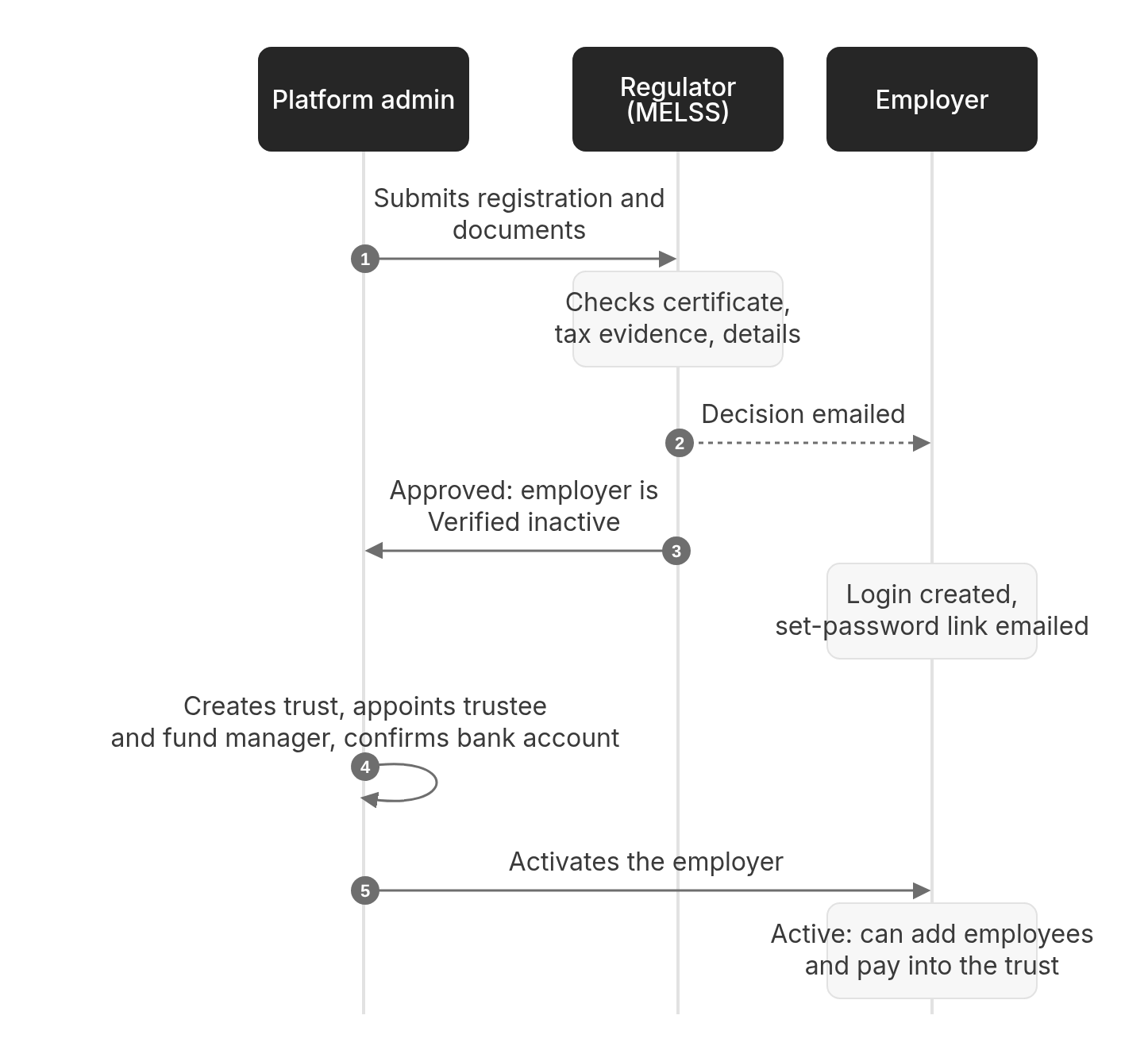
No organisation registers itself. The **platform administrator** submits every registration, the **regulator** verifies it, and only then does the organisation get a login. Employers have one more stage — **activation** — before they can start work.
## The employer journey
 | Stage | Who | What happens | Guide |
| - | - | - | - |
| 1. Registration | Admin | Fills in the employer's details, uploads the certificate of registration and tax evidence, submits. The employer's contact gets an acknowledgement. | [Register an employer](/admin/register-employer) |
| 2. Verification | Regulator | Checks the details and evidence. Approves, requests information, defers or rejects. Expected within **5 days**. | [Verify employers](/regulator/employer-verification) |
| 3. Account | Platform (automatic) | On approval, creates the employer's profile and login (username = employer profile ID) and emails a set-password link valid for 72 hours. | [Set your password](/employer/getting-started/set-password) |
| 4. Setup | Admin | Creates the EOSB trust, appoints the trustee and fund manager, confirms the trust bank account. | [Set up and activate](/admin/activation) |
| 5. Activation | Admin | Activates once all six readiness checks pass. The employer is notified. | [Activation](/employer/activation) |
### Registration statuses
| Stage | Who | What happens | Guide |
| - | - | - | - |
| 1. Registration | Admin | Fills in the employer's details, uploads the certificate of registration and tax evidence, submits. The employer's contact gets an acknowledgement. | [Register an employer](/admin/register-employer) |
| 2. Verification | Regulator | Checks the details and evidence. Approves, requests information, defers or rejects. Expected within **5 days**. | [Verify employers](/regulator/employer-verification) |
| 3. Account | Platform (automatic) | On approval, creates the employer's profile and login (username = employer profile ID) and emails a set-password link valid for 72 hours. | [Set your password](/employer/getting-started/set-password) |
| 4. Setup | Admin | Creates the EOSB trust, appoints the trustee and fund manager, confirms the trust bank account. | [Set up and activate](/admin/activation) |
| 5. Activation | Admin | Activates once all six readiness checks pass. The employer is notified. | [Activation](/employer/activation) |
### Registration statuses
 | Status | Meaning | Who acts next |
| - | - | - |
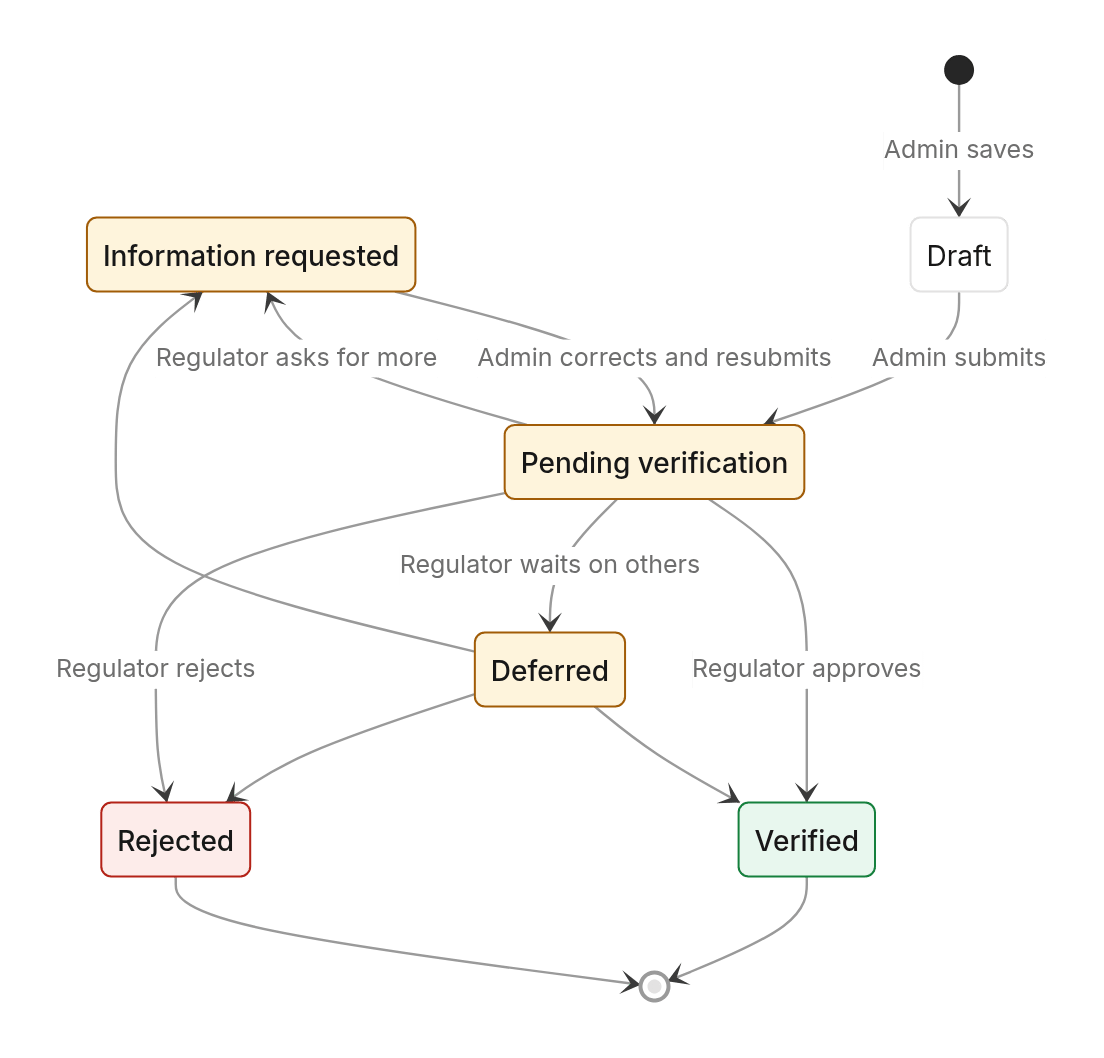
| Draft | Saved but not submitted. | Admin |
| Pending verification | Waiting in the regulator's queue. | Regulator |
| Information requested | Something must be corrected or added. | Admin, with the employer |
| Verification deferred | The regulator is waiting on someone else. | Regulator |
| Verified | Approved. The employer has a login and is **Verified inactive**. | Admin (setup) |
| Rejected | The employer may not take part. Final. | — |
### The employer's operating status
After verification, the employer has an operating status:
| Status | What the employer can do |
| - | - |
| **Verified inactive** | Sign in and look around. Cannot register employees or pay into the trust. |
| **Active** | Everything. |
| **Active with restrictions** | Only what the administrator allows; the reason is shown on the employer's Activation tab. |
### The six readiness checks
The administrator can only activate when all six pass:
| Check | Passes when |
| - | - |
| Trust established | The employer has an EOSB trust. |
| Trustee appointed | A verified trustee is linked to the trust. |
| Fund manager appointed | A verified fund manager is linked to the trust. |
| Bank account confirmed | The trust's bank account is saved. |
| Trust assignment ready | Every registered employee belongs to an active trust. |
| No activation restriction | No restriction is recorded. |
## Trustees and fund managers
| Status | Meaning | Who acts next |
| - | - | - |
| Draft | Saved but not submitted. | Admin |
| Pending verification | Waiting in the regulator's queue. | Regulator |
| Information requested | Something must be corrected or added. | Admin, with the employer |
| Verification deferred | The regulator is waiting on someone else. | Regulator |
| Verified | Approved. The employer has a login and is **Verified inactive**. | Admin (setup) |
| Rejected | The employer may not take part. Final. | — |
### The employer's operating status
After verification, the employer has an operating status:
| Status | What the employer can do |
| - | - |
| **Verified inactive** | Sign in and look around. Cannot register employees or pay into the trust. |
| **Active** | Everything. |
| **Active with restrictions** | Only what the administrator allows; the reason is shown on the employer's Activation tab. |
### The six readiness checks
The administrator can only activate when all six pass:
| Check | Passes when |
| - | - |
| Trust established | The employer has an EOSB trust. |
| Trustee appointed | A verified trustee is linked to the trust. |
| Fund manager appointed | A verified fund manager is linked to the trust. |
| Bank account confirmed | The trust's bank account is saved. |
| Trust assignment ready | Every registered employee belongs to an active trust. |
| No activation restriction | No restriction is recorded. |
## Trustees and fund managers
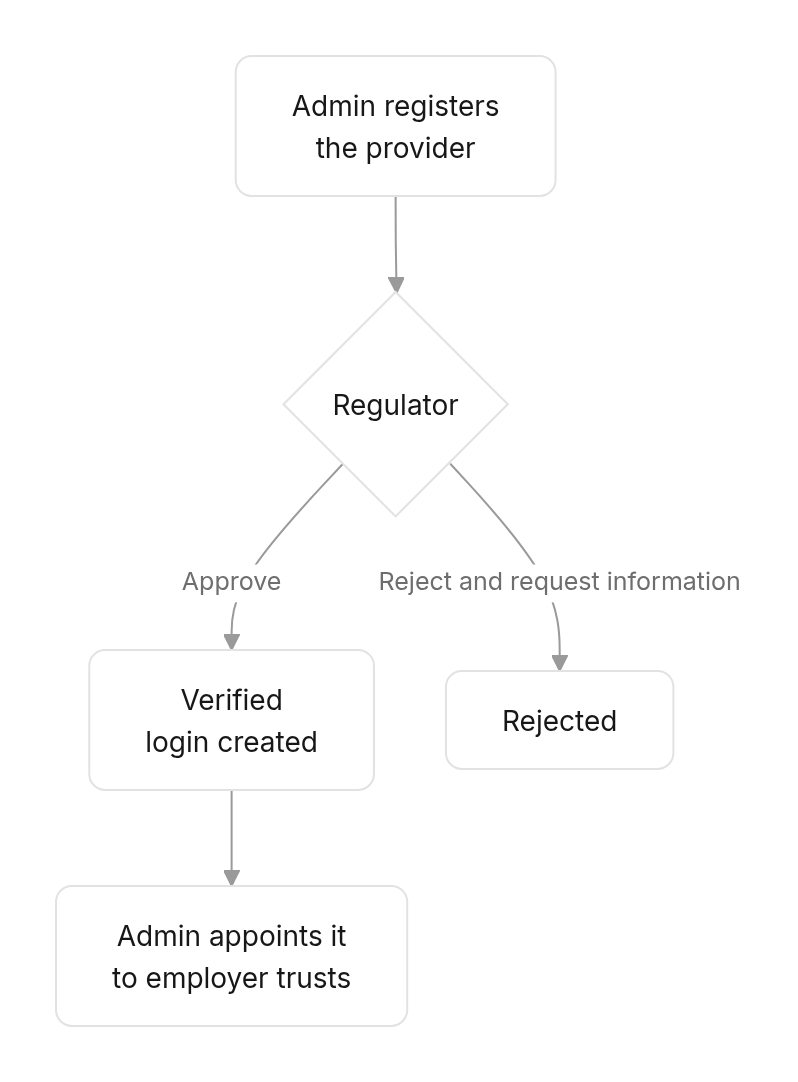
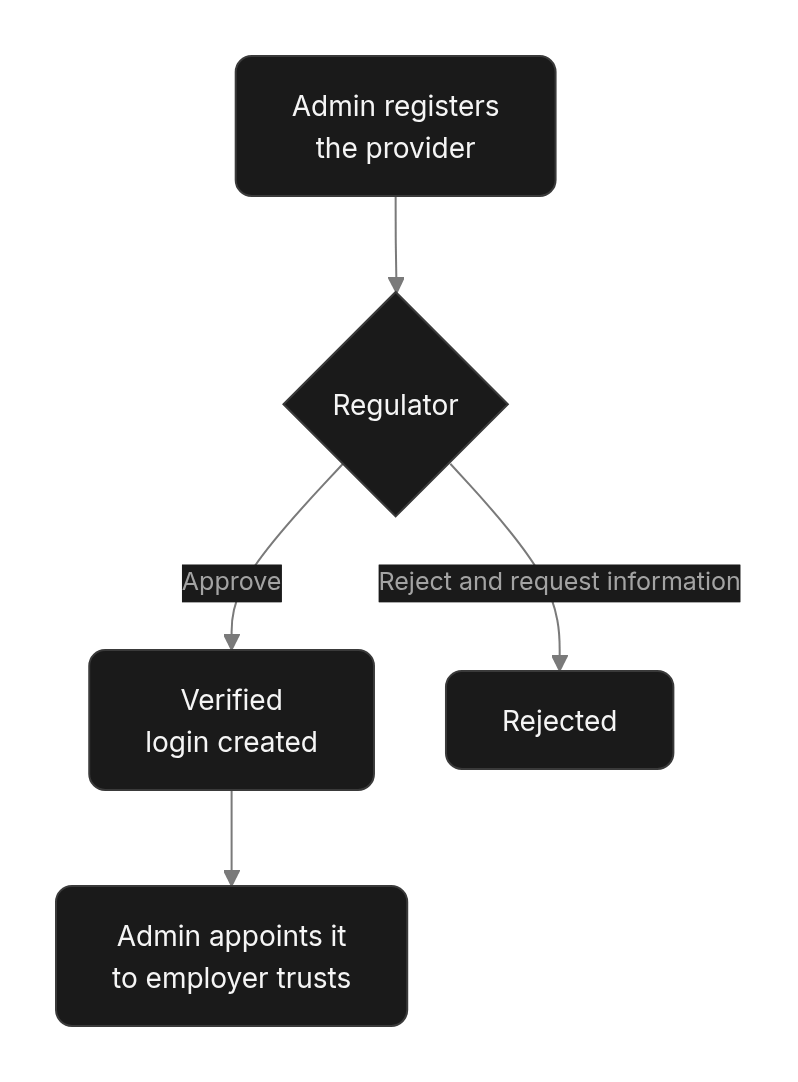 Providers come in two categories:
| Category | Who | Rule |
| - | - | - |
| **Official platform** | The national trustee and fund manager serving trusts on the official platform service model. | Only one of each can be verified at a time. |
| **Independent** | A private provider an employer appoints for its own trust. | Must hold MELSS accreditation; the regulator checks the accreditation period. |
On approval, the provider gets a login: username = its reference in lower case, with a set-password link emailed to the contact person. The administrator can add more users for it under **User Management**.
## User accounts
* Every account is created by the platform (automatically on approval) or by the administrator. Nobody signs up.
* The person sets their own password from an emailed link. The link works **once** and expires after **72 hours**; the administrator can send a new one.
* Passwords need at least **12 characters**, including a letter and a number.
* Each account has one role and one organisation. See [Roles and responsibilities](/concepts/roles).
This documentation is built and hosted on [Mintlify](https://mintlify.com), a developer documentation platform.
Providers come in two categories:
| Category | Who | Rule |
| - | - | - |
| **Official platform** | The national trustee and fund manager serving trusts on the official platform service model. | Only one of each can be verified at a time. |
| **Independent** | A private provider an employer appoints for its own trust. | Must hold MELSS accreditation; the regulator checks the accreditation period. |
On approval, the provider gets a login: username = its reference in lower case, with a set-password link emailed to the contact person. The administrator can add more users for it under **User Management**.
## User accounts
* Every account is created by the platform (automatically on approval) or by the administrator. Nobody signs up.
* The person sets their own password from an emailed link. The link works **once** and expires after **72 hours**; the administrator can send a new one.
* Passwords need at least **12 characters**, including a letter and a number.
* Each account has one role and one organisation. See [Roles and responsibilities](/concepts/roles).
This documentation is built and hosted on [Mintlify](https://mintlify.com), a developer documentation platform.