> ## Documentation Index
> Fetch the complete documentation index at: https://docs.eosb.org/llms.txt
> Use this file to discover all available pages before exploring further.
# User accounts
> Create user accounts for every organisation, and send a new password link.
Every person who signs in has a user account with one role. You create accounts for all of them. The person then sets their own password from an emailed link; you never set or see it.
**Where:** **User Management** in the menu.
## Find a user
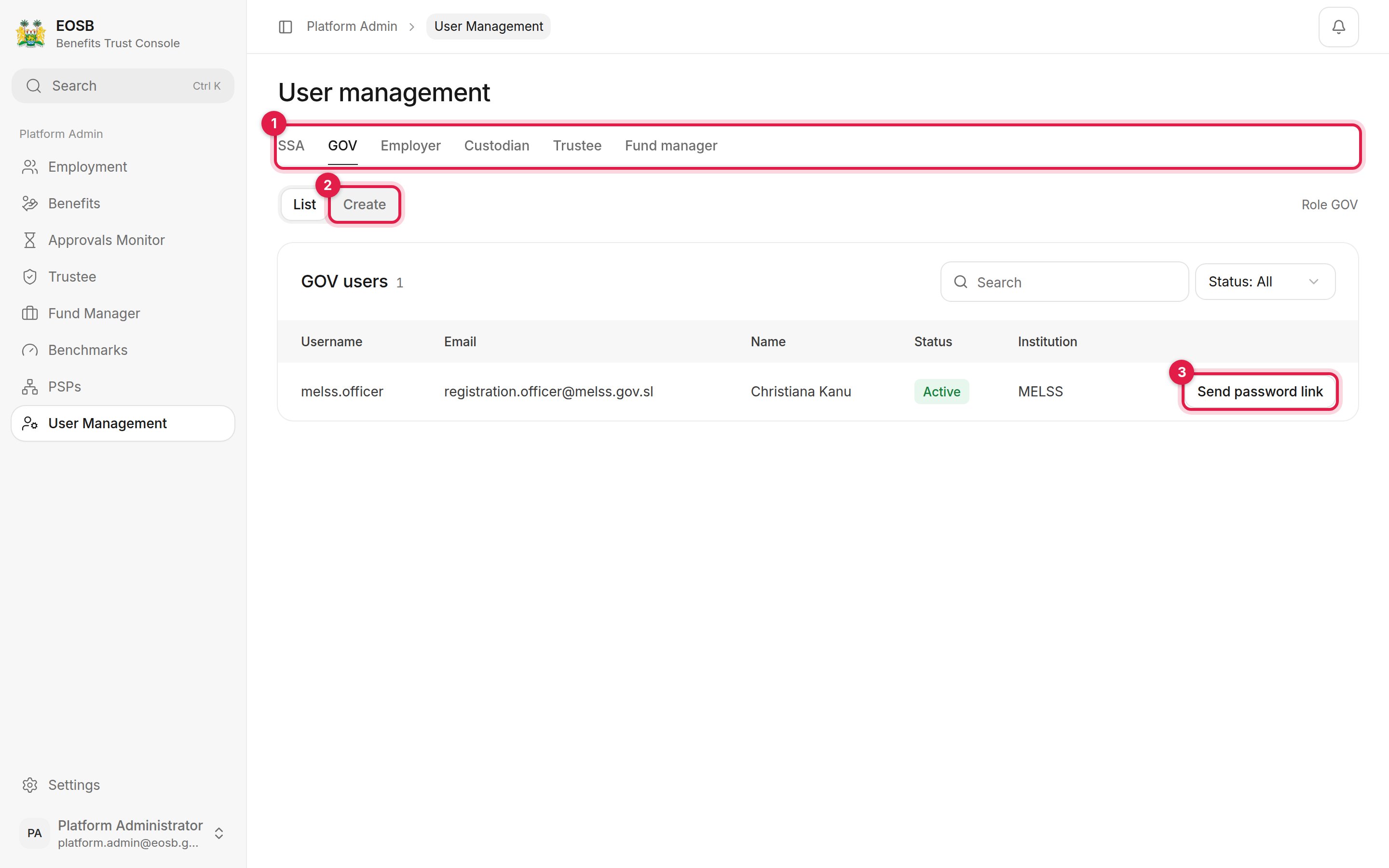 1. **Role tabs** — one tab per role:
| Tab | Role | Who |
| - | - | - |
| SSA | SSA | Platform administrators |
| GOV | GOV | Regulator officers at MELSS |
| Employer | EMP | Employer users |
| Custodian | WAFS | Custodian users |
| Trustee | TRUST | Trustee operators |
| Fund manager | TFM | Fund manager operators |
2. **Create** opens the new-user form for that role.
3. **Send password link** emails the user a new link to set their password, for example when they have forgotten it or the first link expired.
## Create a user
Pick the role tab, then select **Create**.
1. **Role tabs** — one tab per role:
| Tab | Role | Who |
| - | - | - |
| SSA | SSA | Platform administrators |
| GOV | GOV | Regulator officers at MELSS |
| Employer | EMP | Employer users |
| Custodian | WAFS | Custodian users |
| Trustee | TRUST | Trustee operators |
| Fund manager | TFM | Fund manager operators |
2. **Create** opens the new-user form for that role.
3. **Send password link** emails the user a new link to set their password, for example when they have forgotten it or the first link expired.
## Create a user
Pick the role tab, then select **Create**.
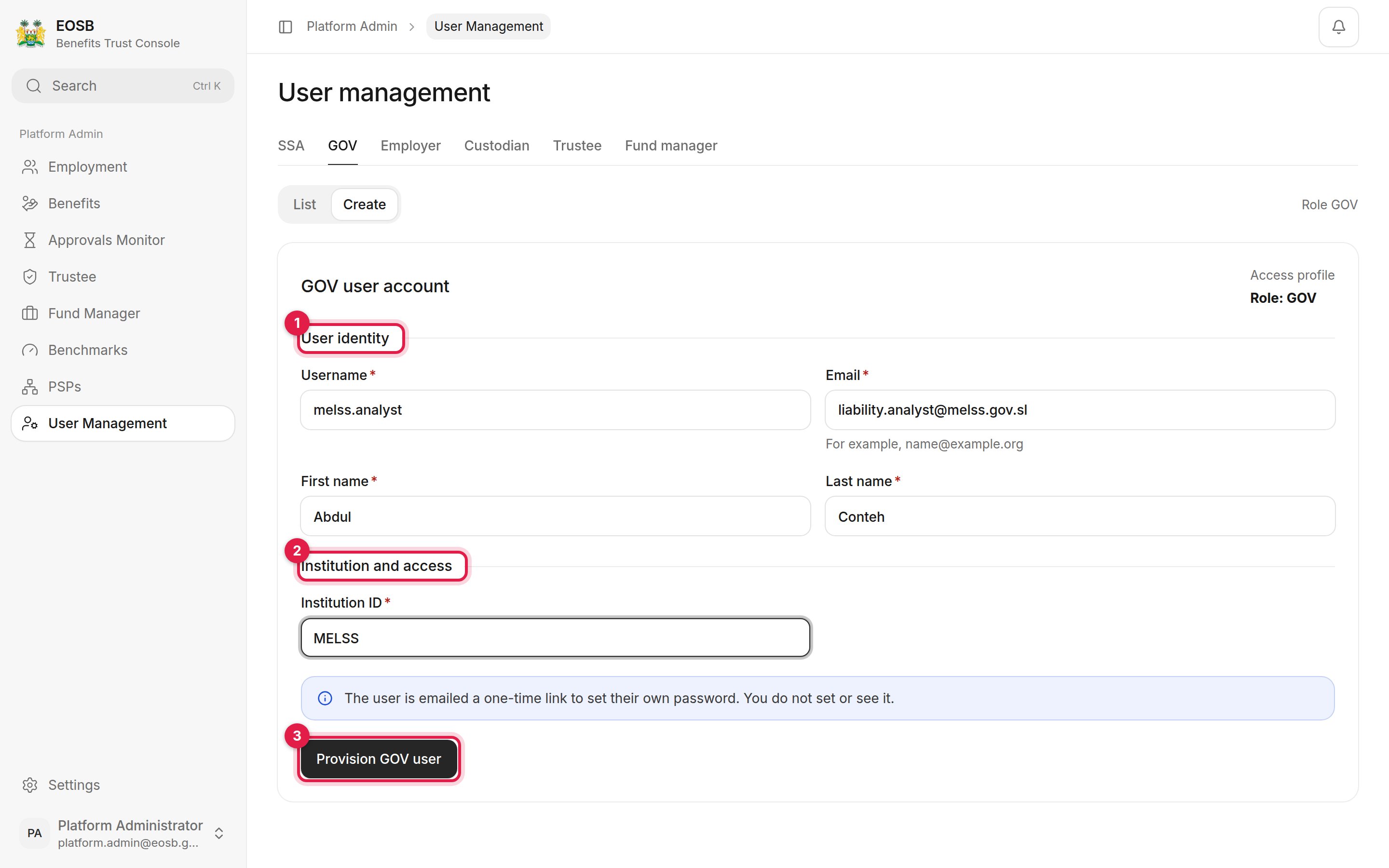 A **Username** such as `firstname.lastname`, the person's work **Email**, and their first and last name.
For **SSA**, **GOV** and **Custodian**, type the institution ID: `EOSB` for platform administrators, `MELSS` for the regulator. (The box shows `MELSS` as an example on every tab, including SSA.) For the other roles, choose the organisation from the list; only registered organisations are offered.
A message confirms the account and that a set-password link has been emailed.
A **Username** such as `firstname.lastname`, the person's work **Email**, and their first and last name.
For **SSA**, **GOV** and **Custodian**, type the institution ID: `EOSB` for platform administrators, `MELSS` for the regulator. (The box shows `MELSS` as an example on every tab, including SSA.) For the other roles, choose the organisation from the list; only registered organisations are offered.
A message confirms the account and that a set-password link has been emailed.
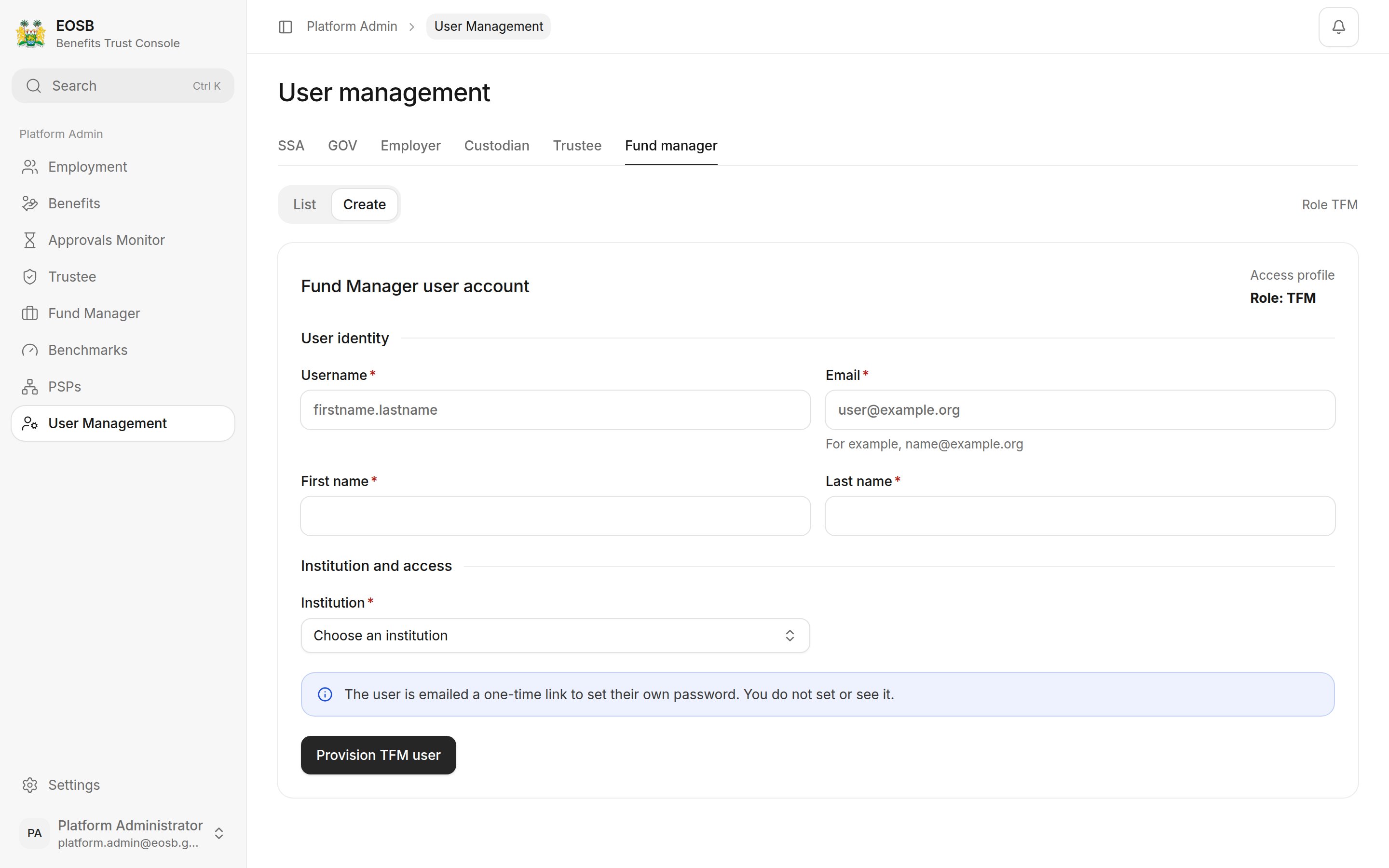 The first login for each employer, trustee and fund manager is created automatically when the regulator approves it. Create accounts here for regulator officers, other administrators, custodians and any extra users an organisation needs.
This documentation is built and hosted on [Mintlify](https://mintlify.com), a developer documentation platform.
The first login for each employer, trustee and fund manager is created automatically when the regulator approves it. Create accounts here for regulator officers, other administrators, custodians and any extra users an organisation needs.
This documentation is built and hosted on [Mintlify](https://mintlify.com), a developer documentation platform.