> ## Documentation Index
> Fetch the complete documentation index at: https://docs.eosb.org/llms.txt
> Use this file to discover all available pages before exploring further.
# Register an employer
> Submit an employer's registration and documents for the regulator to verify, and follow it through to approval.
Employers do not register themselves. You fill in their registration, upload their documents and submit it to the regulator (MELSS).
**Where:** **Employment** › **Registration**. **Before you start:** have the employer's certificate of registration and tax evidence as PDF or image files, and the contact details of the person responsible at the employer.
## Fill in the registration
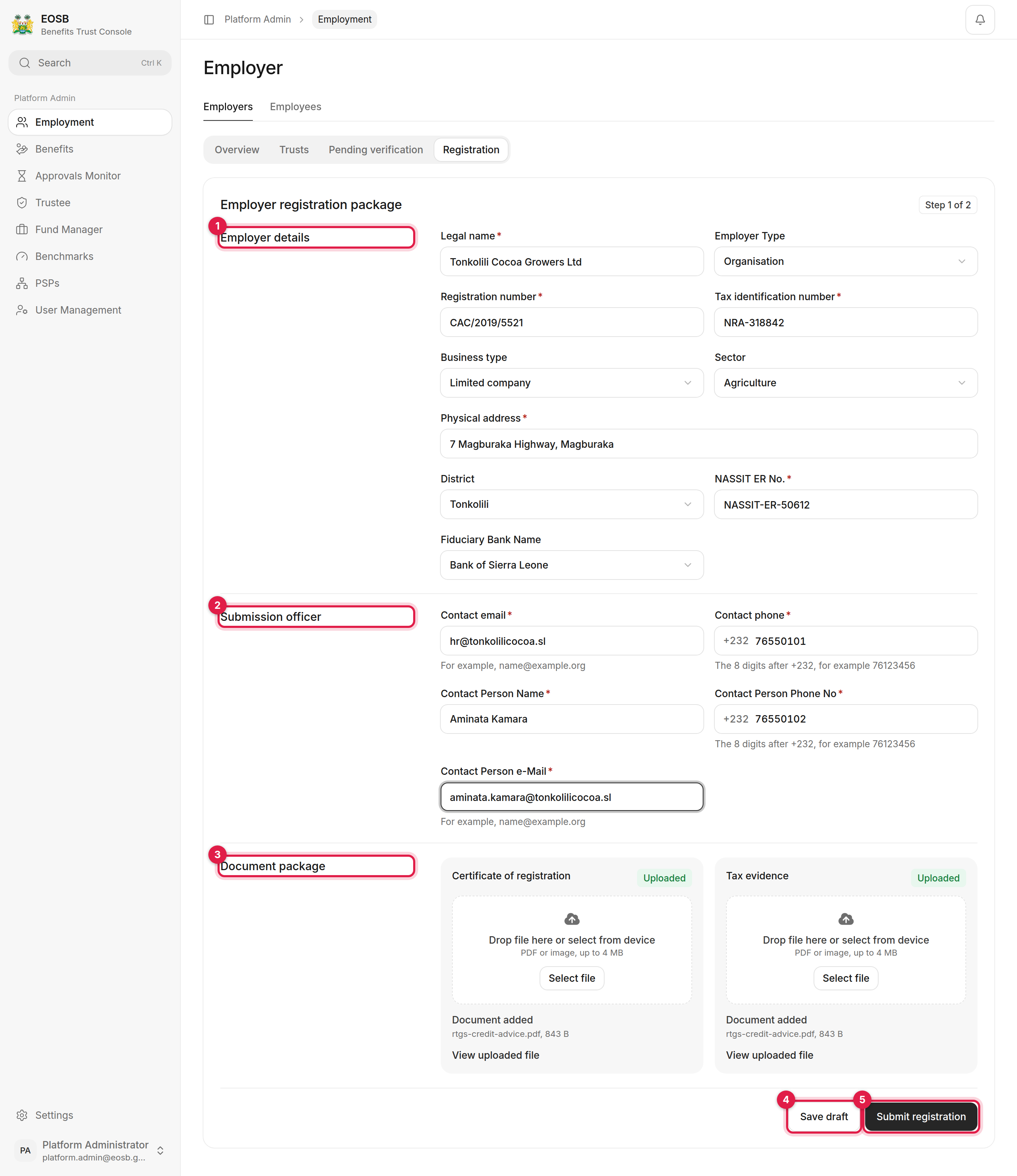 The legal name, registration number and tax identification number exactly as they appear on the certificate of registration and tax clearance. Then the business type, sector, physical address, district, NASSIT employer number and the employer's fiduciary bank.
The employer's contact email and phone, and the person at the employer who is responsible for the registration. The regulator and the platform write to these addresses.
Phone numbers are the 8 digits after **+232**, for example `76123456`.
Upload the **Certificate of registration** and the **Tax evidence**: drop the file on the card or select **Select file**. PDF or image, up to 4 MB each. Wait until each card says **Document added** before you continue.
**Save draft** keeps what you have so far. **Submit registration** checks the form and shows a summary.
If you select **Submit registration** while a document is still uploading, the form says **Certificate of registration upload is required** even though the file shows on the card. Wait for **Document added** on both cards and submit again.
## Confirm the submission
The legal name, registration number and tax identification number exactly as they appear on the certificate of registration and tax clearance. Then the business type, sector, physical address, district, NASSIT employer number and the employer's fiduciary bank.
The employer's contact email and phone, and the person at the employer who is responsible for the registration. The regulator and the platform write to these addresses.
Phone numbers are the 8 digits after **+232**, for example `76123456`.
Upload the **Certificate of registration** and the **Tax evidence**: drop the file on the card or select **Select file**. PDF or image, up to 4 MB each. Wait until each card says **Document added** before you continue.
**Save draft** keeps what you have so far. **Submit registration** checks the form and shows a summary.
If you select **Submit registration** while a document is still uploading, the form says **Certificate of registration upload is required** even though the file shows on the card. Wait for **Document added** on both cards and submit again.
## Confirm the submission
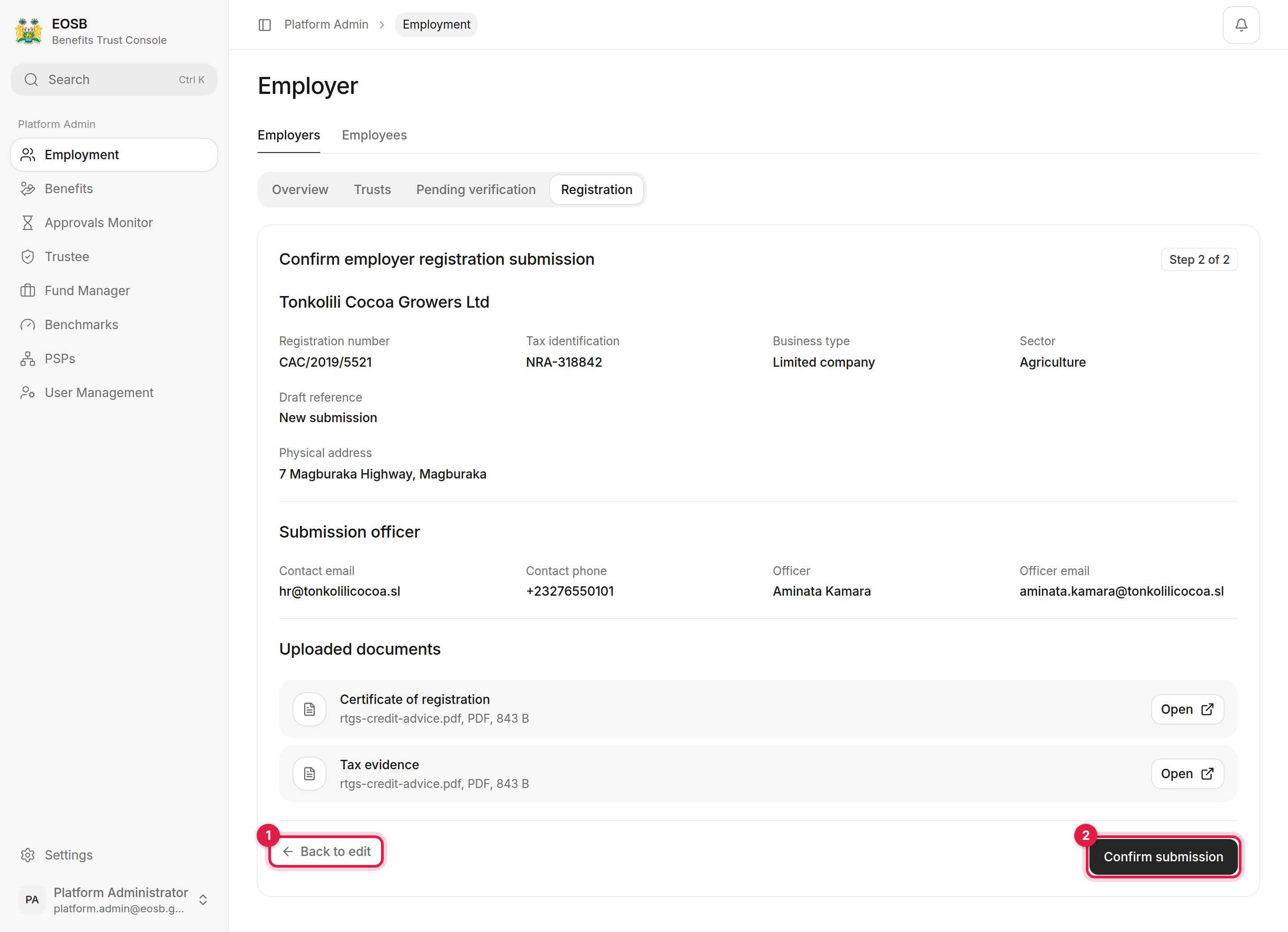 1. **Back to edit** returns to the form without losing anything.
2. **Confirm submission** sends the registration to the regulator. A message shows the new reference, for example `ER-1792235969935-1001`, and the form clears for the next employer.
## Follow the registration
The registration now waits under **Pending verification** until the regulator decides.
1. **Back to edit** returns to the form without losing anything.
2. **Confirm submission** sends the registration to the regulator. A message shows the new reference, for example `ER-1792235969935-1001`, and the form clears for the next employer.
## Follow the registration
The registration now waits under **Pending verification** until the regulator decides.
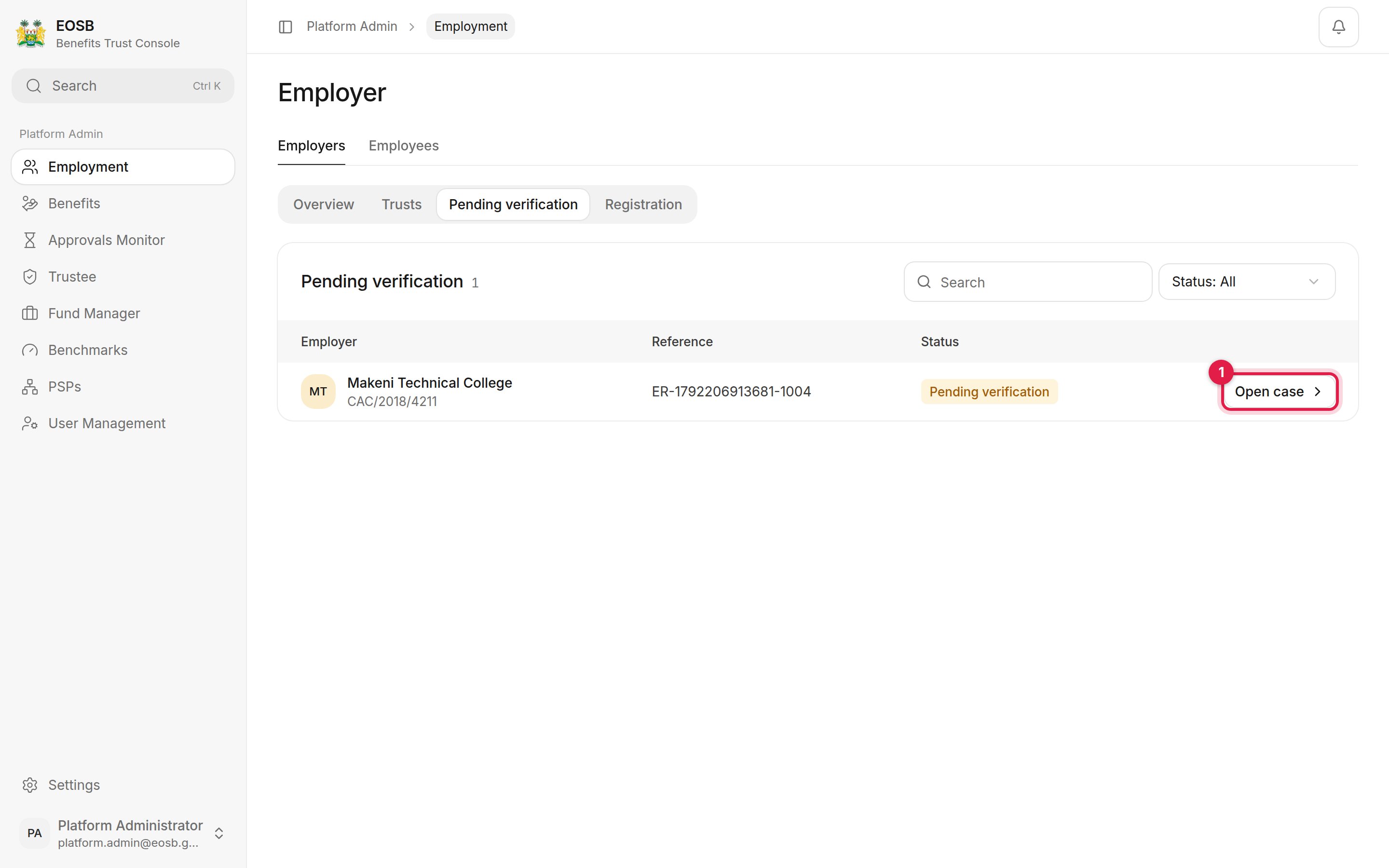 Select **Open case** (1) to see the registration as the regulator sees it: company and contact details, the evidence, validation checks and progress.
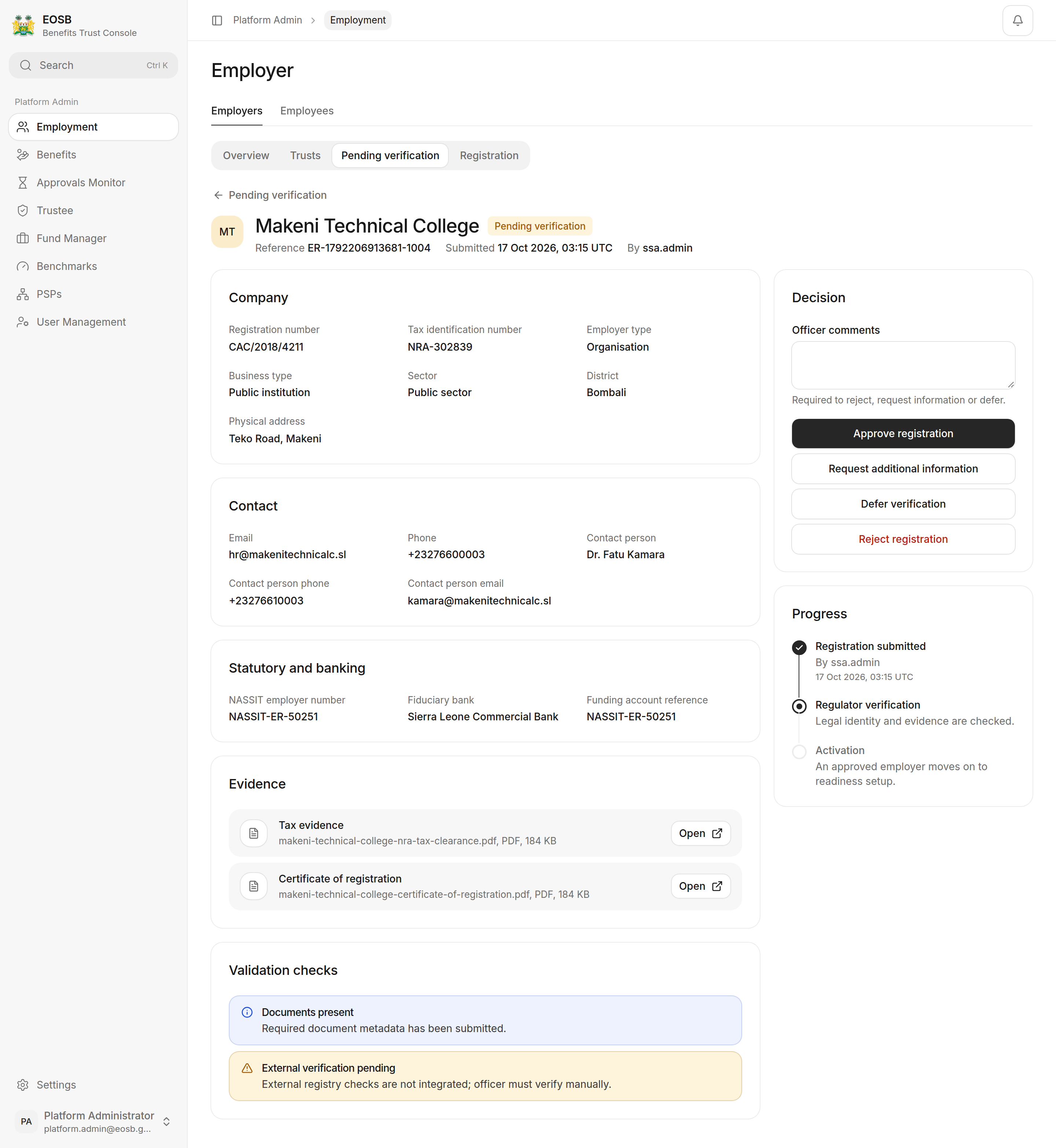 The case shows the regulator's **Decision** buttons, and they work for you too. Verification is the regulator's decision, so leave it to MELSS unless they ask you to record a decision for them. How the regulator decides is described in [Verify employers](/regulator/employer-verification).
When the regulator approves the registration:
* the employer gets a user account and an email with a link to set their password, and
* the employer appears under **Overview** with the status **Verified inactive**, ready for you to [set up and activate](/admin/activation).
If the regulator requests information, defers or rejects, the employer is told by email. The registration then leaves the pending list.
Read the regulator's comments on the case, get what is needed from the employer, correct the registration and submit it again. It returns to the regulator's queue as **Pending verification** for a fresh decision.
**Next:** once the regulator approves, [set up and activate the employer](/admin/activation).
This documentation is built and hosted on [Mintlify](https://mintlify.com), a developer documentation platform.
The case shows the regulator's **Decision** buttons, and they work for you too. Verification is the regulator's decision, so leave it to MELSS unless they ask you to record a decision for them. How the regulator decides is described in [Verify employers](/regulator/employer-verification).
When the regulator approves the registration:
* the employer gets a user account and an email with a link to set their password, and
* the employer appears under **Overview** with the status **Verified inactive**, ready for you to [set up and activate](/admin/activation).
If the regulator requests information, defers or rejects, the employer is told by email. The registration then leaves the pending list.
Read the regulator's comments on the case, get what is needed from the employer, correct the registration and submit it again. It returns to the regulator's queue as **Pending verification** for a fresh decision.
**Next:** once the regulator approves, [set up and activate the employer](/admin/activation).
This documentation is built and hosted on [Mintlify](https://mintlify.com), a developer documentation platform.