> ## Documentation Index
> Fetch the complete documentation index at: https://docs.eosb.org/llms.txt
> Use this file to discover all available pages before exploring further.
# Register trustees and fund managers
> Submit official and independent trustees and fund managers for verification, and see the trusts each provider serves.
Trustees hold the EOSB trusts; fund managers invest them. Both are registered by you and verified by the regulator before they can be appointed to a trust.
**Where:** **Trustee** or **Fund Manager** in the menu. The two pages work the same way. **Before you start:** have the provider's certificate of registration and tax evidence, and for an independent provider its MELSS accreditation details.
## Official and independent providers
Each page has two tabs:
* **Official trustee** / **Official fund manager** — the national providers that serve trusts on the official platform service model.
* **Independent trustee** / **Independent fund manager** — private providers accredited by MELSS. Their form also asks for the accreditation number and dates.
Under each tab, **Registered** lists the providers and **Register new** opens the form.
## Register a provider
The example registers an independent fund manager. Select **Fund Manager**, **Independent fund manager**, then **Register new**.
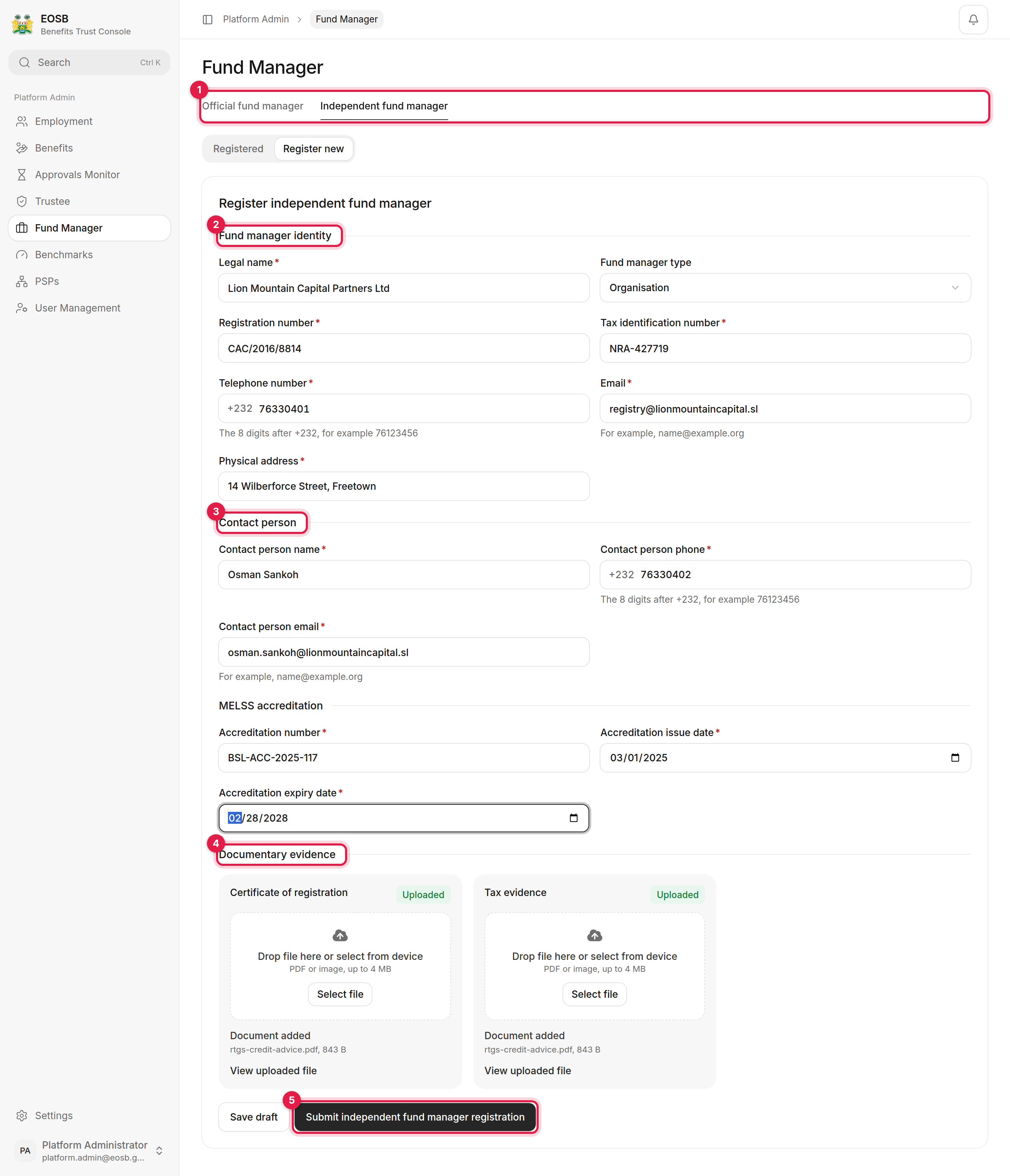 Official or independent.
Legal name, registration and tax identification numbers, telephone, email and physical address.
The person at the provider responsible for the registration.
For an independent provider, the **MELSS accreditation** number, issue date and expiry date. Then upload the **Certificate of registration** and **Tax evidence**, and wait for each card to say **Uploaded**.
A message gives the new reference, for example `PFM-1792235882388-1001`.
After a successful submission the form keeps the phone numbers and the uploaded documents. Clear them, or reload the page, before you register another provider.
## Follow the registration
Select **Registered**. The new provider shows as **Pending verification**. If it is not there, reload the page.
Official or independent.
Legal name, registration and tax identification numbers, telephone, email and physical address.
The person at the provider responsible for the registration.
For an independent provider, the **MELSS accreditation** number, issue date and expiry date. Then upload the **Certificate of registration** and **Tax evidence**, and wait for each card to say **Uploaded**.
A message gives the new reference, for example `PFM-1792235882388-1001`.
After a successful submission the form keeps the phone numbers and the uploaded documents. Clear them, or reload the page, before you register another provider.
## Follow the registration
Select **Registered**. The new provider shows as **Pending verification**. If it is not there, reload the page.
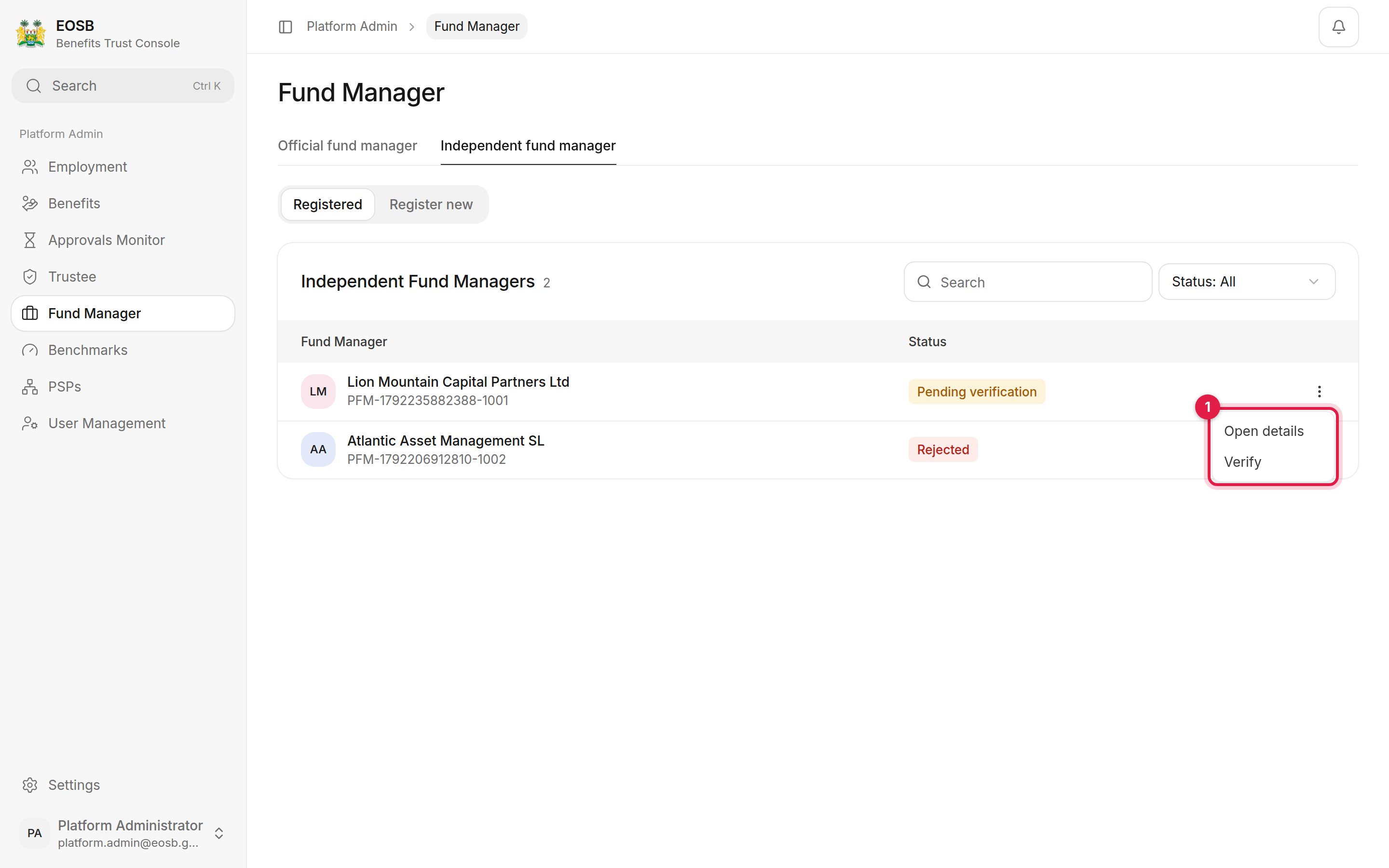 The menu at the end of each row (1) has:
* **Open details** — the provider and the trusts it serves.
* **Verify** — shown while the registration is pending. It marks the provider verified straight away, without going to the regulator. Use it only when MELSS has asked you to.
* **Complete draft** — shown for a saved draft.
Otherwise the registration waits in the regulator's **Trustee Verification** or **Fund Manager Verification** queue; see [Verify trustees and fund managers](/regulator/provider-verification).
## A provider's trusts
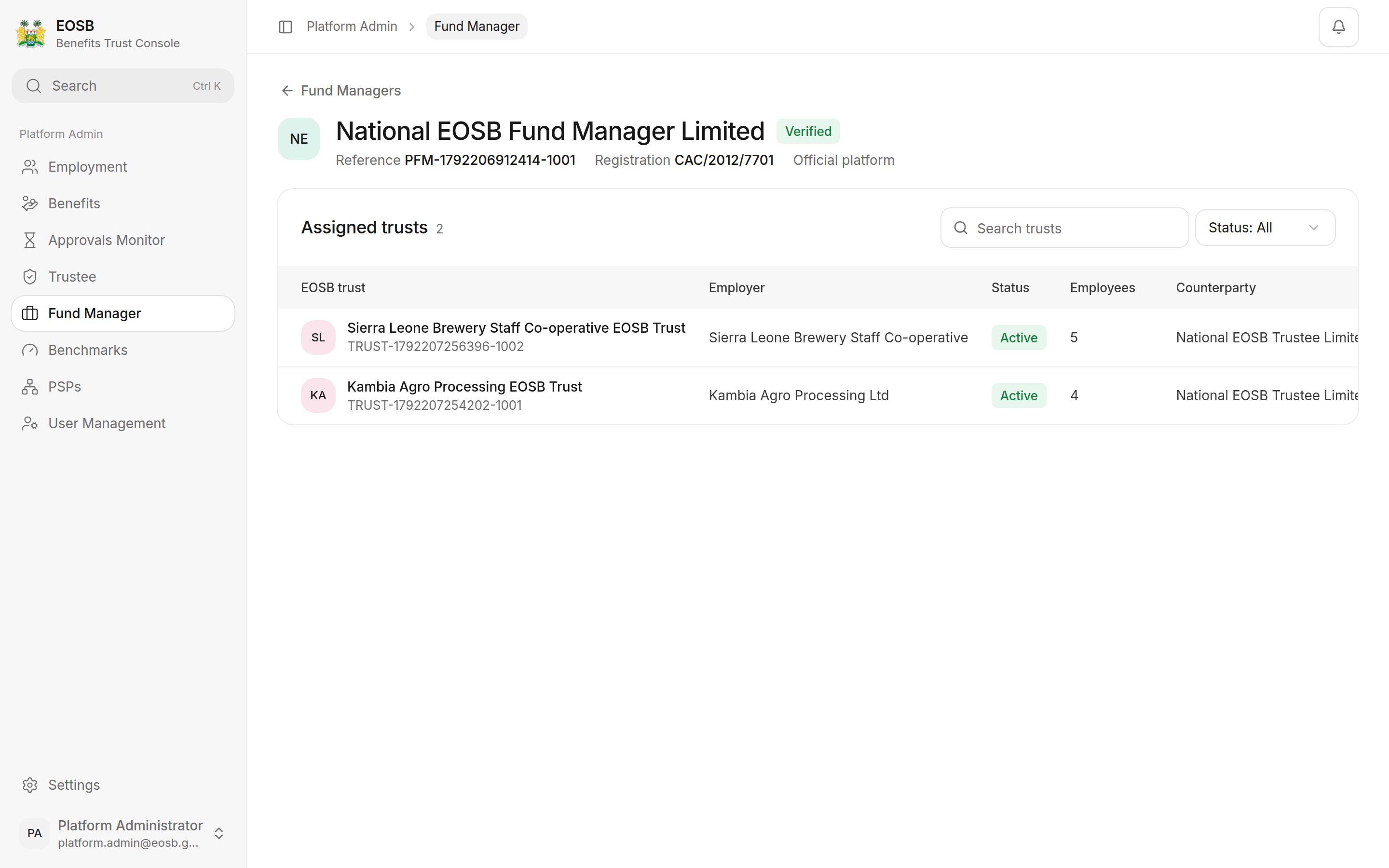
**Open details** lists every EOSB trust the provider is appointed to, with the employer, the number of employees and the provider on the other side.
The menu at the end of each row (1) has:
* **Open details** — the provider and the trusts it serves.
* **Verify** — shown while the registration is pending. It marks the provider verified straight away, without going to the regulator. Use it only when MELSS has asked you to.
* **Complete draft** — shown for a saved draft.
Otherwise the registration waits in the regulator's **Trustee Verification** or **Fund Manager Verification** queue; see [Verify trustees and fund managers](/regulator/provider-verification).
## A provider's trusts
**Open details** lists every EOSB trust the provider is appointed to, with the employer, the number of employees and the provider on the other side.
 ## Give the provider a login
Verifying a trustee or fund manager creates its user account automatically. The username is the provider's reference in lower case, for example `pfm-1792235882388-1001`, and the contact person is emailed a link to set the password. To give the provider more logins, create them under **User Management** on the **Trustee** or **Fund manager** tab; see [User accounts](/admin/users).
This documentation is built and hosted on [Mintlify](https://mintlify.com), a developer documentation platform.
## Give the provider a login
Verifying a trustee or fund manager creates its user account automatically. The username is the provider's reference in lower case, for example `pfm-1792235882388-1001`, and the contact person is emailed a link to set the password. To give the provider more logins, create them under **User Management** on the **Trustee** or **Fund manager** tab; see [User accounts](/admin/users).
This documentation is built and hosted on [Mintlify](https://mintlify.com), a developer documentation platform.