> ## Documentation Index
> Fetch the complete documentation index at: https://docs.eosb.org/llms.txt
> Use this file to discover all available pages before exploring further.
# Work on an employer's behalf
> Register and update employees for an employer, and decide on employee record changes that need approval.
You can do everything an employer does with their employees, for any employer. The forms are the same ones the employer uses, so this page shows where to find them; the employer guide explains each form in detail.
**Where:** **Employment** › **Employees**.
## Choose the employer
Every tab under **Employees** works on one employer at a time.
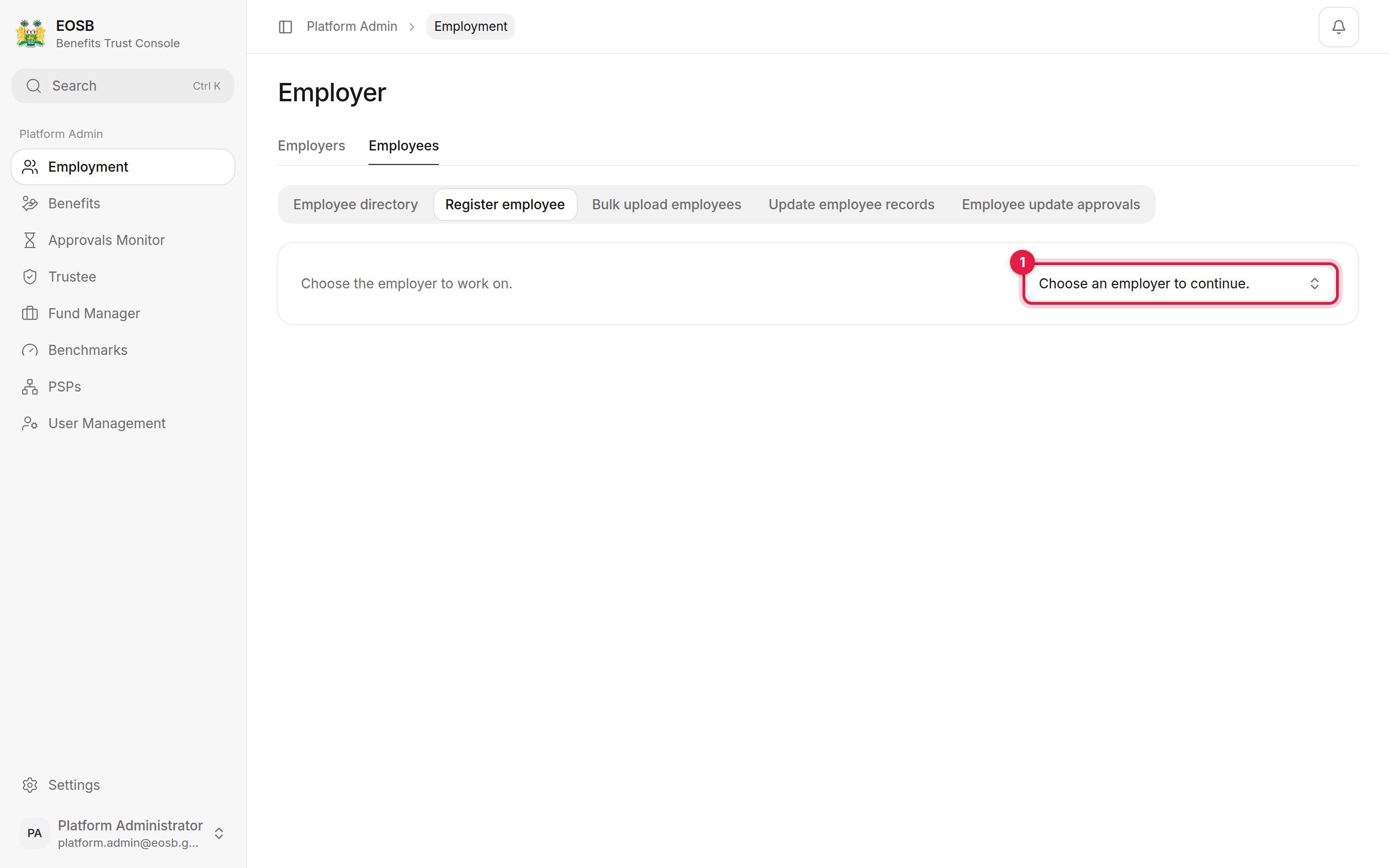 Use the picker (1) on the right. Type to search by name. **Register employee** lists active employers only and waits until you choose one; the other tabs open on the first employer.
## The tabs
| Tab | What it does | Details |
| - | - | - |
| **Employee directory** | The employer's employees, their payment status, opening balance and status. Select **View** to open a record. | [Employee directory](/employer/employees/directory), [Employee record](/employer/employees/employee-record) |
| **Register employee** | Add one employee. | [Register an employee](/employer/employees/register) |
| **Bulk upload employees** | Add many employees from a CSV file. | [Bulk upload](/employer/employees/bulk-upload) |
| **Update employee records** | Change an employee's details, or terminate their employment. | [Update records](/employer/employees/update-records), [Termination](/employer/employees/termination) |
| **Employee update approvals** | Decide on changes that need approval. | Below |
You can reach the same employee screens from an employer's record: **Open employer records**, then **Employee list**.
What you register or change is recorded under your username, not the employer's.
## Decide on employee record changes
Changes to an employee's salary, start date or payment details affect their benefit, so they wait for approval before they apply. They are listed under **Employee update approvals** for the employer you choose.
Use the picker (1) on the right. Type to search by name. **Register employee** lists active employers only and waits until you choose one; the other tabs open on the first employer.
## The tabs
| Tab | What it does | Details |
| - | - | - |
| **Employee directory** | The employer's employees, their payment status, opening balance and status. Select **View** to open a record. | [Employee directory](/employer/employees/directory), [Employee record](/employer/employees/employee-record) |
| **Register employee** | Add one employee. | [Register an employee](/employer/employees/register) |
| **Bulk upload employees** | Add many employees from a CSV file. | [Bulk upload](/employer/employees/bulk-upload) |
| **Update employee records** | Change an employee's details, or terminate their employment. | [Update records](/employer/employees/update-records), [Termination](/employer/employees/termination) |
| **Employee update approvals** | Decide on changes that need approval. | Below |
You can reach the same employee screens from an employer's record: **Open employer records**, then **Employee list**.
What you register or change is recorded under your username, not the employer's.
## Decide on employee record changes
Changes to an employee's salary, start date or payment details affect their benefit, so they wait for approval before they apply. They are listed under **Employee update approvals** for the employer you choose.
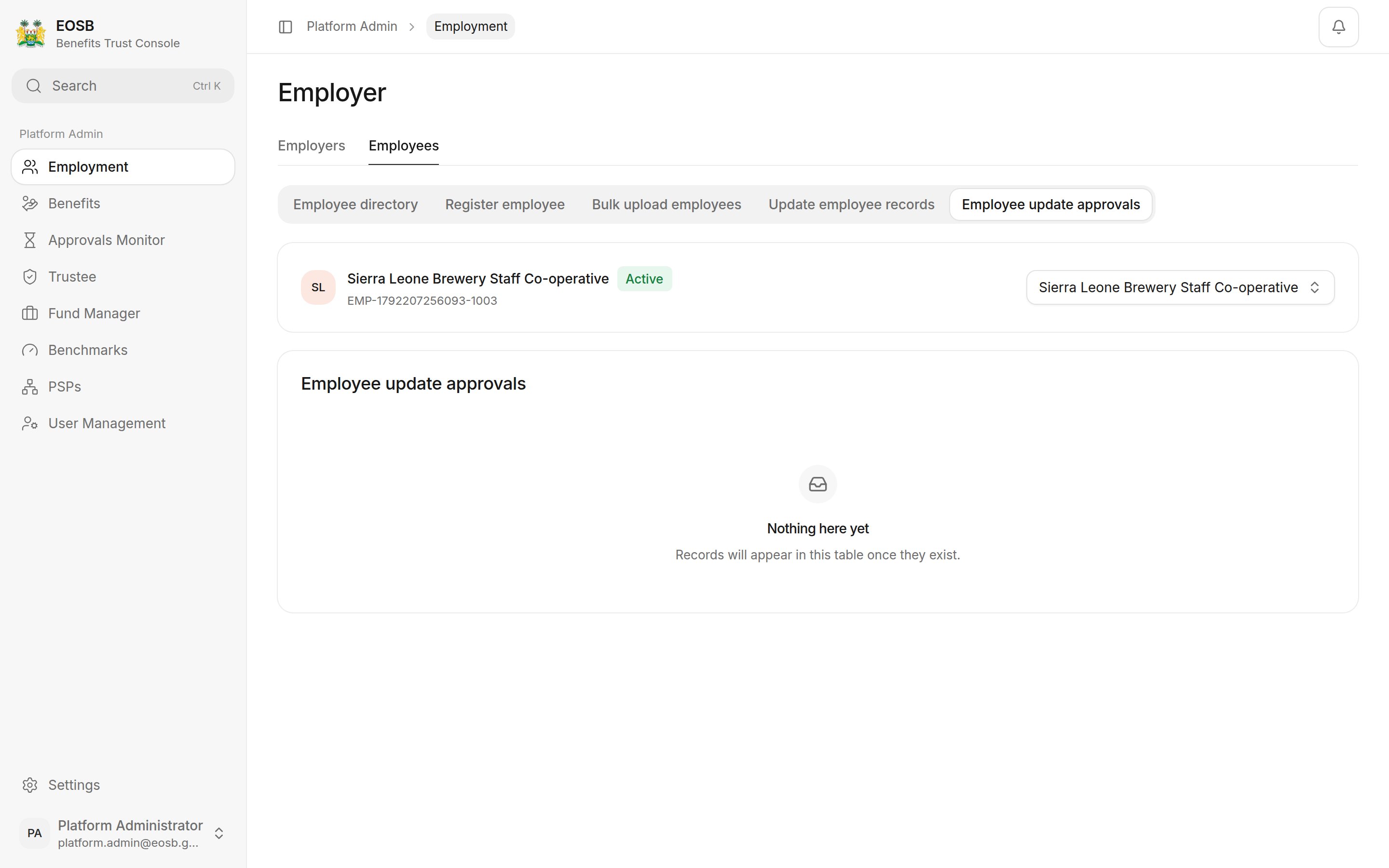 Each request shows the request ID, the employee ID, who asked for it and the **Proposed values**, field by field. For each one:
1. Optionally type a comment.
2. Select **Approve update** to apply the change, or **Reject update** to discard it.
A message confirms the decision, and the employee directory refreshes.
* **Salary or start date** — these change the employee's whole benefit, including past service. Ask the employer for evidence such as a payslip or contract if the change is large.
* **Payment details** — this is where the benefit will be paid. Check the account belongs to the employee.
When you approve, the new values apply and the benefit is recalculated. When you reject, the record stays as it was.
This documentation is built and hosted on [Mintlify](https://mintlify.com), a developer documentation platform.
Each request shows the request ID, the employee ID, who asked for it and the **Proposed values**, field by field. For each one:
1. Optionally type a comment.
2. Select **Approve update** to apply the change, or **Reject update** to discard it.
A message confirms the decision, and the employee directory refreshes.
* **Salary or start date** — these change the employee's whole benefit, including past service. Ask the employer for evidence such as a payslip or contract if the change is large.
* **Payment details** — this is where the benefit will be paid. Check the account belongs to the employee.
When you approve, the new values apply and the benefit is recalculated. When you reject, the record stays as it was.
This documentation is built and hosted on [Mintlify](https://mintlify.com), a developer documentation platform.