> ## Documentation Index
> Fetch the complete documentation index at: https://docs.eosb.org/llms.txt
> Use this file to discover all available pages before exploring further.
# Set up and activate an employer
> Create the employer's EOSB trust, appoint the trustee and fund manager, confirm the bank account and activate the employer.
A verified employer cannot register employees or fund their trust until you activate them. Activation has four parts: the EOSB trust, the trustee, the fund manager and the trust bank account. The employer follows your progress on their own Activation tab.
**Where:** **Employment** › **Overview** › the employer › **Open employer records**. **Before you start:** the regulator must have approved the employer, and the trustee and fund manager you will appoint must be verified. Have the trust bank account details to hand.
## Open the employer
Select **Employment**. Under **Overview**, find the employer (status **Verified inactive**) and select **Open employer records**.
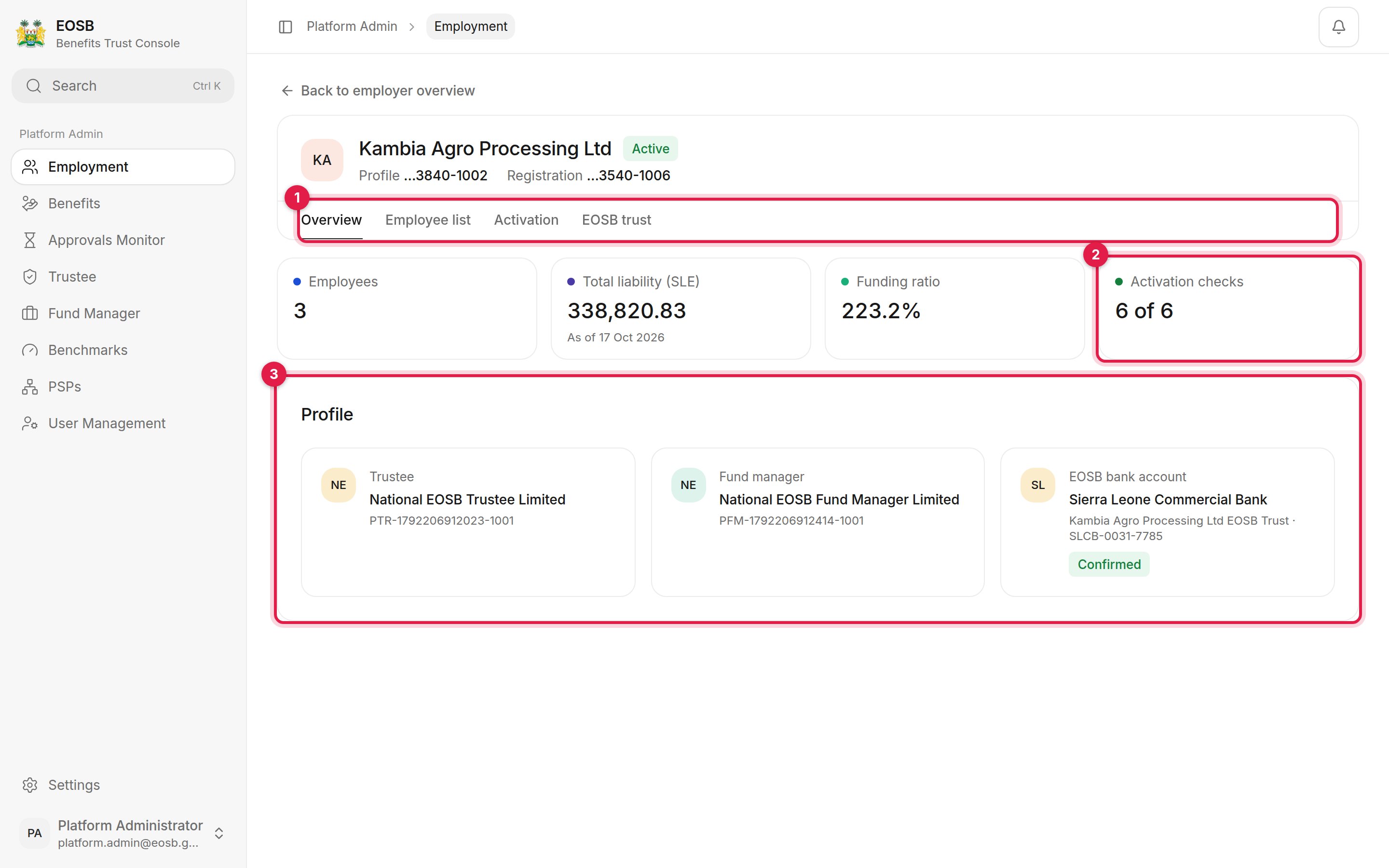 1. The record's tabs: **Overview**, **Employee list**, **Activation** and **EOSB trust**.
2. **Activation checks** — how many of the six readiness checks pass.
3. **Profile** — the appointed trustee and fund manager, and the trust bank account.
## Check what is missing
Select **Activation**. **Readiness** lists the six checks.
1. The record's tabs: **Overview**, **Employee list**, **Activation** and **EOSB trust**.
2. **Activation checks** — how many of the six readiness checks pass.
3. **Profile** — the appointed trustee and fund manager, and the trust bank account.
## Check what is missing
Select **Activation**. **Readiness** lists the six checks.
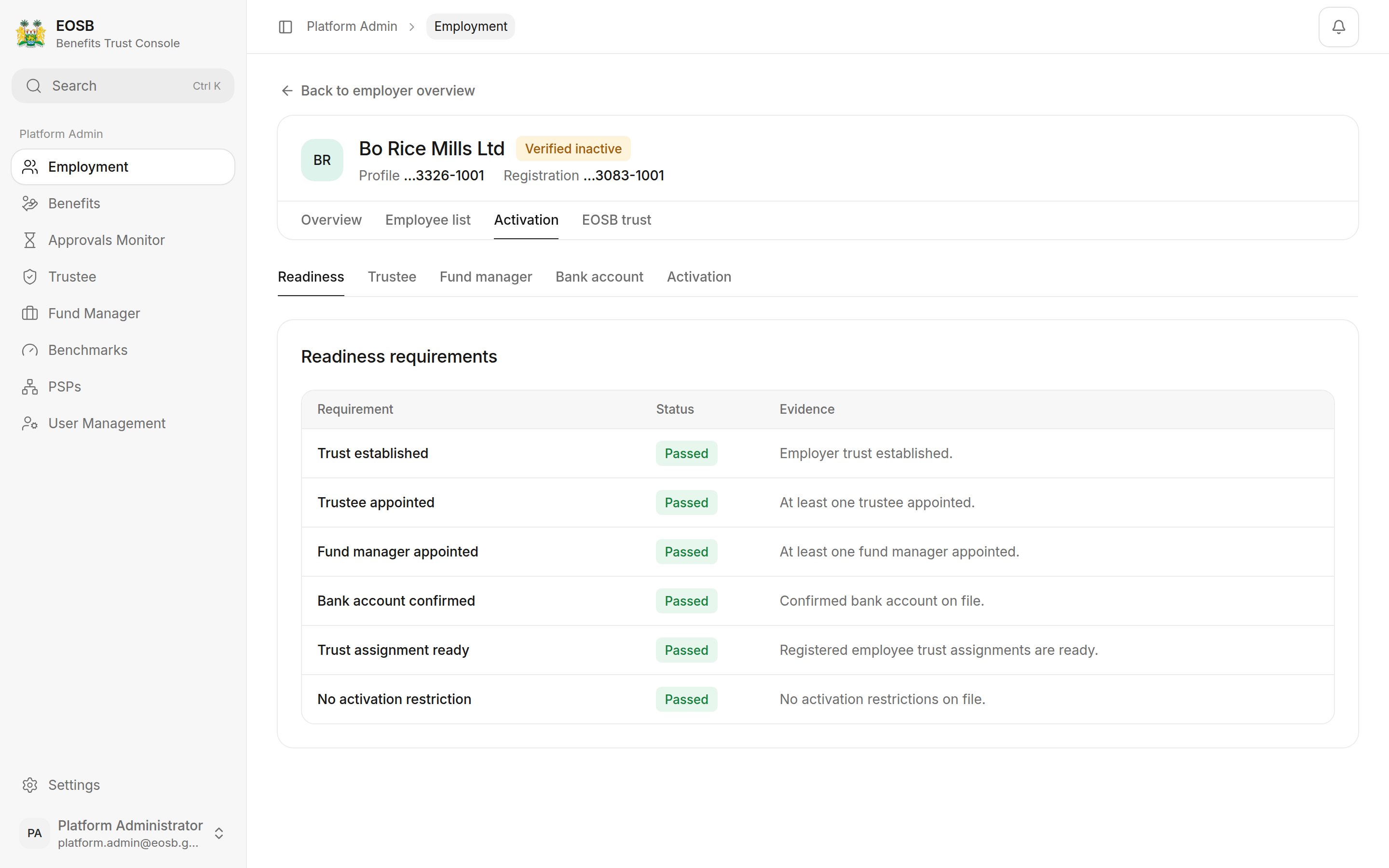 | Check | How it passes |
| - | - |
| Trust established | Create the EOSB trust (below). |
| Trustee appointed | Choose the trustee in the trust, or under **Trustee**. |
| Fund manager appointed | Choose the fund manager in the trust, or under **Fund manager**. |
| Bank account confirmed | Save the trust bank account under **Bank account**. |
| Trust assignment ready | Every registered employee is assigned to a trust. Passes on its own for a new employer. |
| No activation restriction | No restriction is on file. |
## 1. Create the EOSB trust
Select the **EOSB trust** tab.
| Check | How it passes |
| - | - |
| Trust established | Create the EOSB trust (below). |
| Trustee appointed | Choose the trustee in the trust, or under **Trustee**. |
| Fund manager appointed | Choose the fund manager in the trust, or under **Fund manager**. |
| Bank account confirmed | Save the trust bank account under **Bank account**. |
| Trust assignment ready | Every registered employee is assigned to a trust. Passes on its own for a new employer. |
| No activation restriction | No restriction is on file. |
## 1. Create the EOSB trust
Select the **EOSB trust** tab.
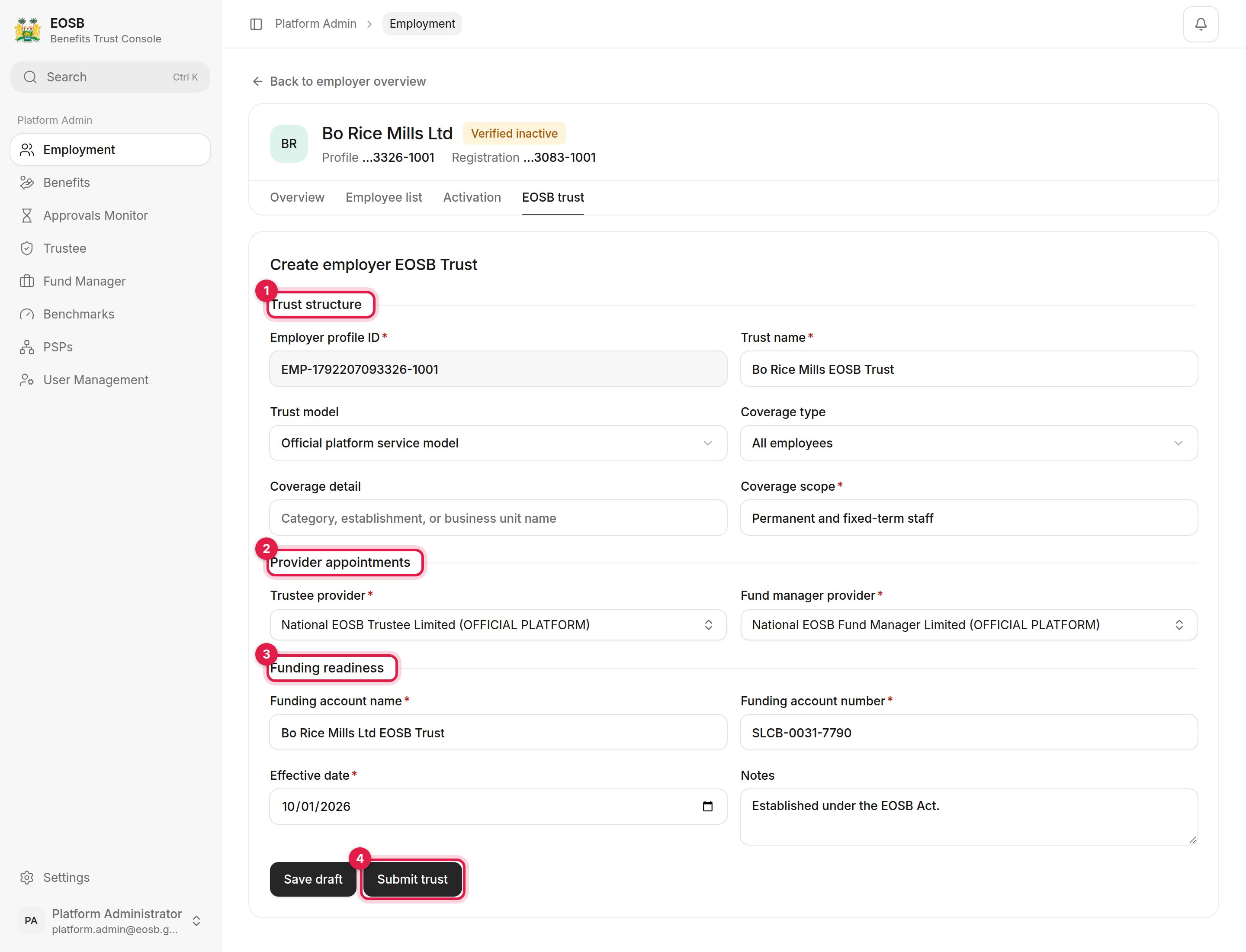 The employer profile ID is filled in. Enter the **Trust name**, for example "Bo Rice Mills EOSB Trust". Keep **Official platform service model** unless the employer has its own trustee arrangement. Choose who the trust covers under **Coverage type** and describe it under **Coverage scope**, for example "Permanent and fixed-term staff".
Choose the **Trustee provider** and **Fund manager provider**. Only verified providers are listed. Type in the box to search.
The **Funding account name** and **Funding account number** of the trust bank account the employer pays into, the **Effective date** of the trust, and any notes.
The form checks the details and shows a summary. **Save draft** keeps the form without creating the trust.
The employer profile ID is filled in. Enter the **Trust name**, for example "Bo Rice Mills EOSB Trust". Keep **Official platform service model** unless the employer has its own trustee arrangement. Choose who the trust covers under **Coverage type** and describe it under **Coverage scope**, for example "Permanent and fixed-term staff".
Choose the **Trustee provider** and **Fund manager provider**. Only verified providers are listed. Type in the box to search.
The **Funding account name** and **Funding account number** of the trust bank account the employer pays into, the **Effective date** of the trust, and any notes.
The form checks the details and shows a summary. **Save draft** keeps the form without creating the trust.
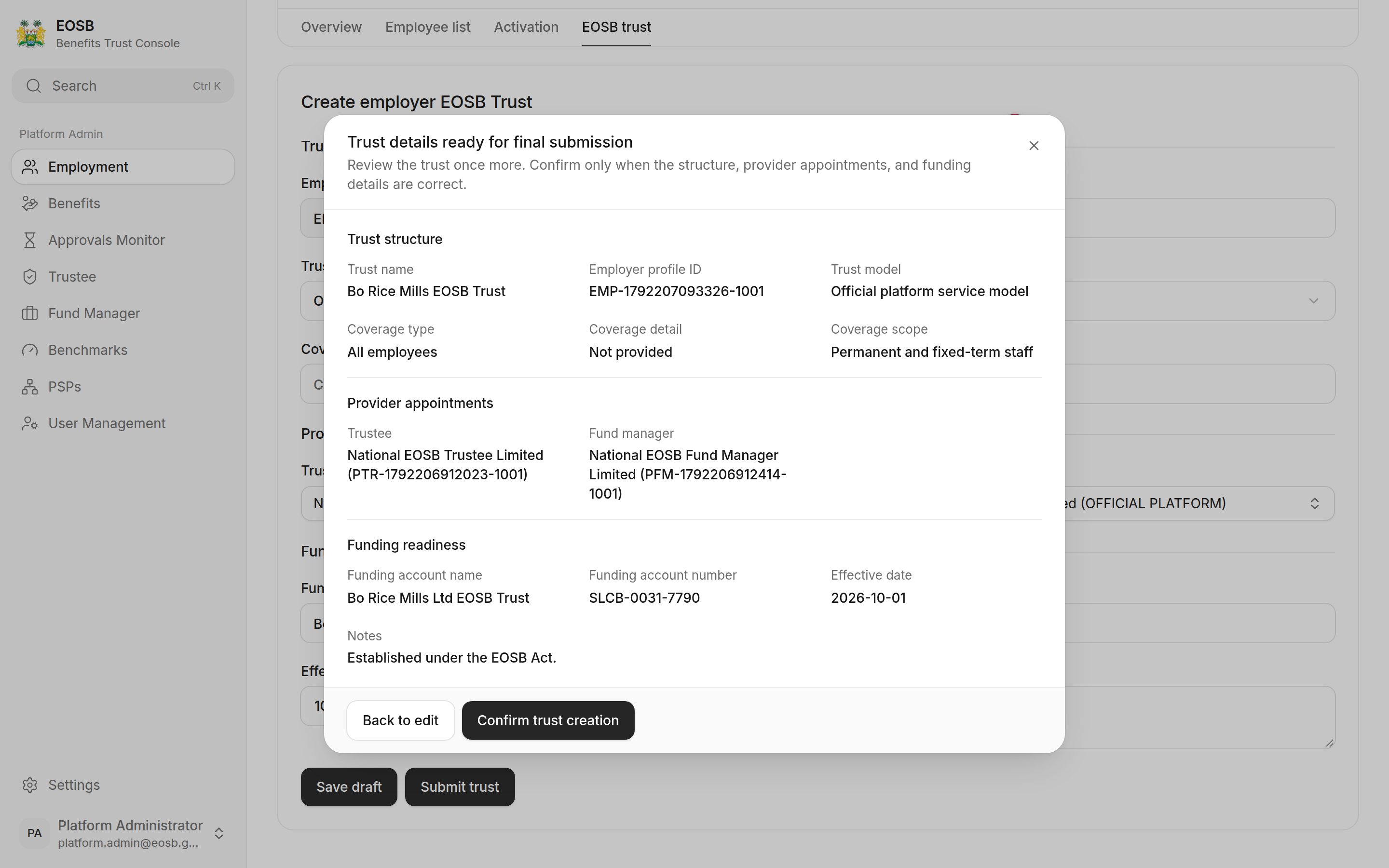 Select **Confirm trust creation** (2). The trust, trustee and fund manager checks now pass.
## 2. Trustee and fund manager
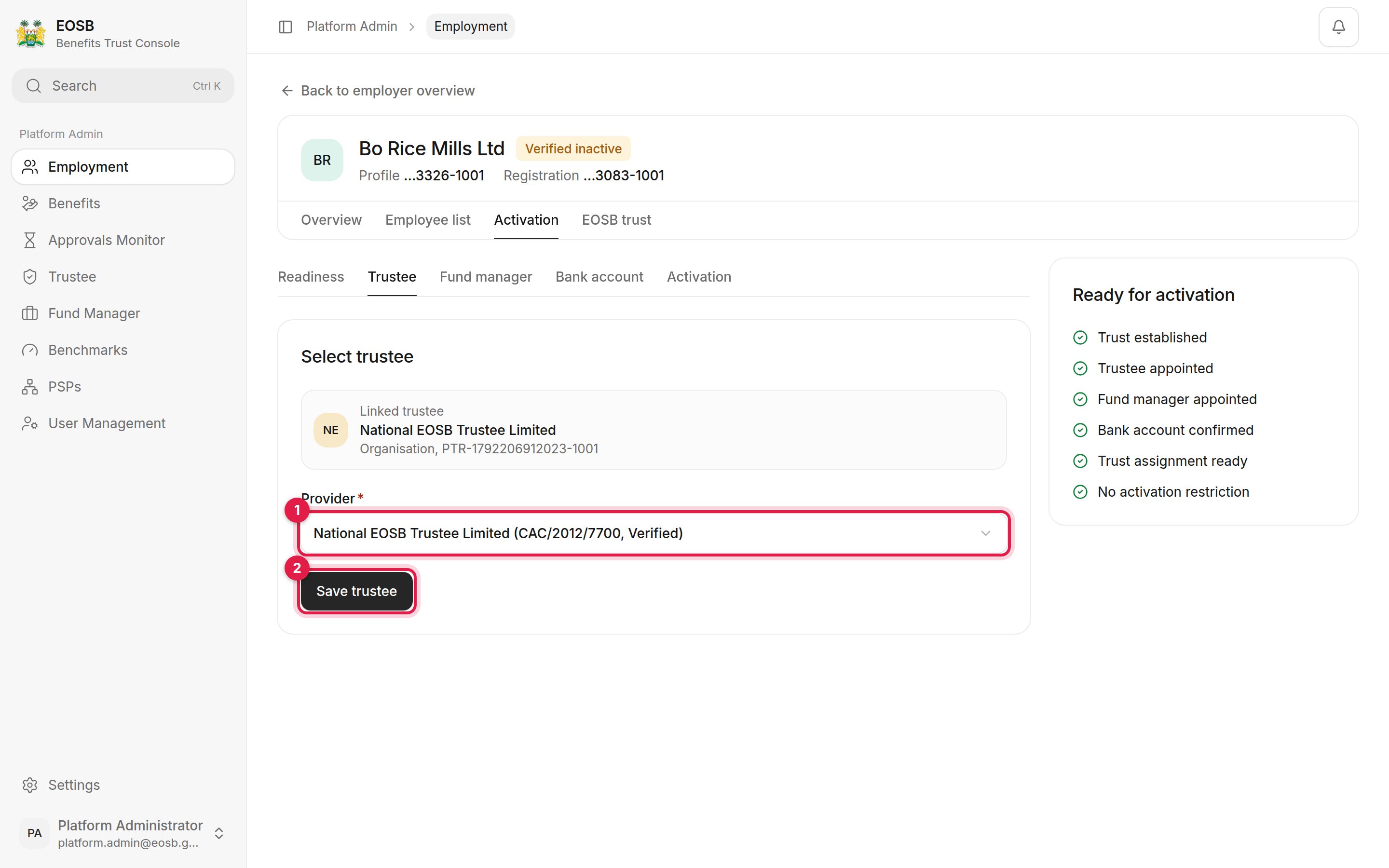
If you chose the providers in the trust, there is nothing more to do. To change a provider later, select **Activation**, then **Trustee** or **Fund manager**, choose the provider (1) and save (2).
Select **Confirm trust creation** (2). The trust, trustee and fund manager checks now pass.
## 2. Trustee and fund manager
If you chose the providers in the trust, there is nothing more to do. To change a provider later, select **Activation**, then **Trustee** or **Fund manager**, choose the provider (1) and save (2).
 ## 3. Confirm the bank account
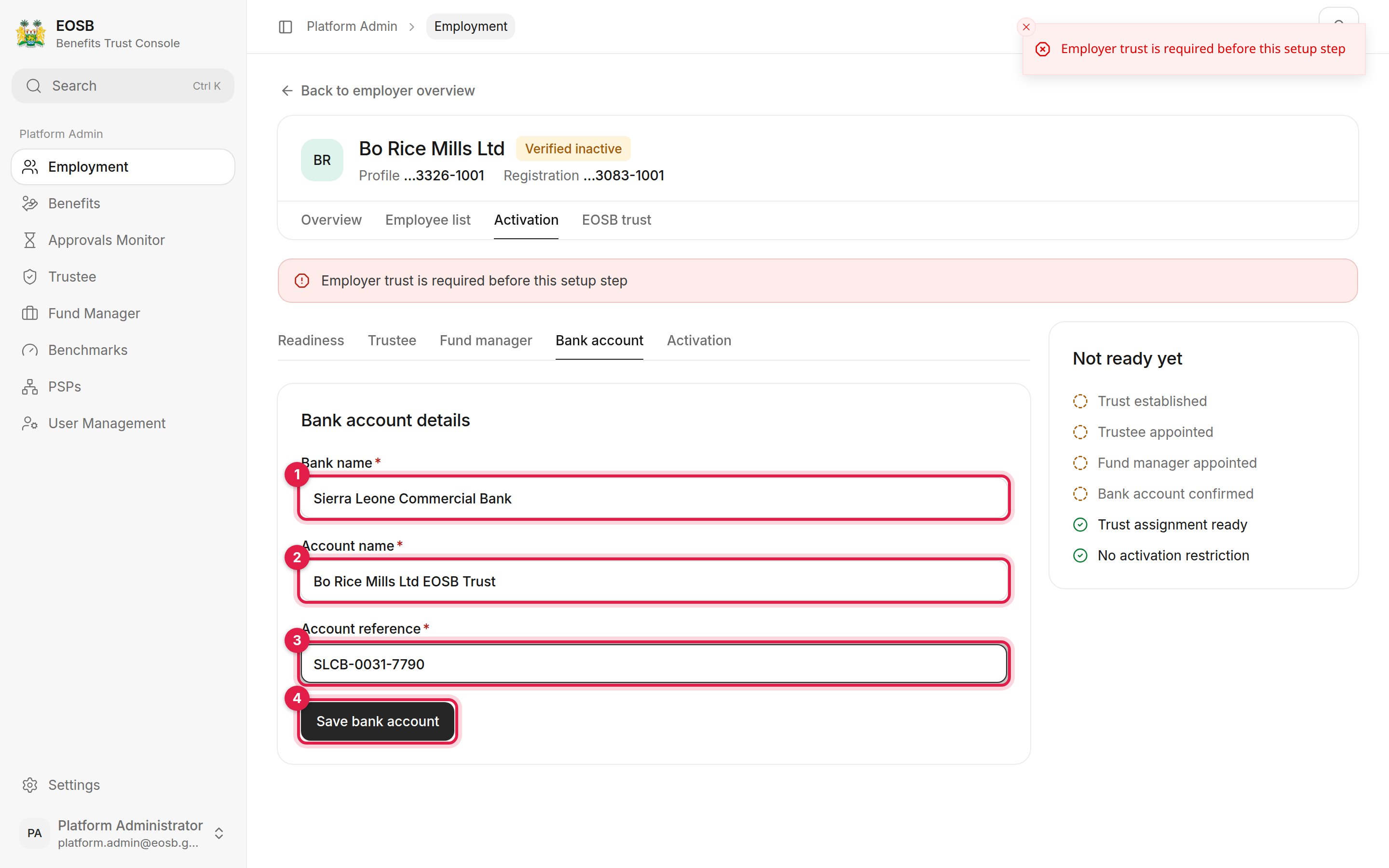
Select **Bank account**, enter the **Bank name** (1), **Account name** (2) and **Account reference** (3) of the trust bank account, and select **Save bank account** (4).
## 3. Confirm the bank account
Select **Bank account**, enter the **Bank name** (1), **Account name** (2) and **Account reference** (3) of the trust bank account, and select **Save bank account** (4).
 ## 4. Activate
Select the **Activation** pane (the last tab under **Activation**).
## 4. Activate
Select the **Activation** pane (the last tab under **Activation**).
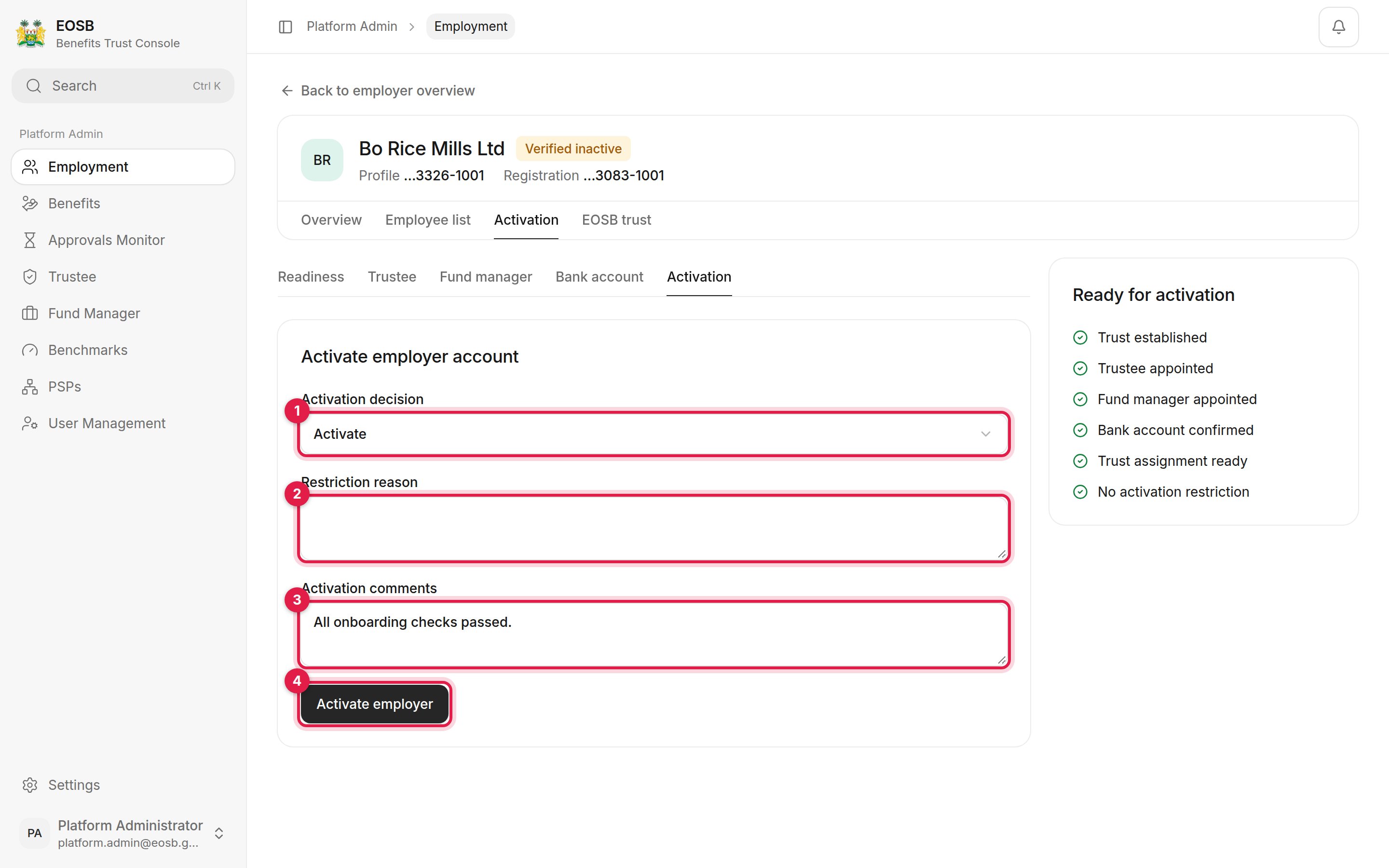 1. **Activation decision** — **Activate**, or activate with restrictions.
2. **Restriction reason** — only when you activate with restrictions.
3. **Activation comments** — kept on the employer's record.
4. **Activate employer** — available once every check passes. The panel on the right shows which checks are still open.
1. **Activation decision** — **Activate**, or activate with restrictions.
2. **Restriction reason** — only when you activate with restrictions.
3. **Activation comments** — kept on the employer's record.
4. **Activate employer** — available once every check passes. The panel on the right shows which checks are still open.
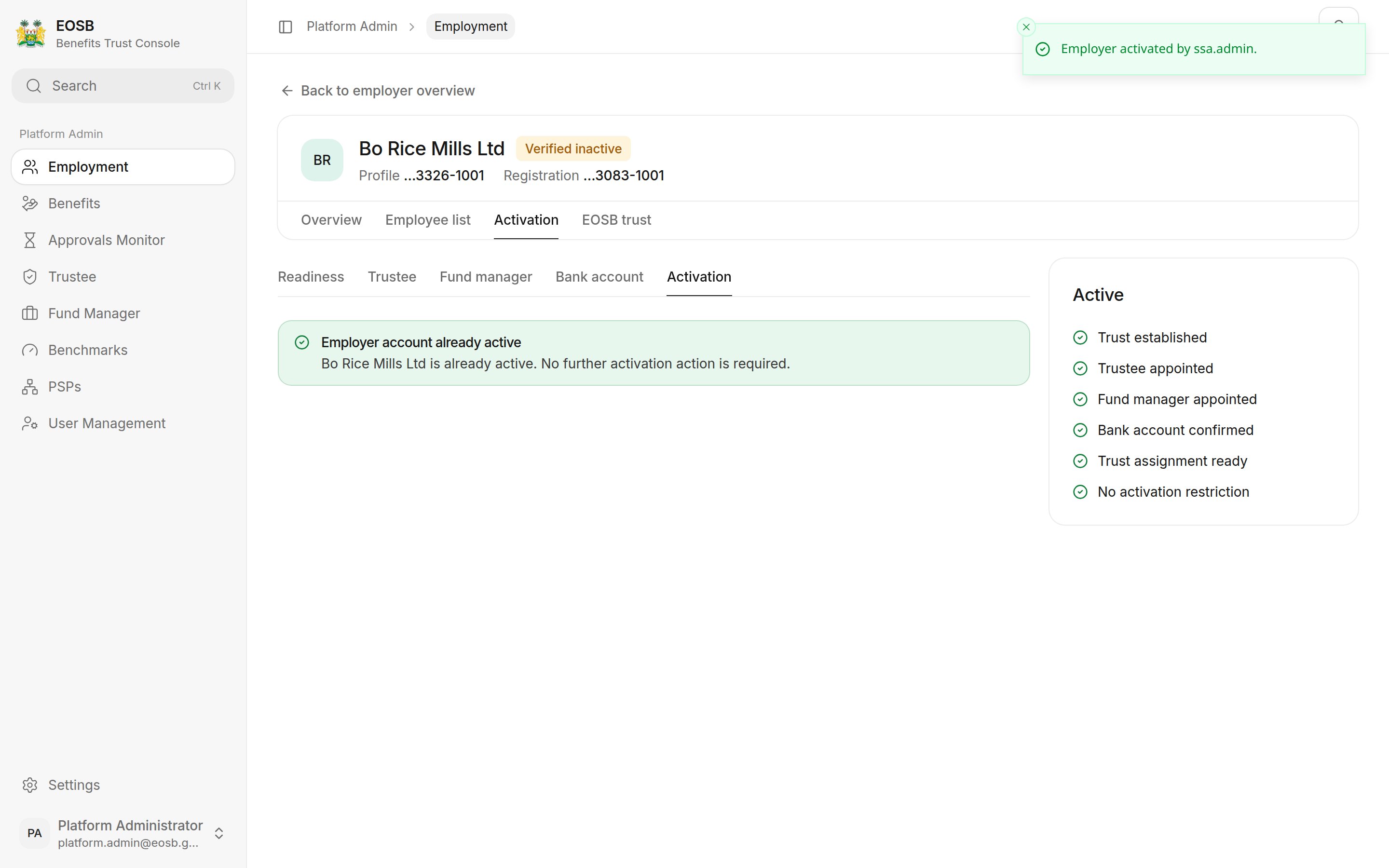 The message **Employer activated by ssa.admin** confirms it. The employer can now register employees and fund their trust.
The status badge at the top of the record keeps showing **Verified inactive** until you leave the record and open it again.
## What happens next
The employer gets an **Employer account activated** notification and can register employees straight away. Each employee is assigned to the trust automatically and their opening balance is calculated. From the next month-end, their benefit accrues every month.
## The trusts list
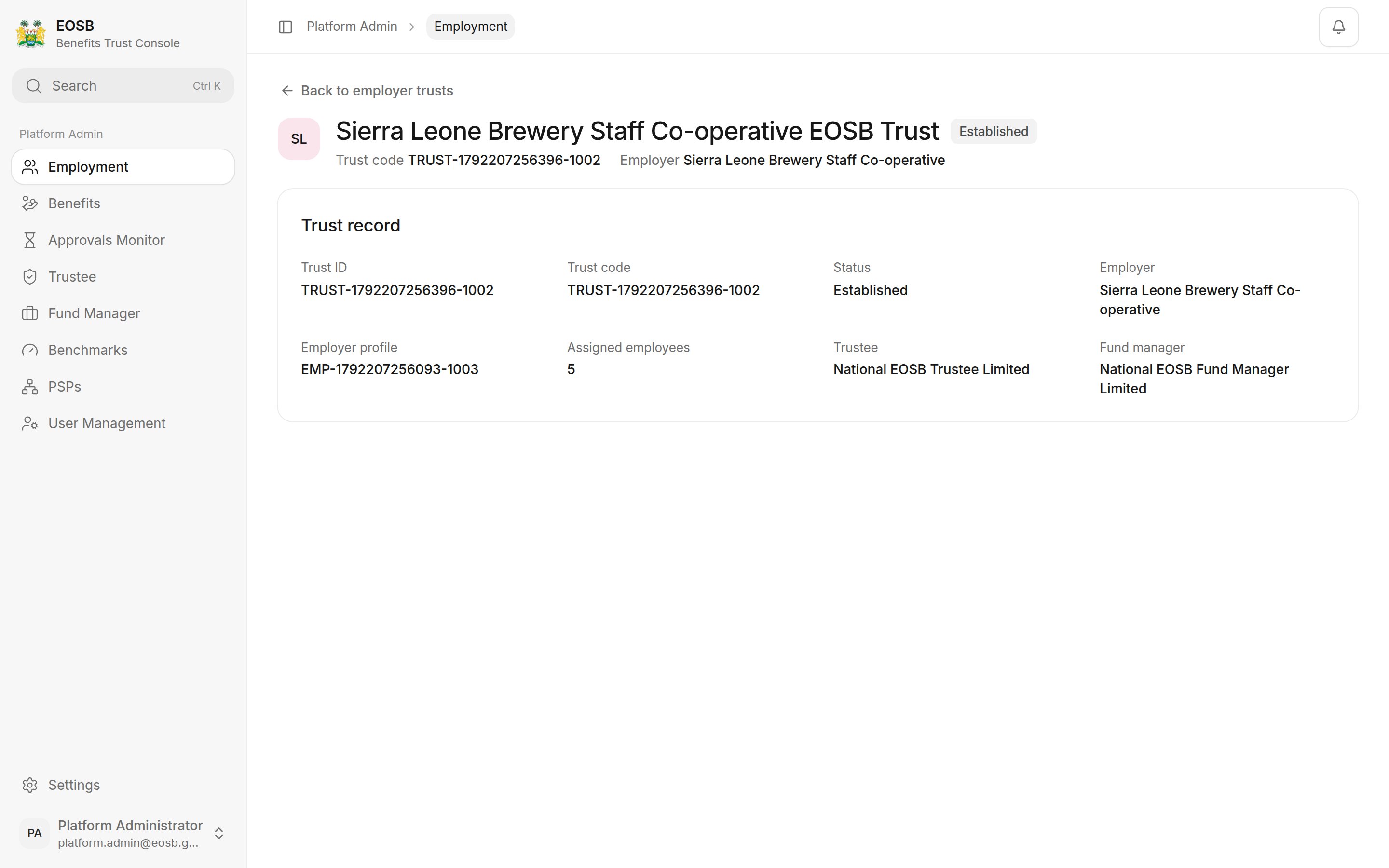
**Employment › Trusts** lists every EOSB trust, its employer, how many employees it covers and its status. **Open trust** shows the trust record with its trustee and fund manager.
The message **Employer activated by ssa.admin** confirms it. The employer can now register employees and fund their trust.
The status badge at the top of the record keeps showing **Verified inactive** until you leave the record and open it again.
## What happens next
The employer gets an **Employer account activated** notification and can register employees straight away. Each employee is assigned to the trust automatically and their opening balance is calculated. From the next month-end, their benefit accrues every month.
## The trusts list
**Employment › Trusts** lists every EOSB trust, its employer, how many employees it covers and its status. **Open trust** shows the trust record with its trustee and fund manager.
 This documentation is built and hosted on [Mintlify](https://mintlify.com), a developer documentation platform.